Chatty Lab
Who can use this feature?
- This feature is available for Pro & Plus plan users.
What is Chatty Lab
Chatty Lab is a chat workspace where you ask an expert agent about your store setup. The agent reads your FAQs, scenarios, products, and recent conversations, then proposes specific fixes.
You stay in control. The agent never changes your settings on its own. It creates a proposal, and the change only happens after you accept it.
How to open Chatty Lab
Chatty Lab opens as a panel on the right side of Chatty. The page you are on stays open next to it, so you can keep working while you chat.
From any page
- Click the round Chatty Lab button on the right edge of the page.
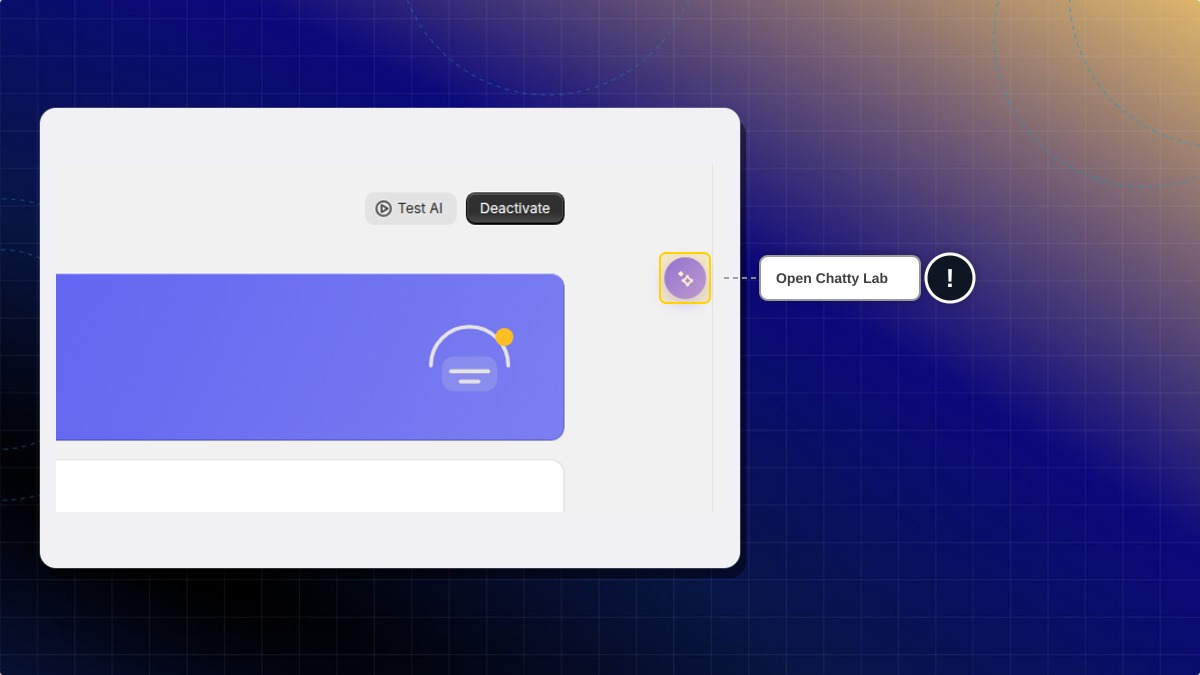
The button does not show on Inbox or on the Inbox settings pages, such as Settings → Inbox settings. You can drag it up or down, or over to the left edge, if it covers something.
From the AI agent page
- Go to AI agent.
- Under How the AI is doing, click Chatty Lab.
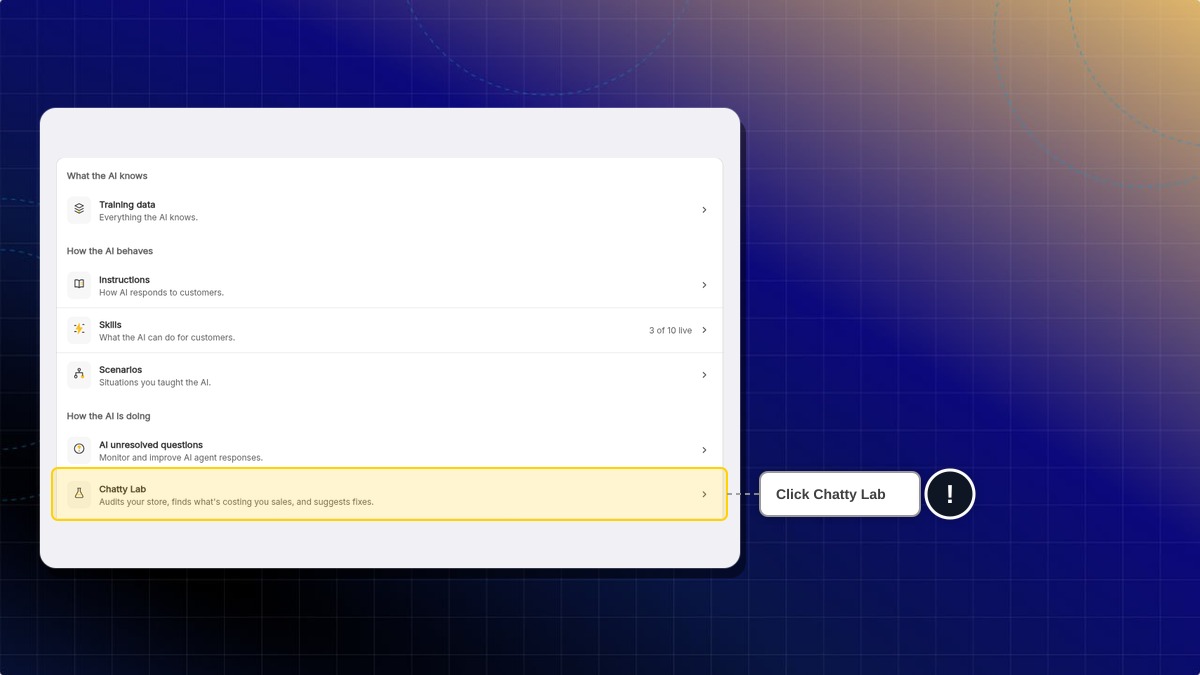
Expected result: The Chatty Lab panel opens. The first time, you see an empty chat with three starter cards. After that, it opens on your last chat.
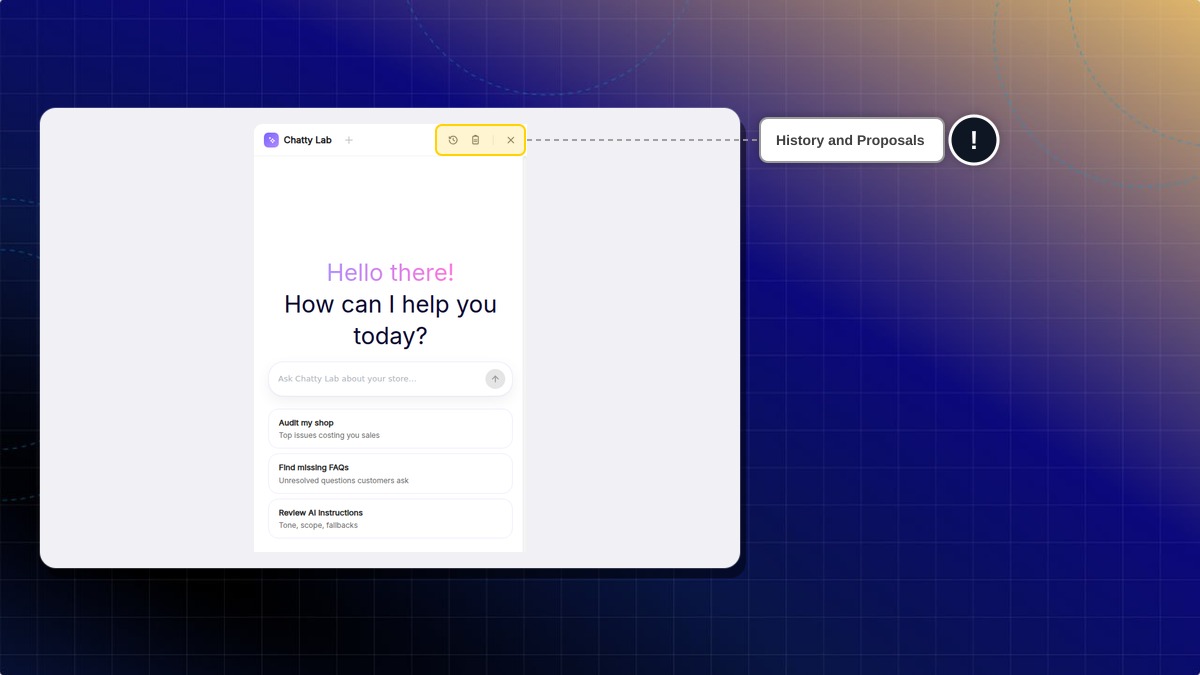
The panel header has three controls:
| Control | What it does |
|---|---|
| + | Starts a new chat |
| History icon | Opens your past conversations |
| Proposals icon | Opens the changes the agent proposed. A number shows how many are pending |
The panel keeps your chat when you move to another page or reload Chatty. To change its width, drag its left edge. Double-click the edge to reset the width. To close it, click X or press Esc.
How to run a store health check
A health check audits your shop data and scores how many customer questions your AI answers. The agent then turns the fixes it finds into proposals.
-
Start from an empty chat. If the chat already has messages, click + in the panel header.
-
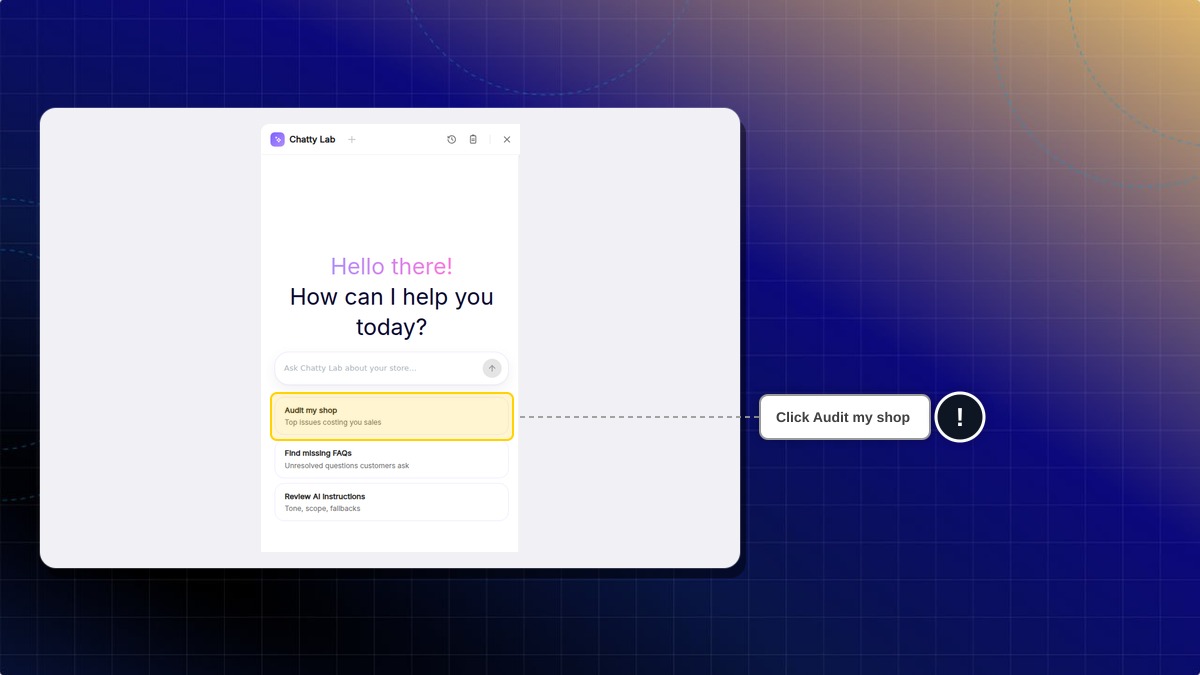
Click the Audit my shop card.
-
Wait for the check to finish. It usually takes 30 to 90 seconds. The result appears as an AI Health Check card inside the chat.
-
Click View report on the card. The full report opens inside the panel.
Expected result: You see a score out of 100 and the share of questions your AI answered this week. The report also shows your conversations this week, unresolved conversations, and a breakdown by topic. The fixes the agent found wait for you in Proposals.
How to ask the agent a question
You can also type a question in your own words. For example, "Why does my AI keep missing shipping questions?" or "Which FAQs should I add first?".
- Type your question in the message box.
- Press Enter.
- Read the answer. If the agent finds something to fix, it creates a proposal. The Proposals icon in the panel header shows how many are pending.
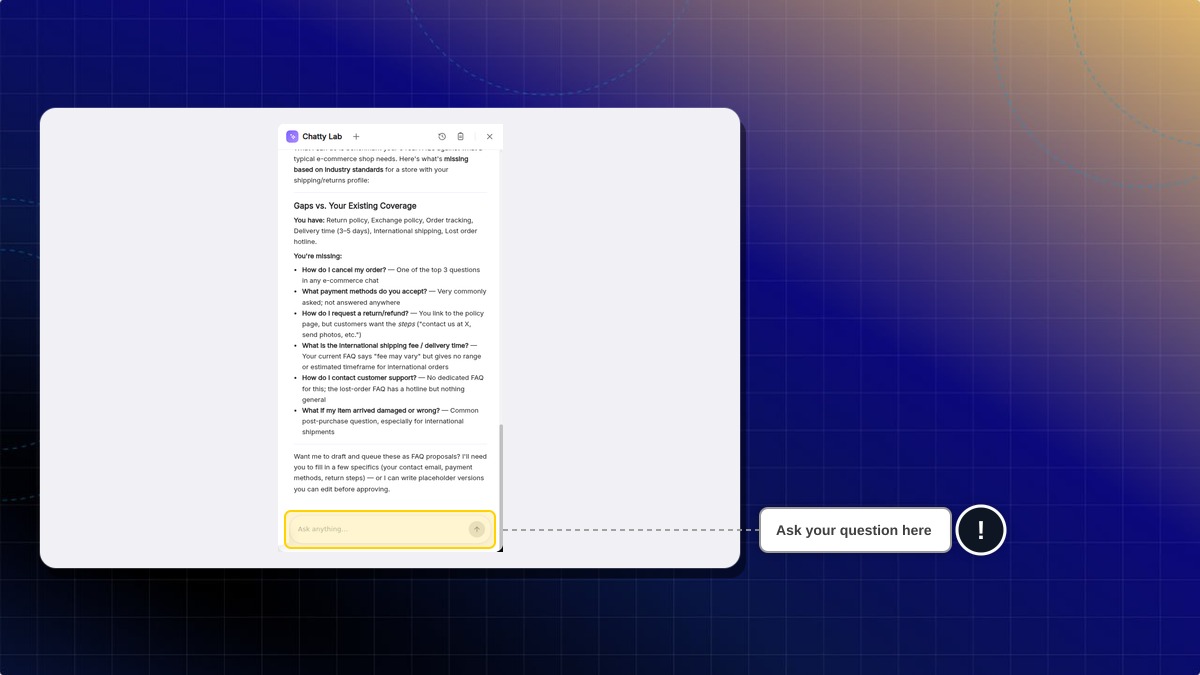
On an empty chat you also get three starter cards: Audit my shop, Find missing FAQs, and Review AI instructions. Click one to send it.
Expected result: The agent answers using your real store data, not generic advice.
How to review and accept a proposal
A proposal is a change the agent wants to make to your AI setup. Each one shows what changes and why.
-
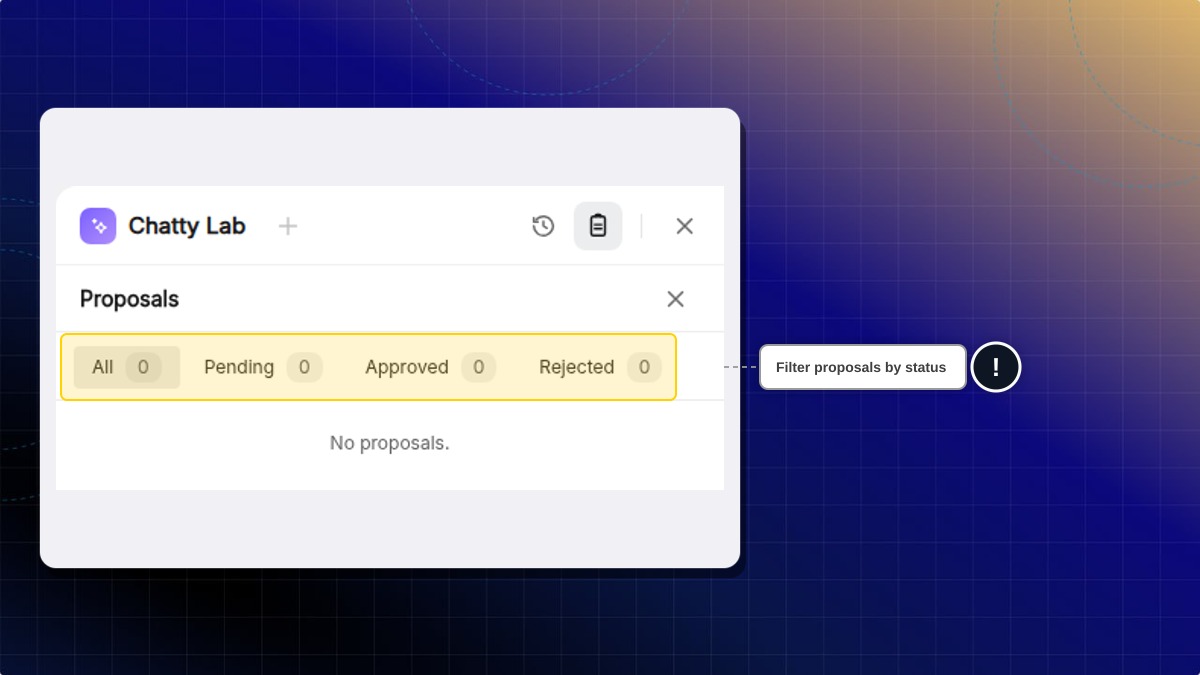
Click the Proposals icon in the panel header.
-
Click the Pending tab. Pending proposals are already open.
-
If the proposal edits something you already have, click Show changes to see the before and after values.
-
Click Accept to apply the change. Or click Reject, add a reason if you want, and confirm.
Expected result: Accepted proposals move to the Approved tab. Rejected ones move to the Rejected tab.
New FAQs, FAQ edits, AI instruction changes, and feature changes take effect as soon as you accept them. A change to a scenario you created works differently. Accepting it saves the edit as a pending revision, and your live scenario keeps running as it is.
If you have more than one pending proposal, an Accept all button appears next to the tabs. It applies every pending proposal in one click.
There is no undo inside Chatty Lab. To reverse a change, edit the FAQ, scenario, or instruction directly on its own page. To change a scenario you created right away, edit it on its own page too.
What a proposal can change
| Proposal | What it does |
|---|---|
| New FAQ | Adds a question and answer to a category you already use |
| Update FAQ | Rewrites the question or answer of an existing FAQ, or moves it to another category |
| Update scenario | Changes a scenario's name, instruction, or the customer requests it matches, or turns it on or off. Default scenarios can only be turned on or off, except Size guide, which also takes a new name or instruction |
| Update AI instructions | Edits your AI's name, role, tone, boundaries, custom instructions, or welcome messages |
| Enable feature | Turns an AI feature on or off, such as order tracking or size guide |
Slash commands
Type / in the message box to open the command list.
| Command | What it does |
|---|---|
/new | Starts a new conversation |
/history | Opens your recent conversations |
/help | Shows the available commands |
To run a health check, click Audit my shop on an empty chat, or ask the agent to audit your shop.
Do I have to accept every proposal?
No. Reject anything that does not match how you run your store. Rejecting does not delete data, it only closes the proposal.
How long does a pending proposal stay open?
It stays open until you accept or reject it. There is no deadline, so you can still accept a proposal that has waited for weeks.
What if a proposal fails to apply?
The card says the proposal failed to apply. After you reopen the chat, it is marked Failed and shows under the All tab. Ask the agent in the chat to propose a corrected version.
Why does Proposals show nothing after I start a new chat?
The Proposals icon only lists the proposals from the chat you have open. To see older ones, open that chat from the History icon.
Can I get back to an earlier Chatty Lab conversation?
Yes. Click the History icon in the panel header, or type /history. Search by title if you need to, then pick the conversation you want.
Can staff members accept proposals?
Yes. Anyone on your team who can open Chatty Lab can accept or reject proposals. The panel is not read-only for staff.
Does Chatty Lab talk to my customers?
No. Chatty Lab is an admin-only workspace. Your customers never see it, and nothing you type there is sent to the chatbox.
 Chatty Help Center