Add category
What is category?
Category helps grouping questions in the same topic.
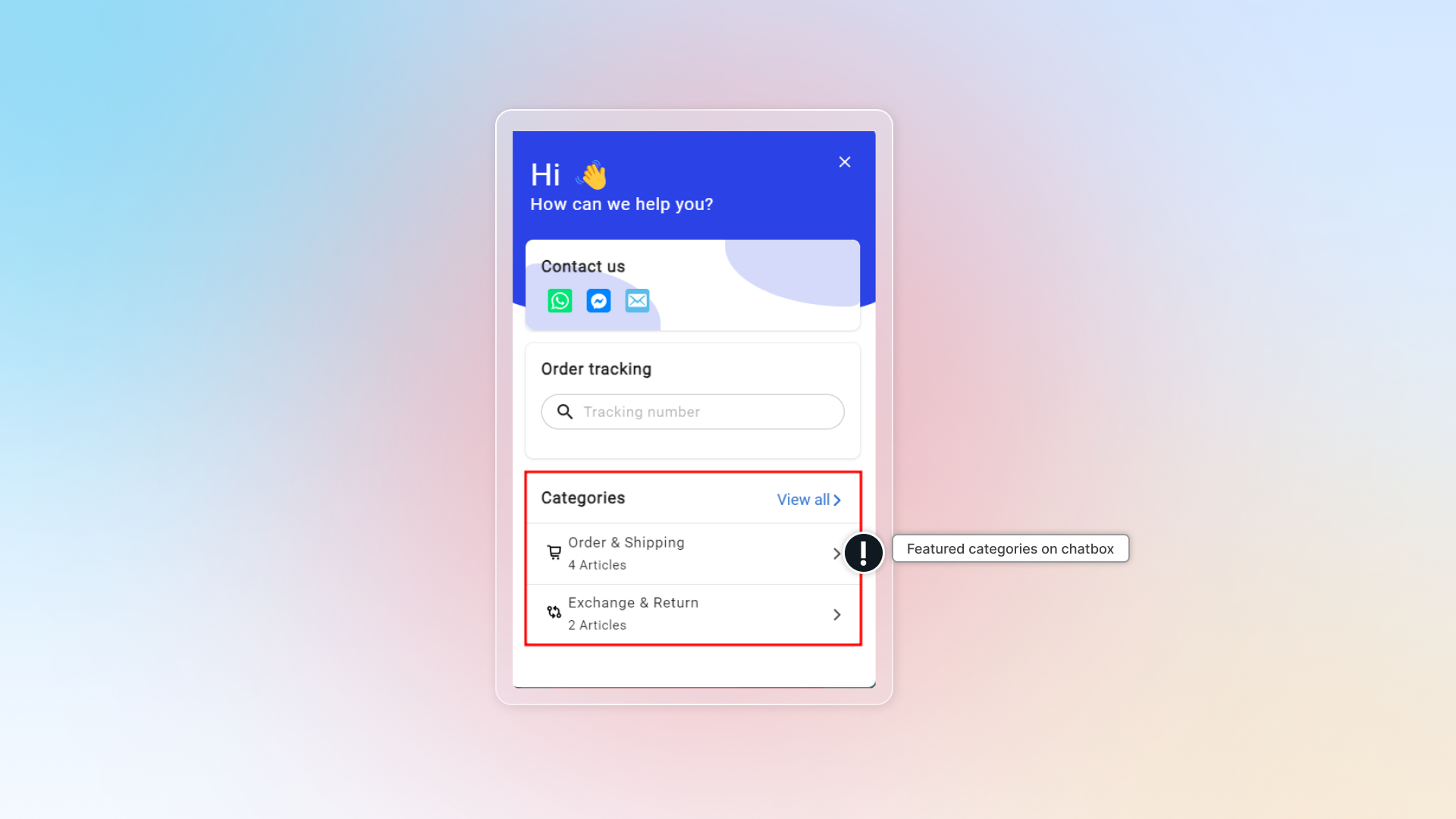
In default, we have 2 categories (with questions) which are popular for Shopify users:
- Order & Shipping
- Exchange & Return
You can edit, add more questions and delete categories.
Add new category
Go to FAQs
Create category
Click Add new → Click Add category
Enter information for category
- Category name: Title of Category displayed in the FAQ page
- Icon: Select a relevant icon that helps users understand your content. Chatty shows the first three built-in icons — click View more to see all 15. You can upload your own icon, or pick the crossed-out option to show no icon at all.
- Position: Position of the Category in the FAQ page from top to bottom
- Status: Keep the category Published or Draft
- Feature category: Show this category on the first page of the FAQs chatbox. If off, it only appears when a customer views all categories.
- Visibility: Choose which markets and customers see this category. Learn how to show a category to certain markets or customers.
If you enable featured for 2 categories, the one with higher position will be placed first.
Click Save
How to show a category to certain markets or customers
You can show a category only to shoppers in certain Shopify Markets, or only to logged-in customers with certain tags. Shoppers outside the rule don't see the category on your FAQs page, FAQs block, or chatbox.
Visibility is available on Pro and Plus plans. On other plans, you see an Upgrade to Pro button instead of the fields.
-
Go to FAQs → Manage FAQs.
-
Click Add new → Add category.
-
Under Visibility, tick the markets that should see this category. Example: tick vn for a Vietnam-only shipping category.
-
In Customer tags, type the tags, separated by commas. Example:
wholesale, vip. -
Click Save.
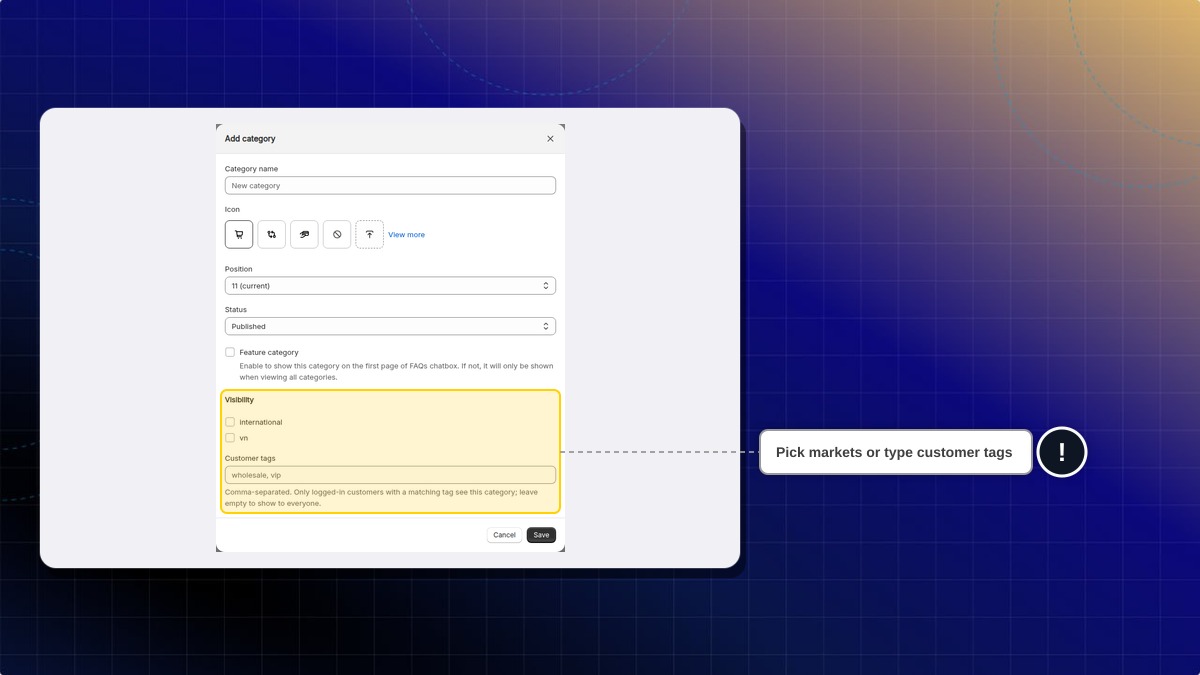
Expected result: Only shoppers in the markets you ticked see the category. If you added tags, only logged-in customers with one of those tags see it. A field you leave empty does not limit anyone.
Why don't I see any markets under Visibility?
Your store has only one Shopify Market. Market choices appear when you sell in two or more markets. You can still use Customer tags.
What happens if I set both markets and customer tags?
The shopper must match both. They need to be in one of the ticked markets and have one of the tags.
Can guests see a category that has customer tags?
No. Only logged-in customers with a matching tag see it. Tags are not case sensitive, so VIP matches vip.
Does the AI agent follow these rules?
Yes, for markets. Your AI only uses FAQs from categories open to the shopper's market. Customer tags only control what shoppers see on the FAQs page, FAQs block, and chatbox.
Can I change visibility on a category I already have?
Yes. Edit the category, and the same Visibility fields appear.
Default category
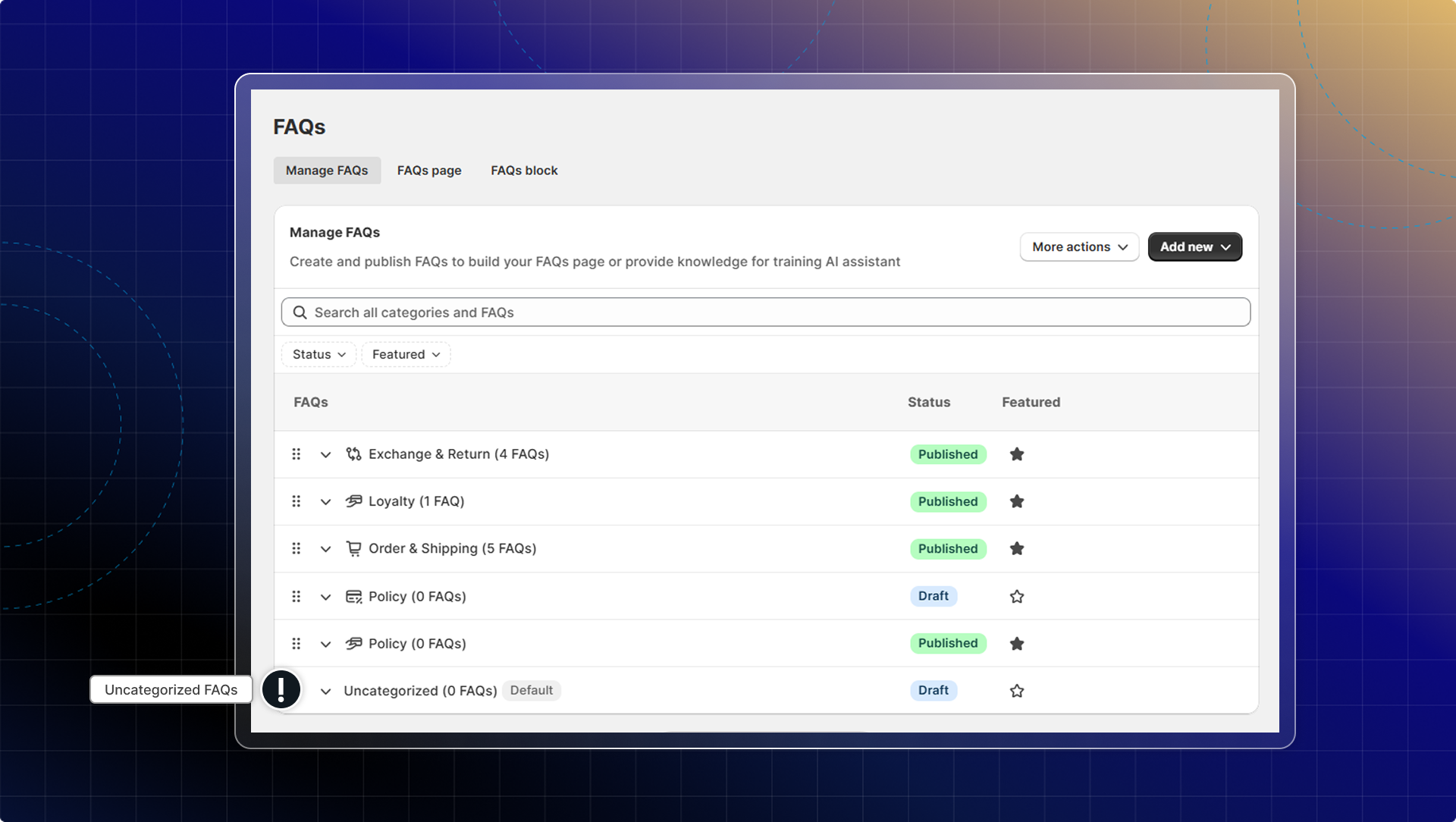
The Uncategorized category is created automatically for every Chatty store. You'll recognize it by the "Default" badge next to its name in the category list.
It works like any other category, with two differences:
- It can't be deleted. It's always available as a fallback.
- FAQs move there automatically. When you delete a category, all FAQs in that category are instantly reassigned to Uncategorized — nothing is lost.
Assign a FAQ to Uncategorized manually
If you're editing a FAQ and want to move it out of its current category without assigning it to a new one:
- Go to FAQs → Manage FAQs.
- Find the FAQ you want to edit and click Edit.
- In the Category dropdown, select Uncategorized.
- Click Save.
The FAQ will now appear under the Uncategorized category on your storefront.
Manage category
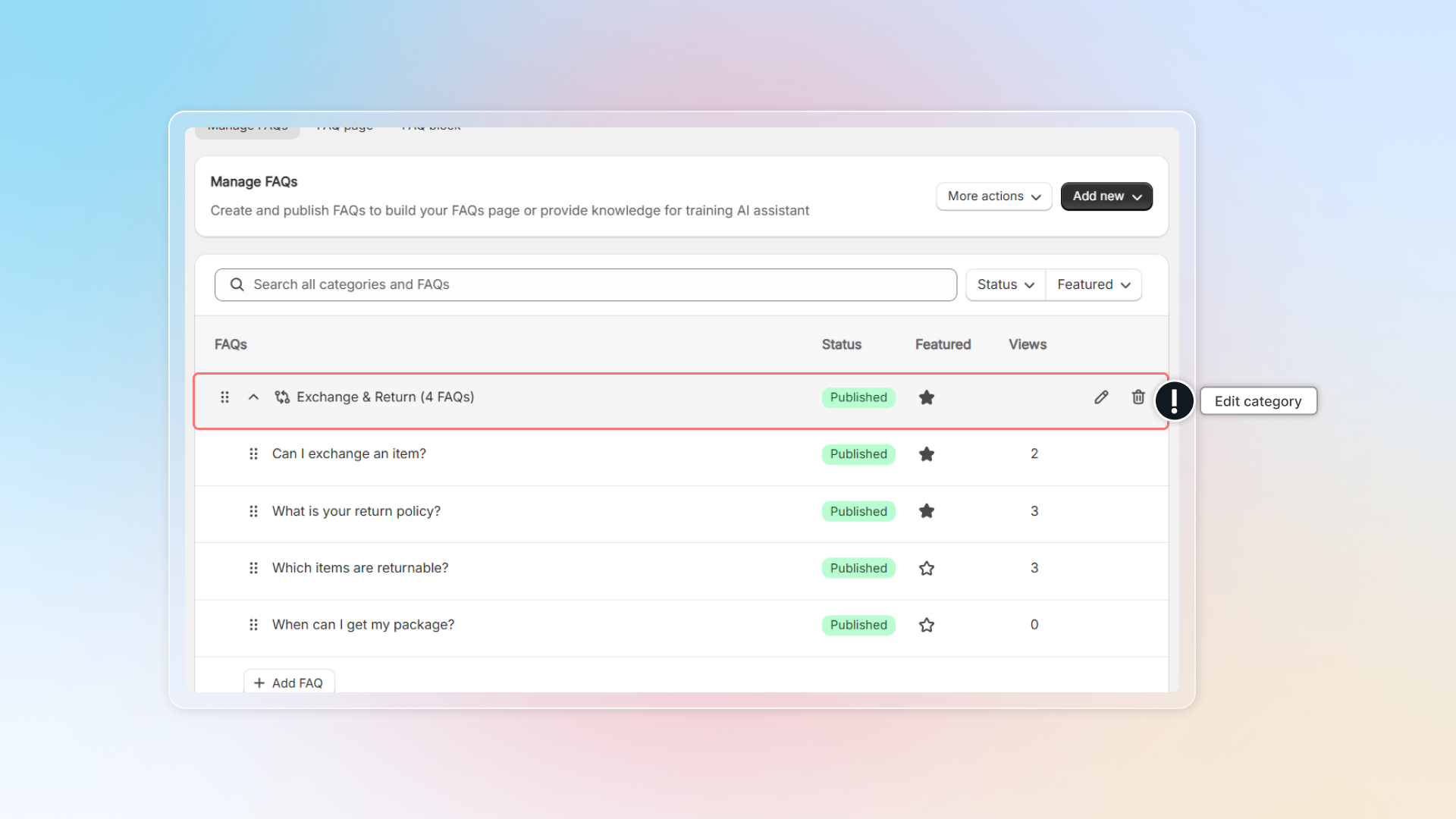
- To edit category, hover on that category and click the edit icon
- To delete category, hover on that category and click the delete icon
- Change position of category by dragging it to new position
- Star or unstar category to make it featured
What happens when you delete a category
When you delete a category that contains FAQs:
- Chatty detects that FAQs would become uncategorized.
- All affected FAQs are automatically moved to the Uncategorized category.
- The FAQs remain visible on your storefront under the Uncategorized category.
- You can reassign them to a new or existing category at any time.
Existing categories and FAQs are not affected by this change — everything you've already set up stays exactly as it is.
 Chatty Help Center