Others
Resolve conversations
This moves the conversation out of your "Open" list and to "Resolved" list. This helps with:
- Keep your inbox organized
- See which customers need help
- Track finished conversations
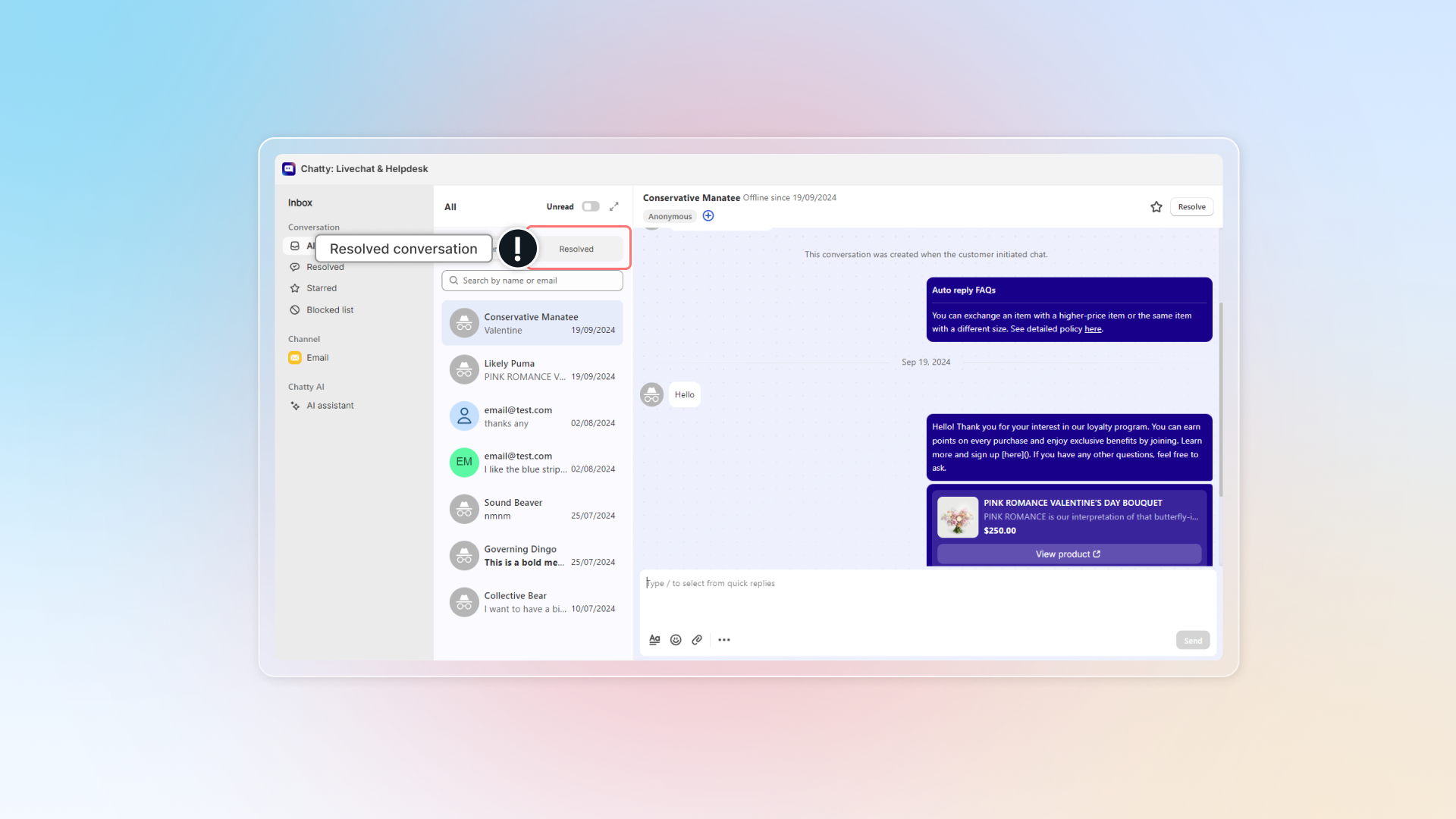
How to resolve conversations?
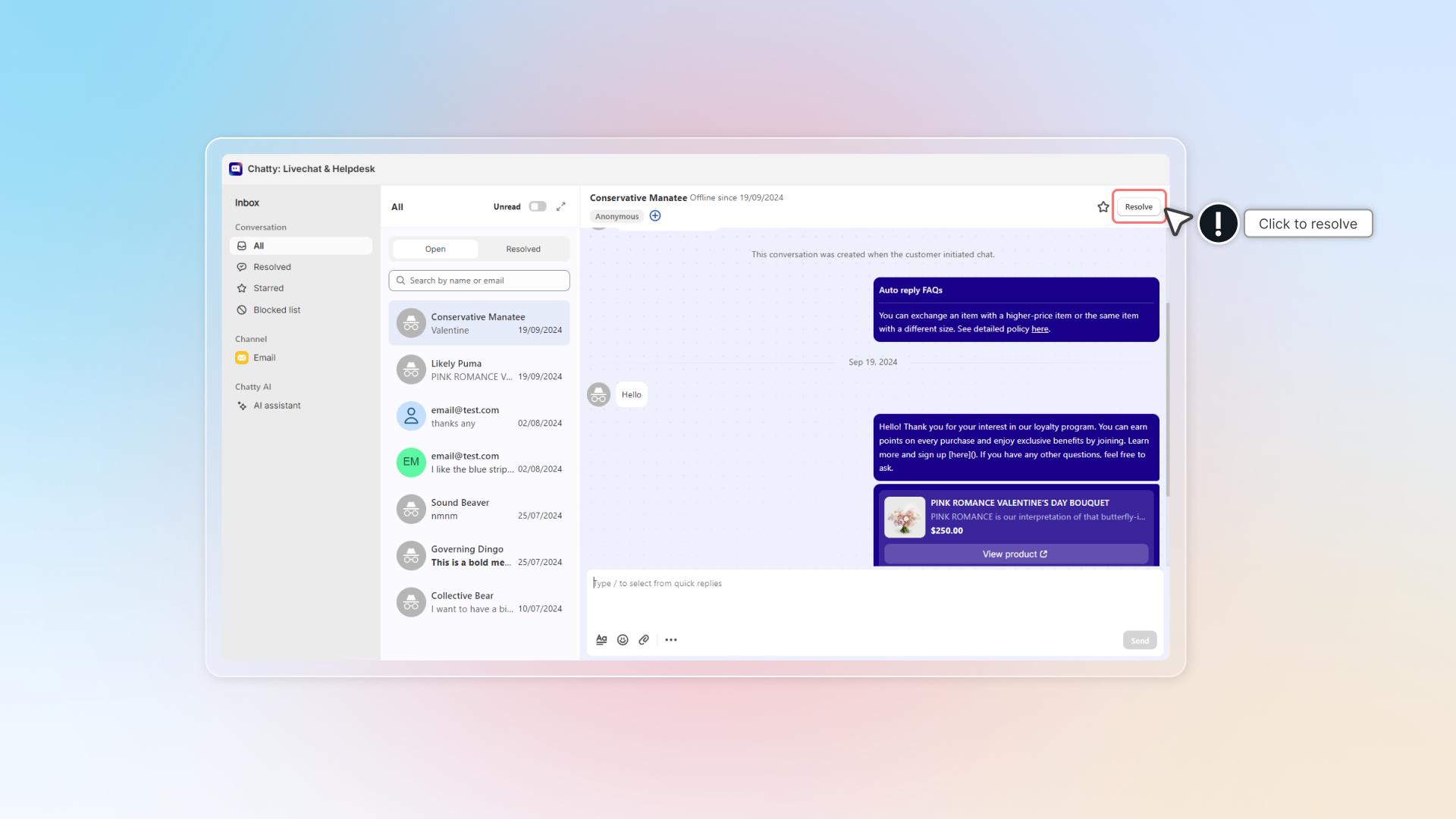
🅰️ Manually
- Go to the conversation in your Inbox
- Click Resolve in the chat
- The conversation moves to Resolved
🅱️ Automatically
How automatic resolution works:
- The timer starts from the last message your team sent
- If the customer does not reply within the time you set, the conversation is resolved
- They can send a new message to reopen the chat
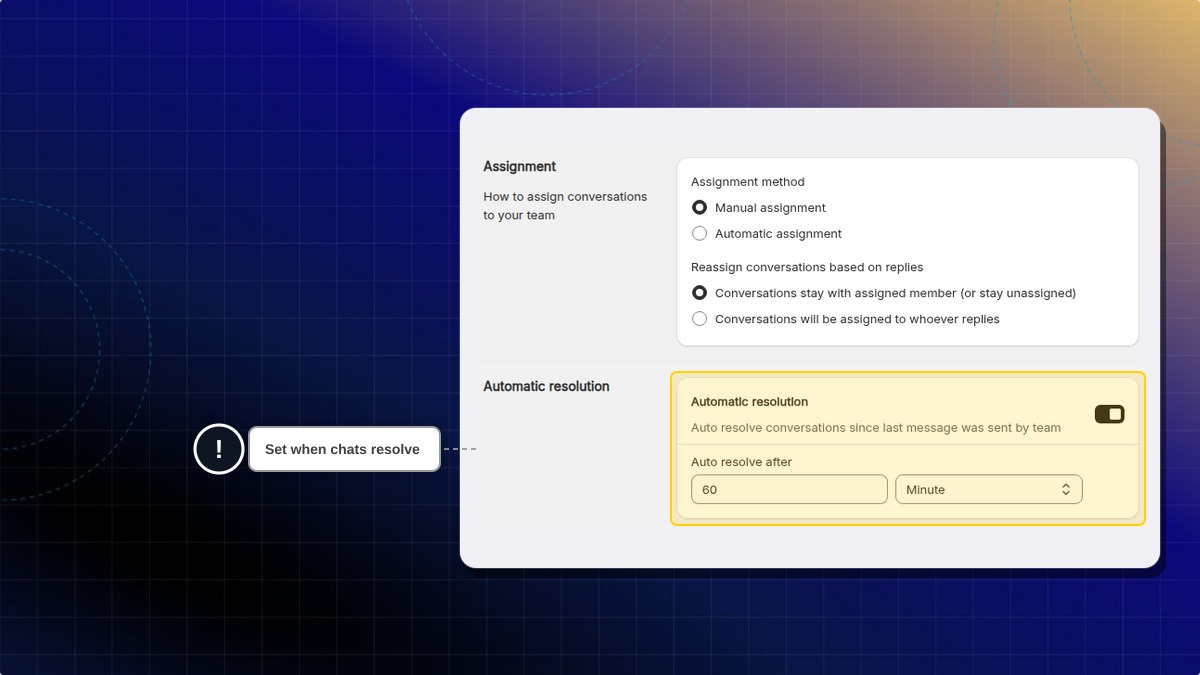
How to set up automatic resolution:
- Go to Settings
- Go to Automation
- Turn on Automatic resolution
- Set up your preferences:
- Auto resolve after: Enter a number, then pick Minute, Hour, or Day
- Click Save
💡 Best practices
For manual:
- Don't resolve if you're waiting for the customer to reply
- Ask "Anything else I can help with?" before resolving
For automatic:
- Busy stores: 2-4 hours
- Special support: 24 hours
- Always open stores: 4-8 hours
Remind conversations
Set a follow-up alert on a conversation and Chatty reopens it at the time you picked, then notifies the team member you assigned it to. Steps: Set a reminder.
Transcript (copies of conversation)
Conversation transcript: An email copy of the complete chat conversation, including all messages, timestamps, and customer information.
Chatty will send you email copies of conversations for easy record-keeping and sharing.
Customers might need transcript to:
- Reference product recommendations or advice later
- Share technical support instructions with others
- Keep track of customer service interactions
Your team might need transcripts to:
- Forward customer issues to other departments
- Keep records for compliance or training
- Share context with colleagues who weren't in the original conversation
How customers request transcripts
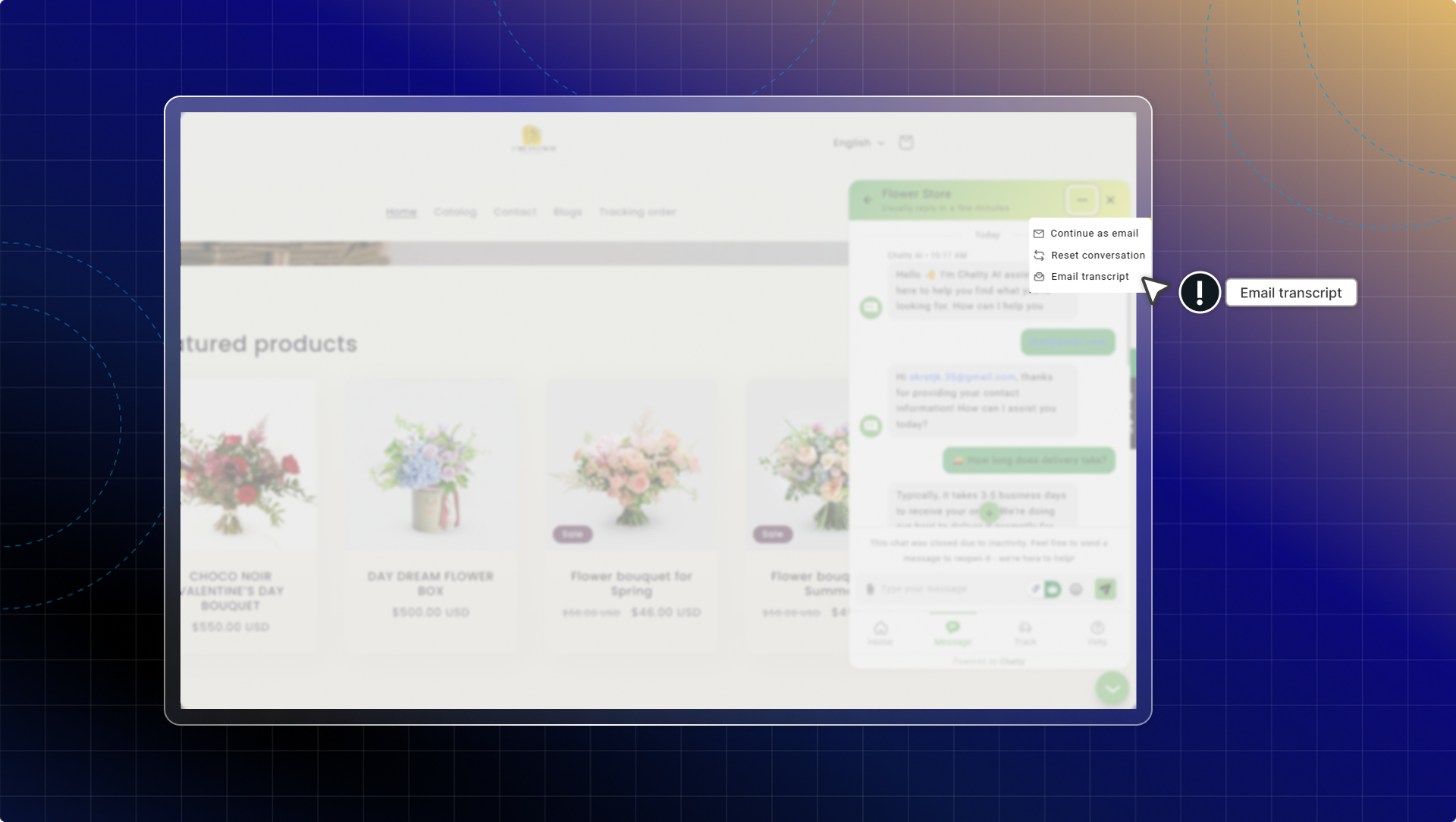
Customers can request a transcript once the chat has at least one message. You don't need to turn anything on.
- In the chatbox, click the menu icon (three dots) in the top right corner
- From the menu, select Email transcript
- Check or enter the email address, then click Send
How team members send transcripts
While managing conversations in your inbox, you can send transcripts to anyone:
- Open the conversation in your inbox
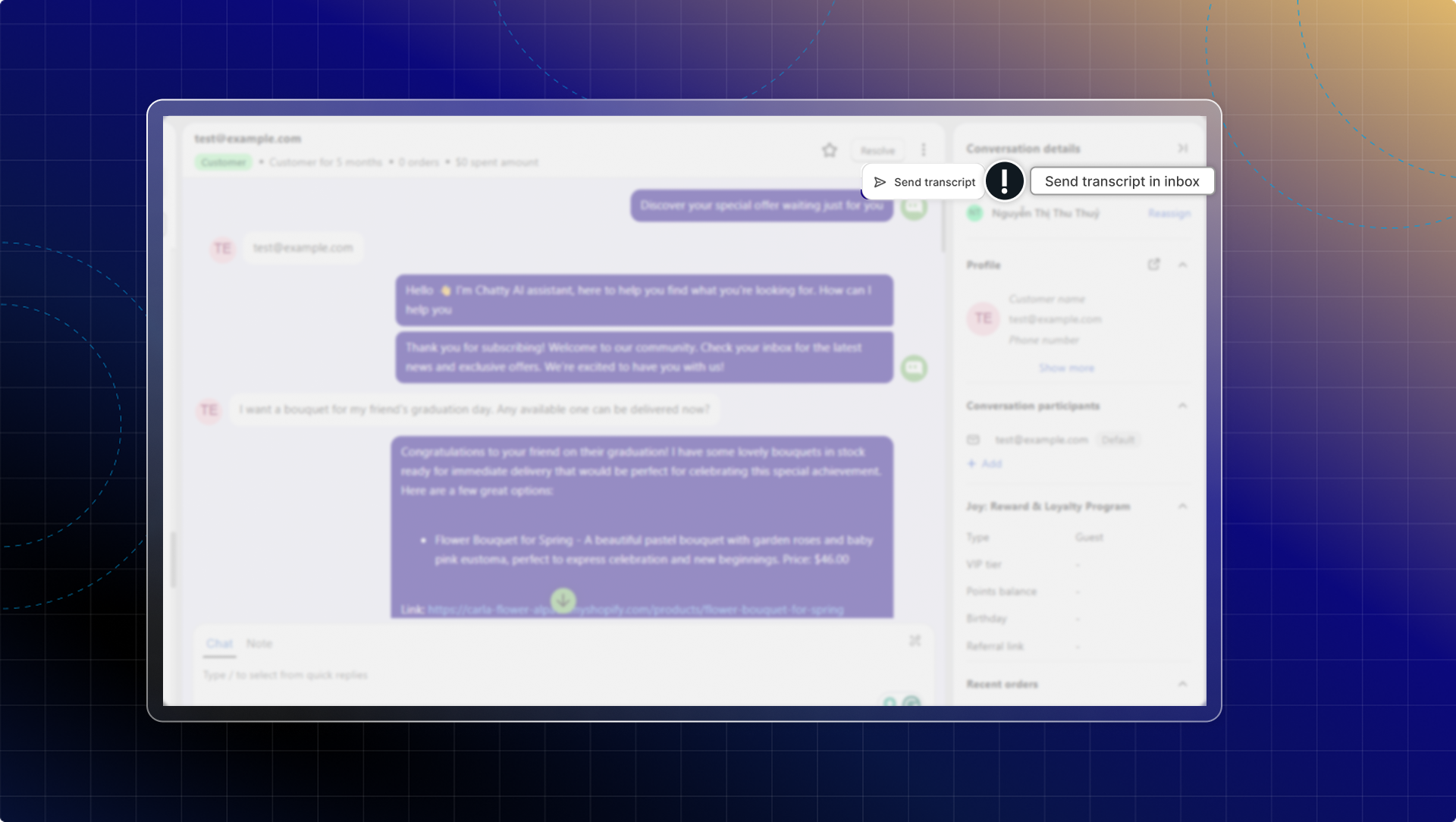
- Click 3 dots in the top right corner → Send transcript
- Choose where to send the transcript:
- To me - Send to your Chatty account email
- To [customer name] - Send to the customer's email address. Shows only when the conversation has an email
- To someone else - Enter a custom email address
- Click Send
The transcript email includes the complete conversation with timestamps, so recipients have full context.
Satisfaction survey
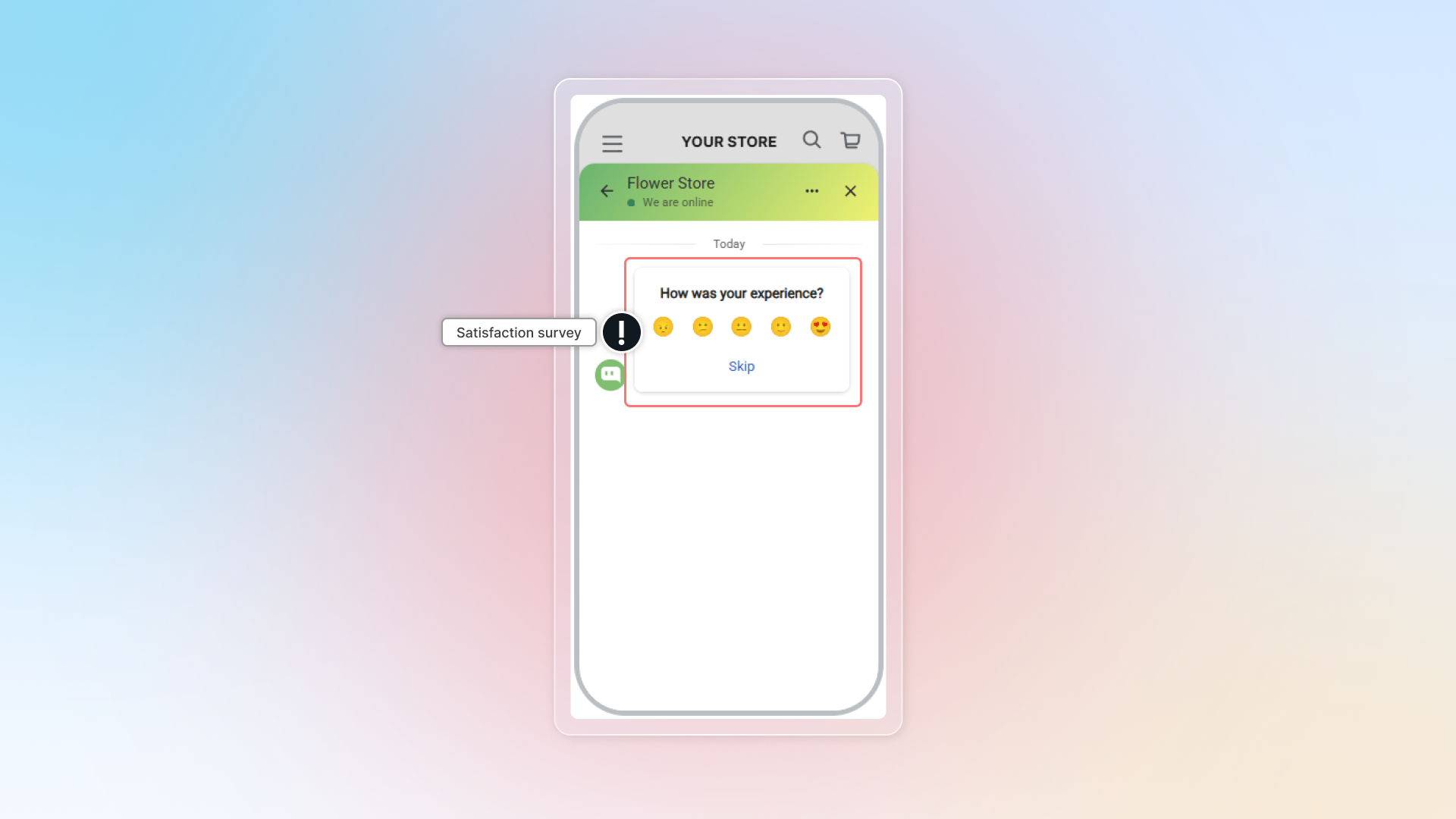
Satisfaction survey helps you gather feedback from customers after conversations are resolved.
Customers can rate their experience using stars or emojis, helping you understand how well your team handles support. You can:
- Track your team's support performance over time
- Identify which conversations need better handling
- Improve customer satisfaction with data-driven changes
- Show customers you care about their experience
How to set up satisfaction survey
Go to Satisfaction survey
Go to Settings → Automation → In Satisfaction survey, click Manage
Turn on survey
Click to turn on Survey
Select survey format
Select how customers will rate their experience:
Star rating: Customers rate using 1-5 stars
Emoji scale: Customers choose from 5 emoji faces (very unhappy to very happy)
Set survey content
Intro: Enter the question customers see first (Default: "How was your experience?")
Thank you message: Message shown after customers submit feedback. (Default: "Thank you for your feedback!")
Set trigger time
Choose when to send the survey:
Conversation is resolved: Survey appears when you mark conversations as resolved
When specific keywords appear: Survey triggers when customers use certain words
Add keywords like "thank you," "thanks," "got it," "perfect". Customers often use these words when they're satisfied.
Save
Click Save to activate your satisfaction survey
 Chatty Help Center