Notifications
There are 3 types of notification
- Web push notifications: Send push notifications to your web browser. Make sure that your allow notifications on your device.
- Sound notifications (advanced): Web browser will play sound for new messages (only from end users' web browser, when you send them messages)
- Email notifications: Send emails for new messages
- Mobile notfication: Download Chatty mobile app for notifications on mobiles
🔔 Web push notifications
You need to turn on notifications
Turn on Notifications in app
Go to Settings → Notifications. In Notify me about, check the Web box for each row you want:
- Conversations assigned to me
- Conversations assigned to other members
- Conversations assigned to AI assistant
- Unassigned conversations
- No reply for 15 minutes in my conversations
Each row has its own Web and Email checkbox, so you can get one row by push and another by email.
Turn on Notifications on web browser
Currently, we support web push notifications on these web browsers: Chrome, Microsoft Edge, Firefox, Opera, and Samsung Internet.
Read detailed instructions for each web browser below.
If you are using different web browser which is not in the list, contact our support team through live chat in app.
Turn on Notifications on your device
You need to enable notifications for that web browser on your device (Windows, MacOS, Mobile) so that you can receive push notifications.
Windows
- Go to Settings -> System -> Notifications (or Notifications & actions)
- In "Get notifications from these senders", find your web browser
- Turn on notifications
MacOS
- Click Apple menu
 → Click Notifications
  in the sidebar
 - In Application Notifications, find your web browser
- Turn on notifications
Mobile
To get notifications for new messages on mobiles, download Chatty app.
Turn on Notifications on web browser
Chrome
In Web push, click Subscribe. The button works once at least one Web box is checked in Notify me about.
You might see a new window is opened. Click
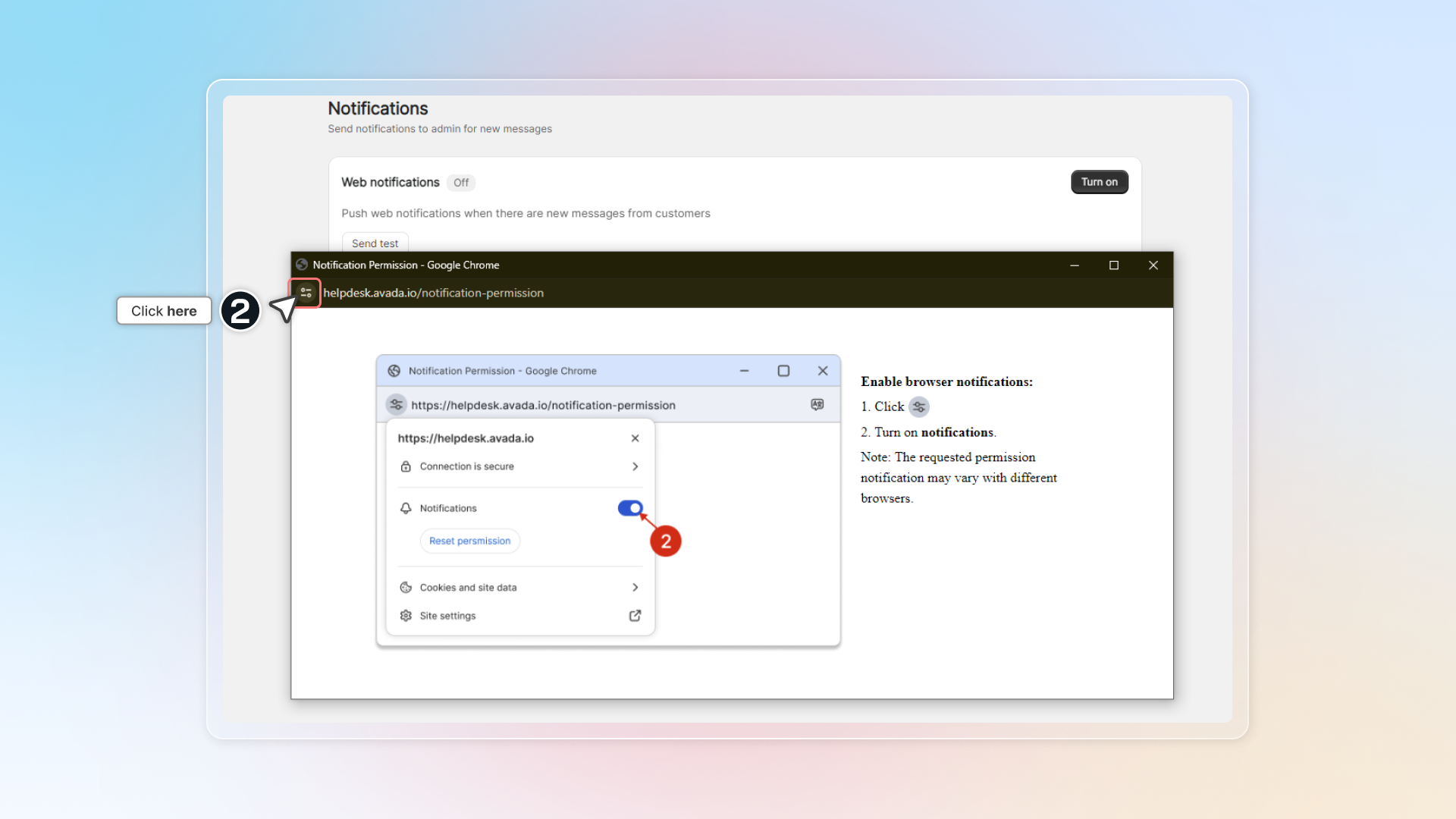
Turn on Notifications
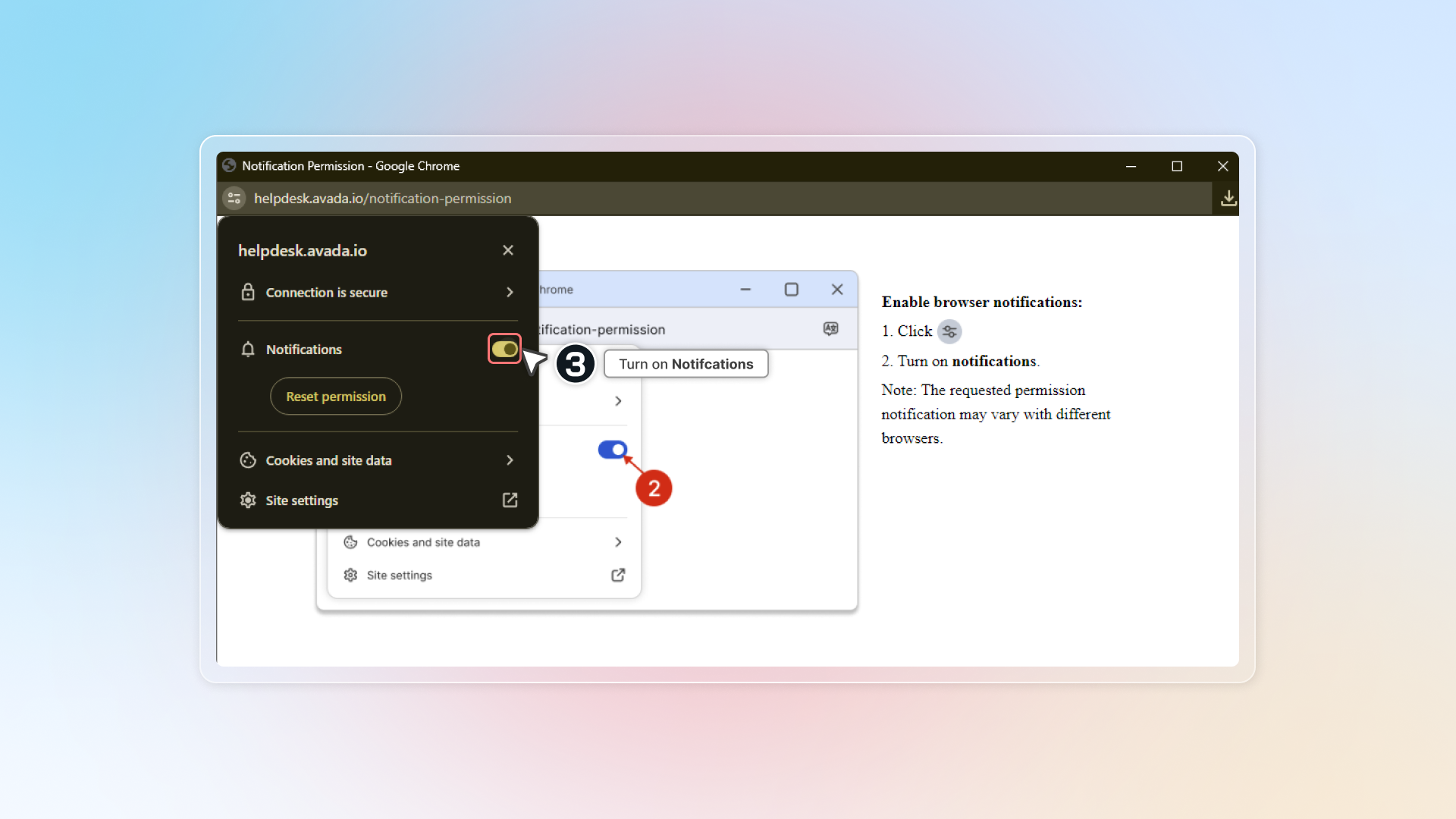
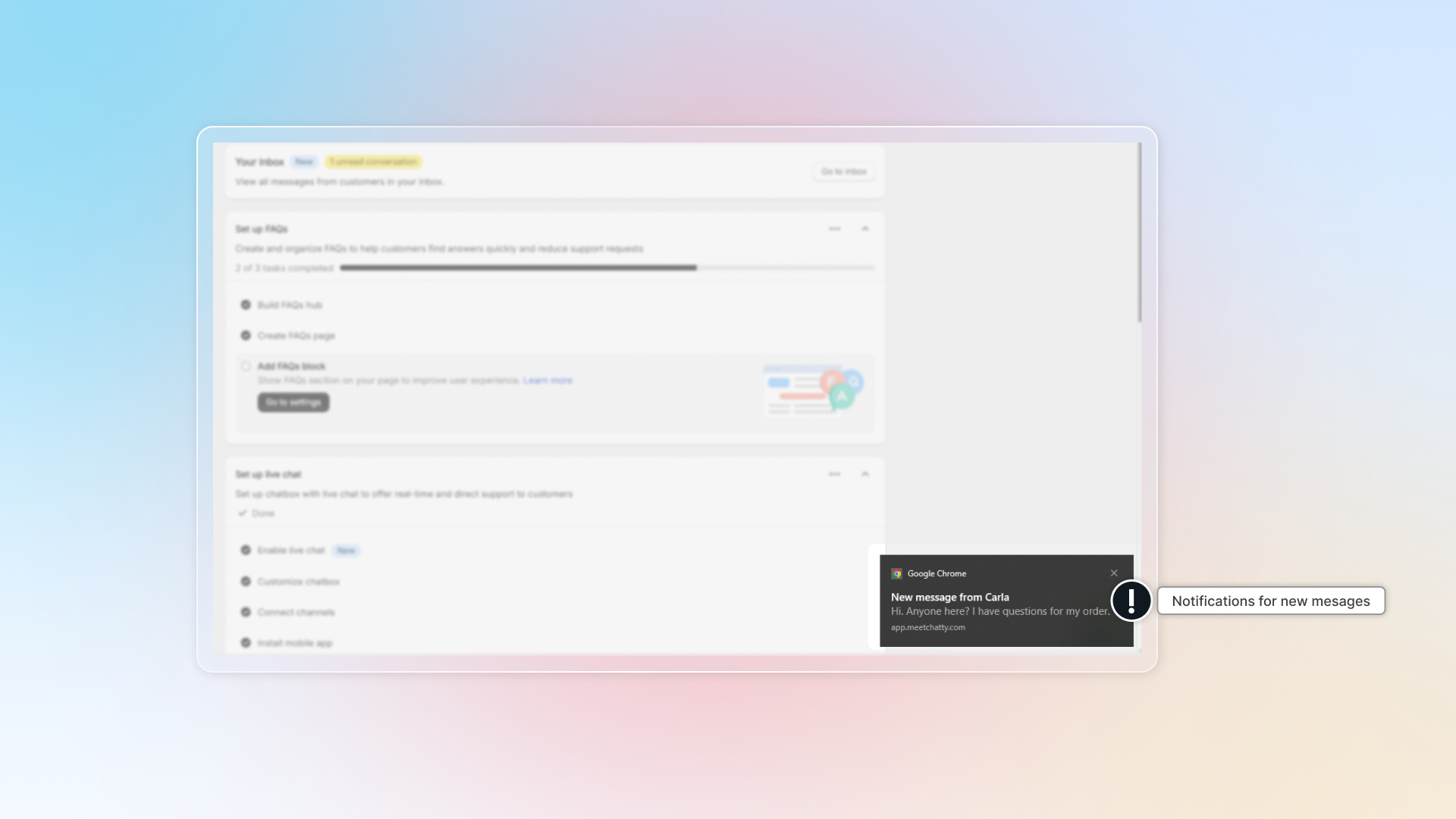
Get back to Chatty. Web push now shows Subscribed.
Click Send test to check.
Microsoft Edge
In Web push, click Subscribe. The button works once at least one Web box is checked in Notify me about.
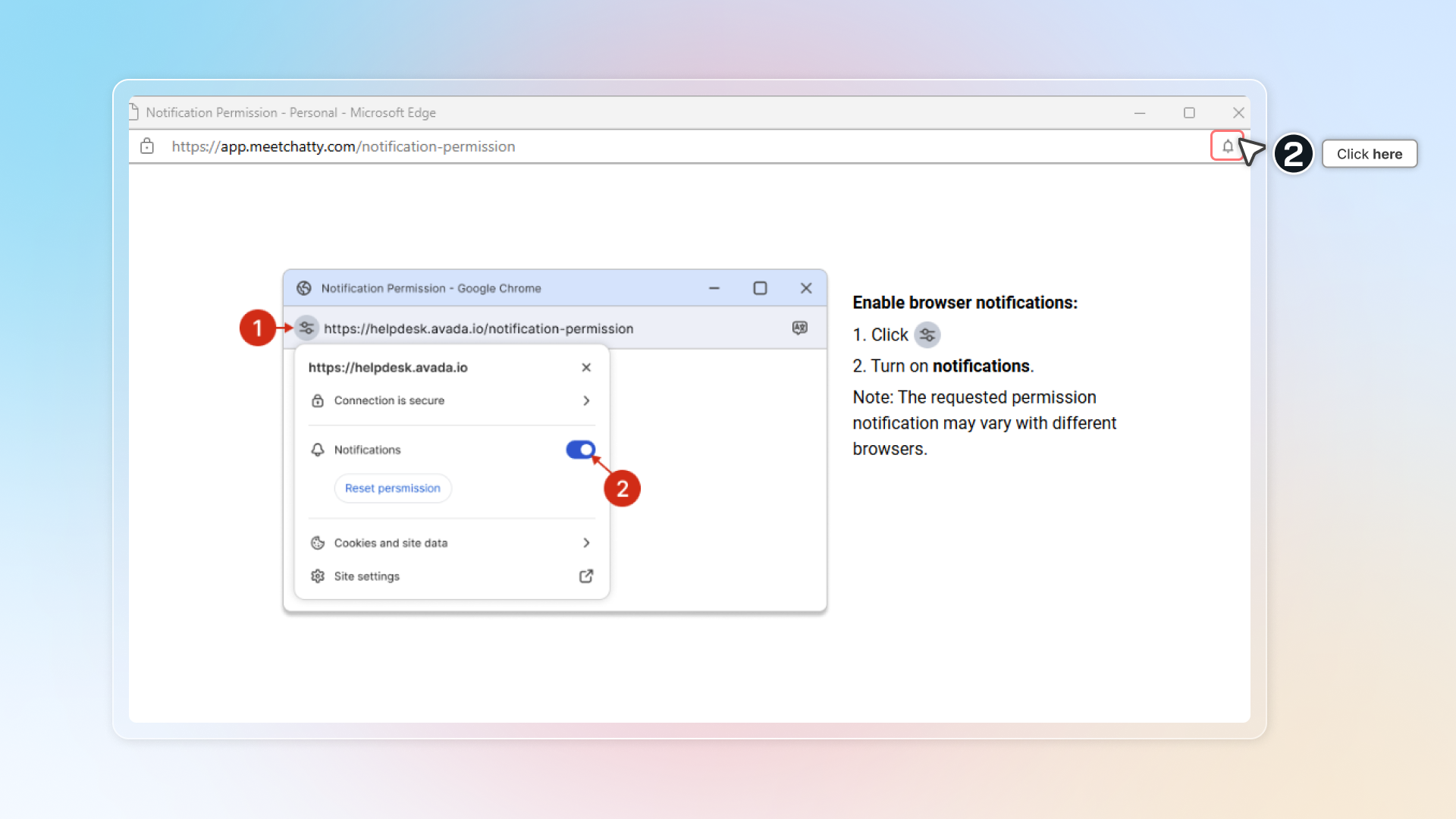
You might see a new window is opened. Turn on Notifications.
Get back to Chatty. Web push now shows Subscribed.
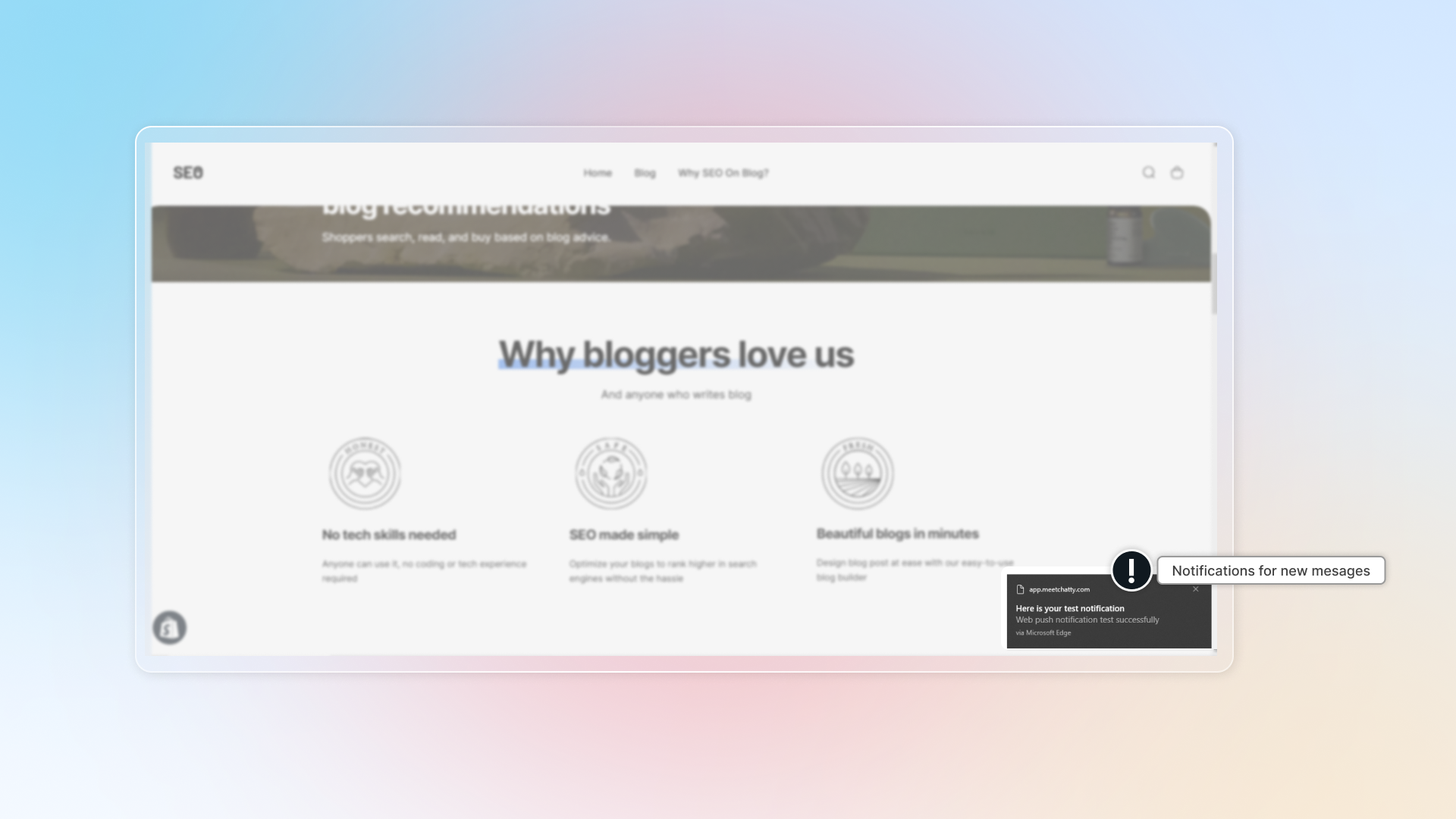
Click Send test to check if notification works.
Firefox
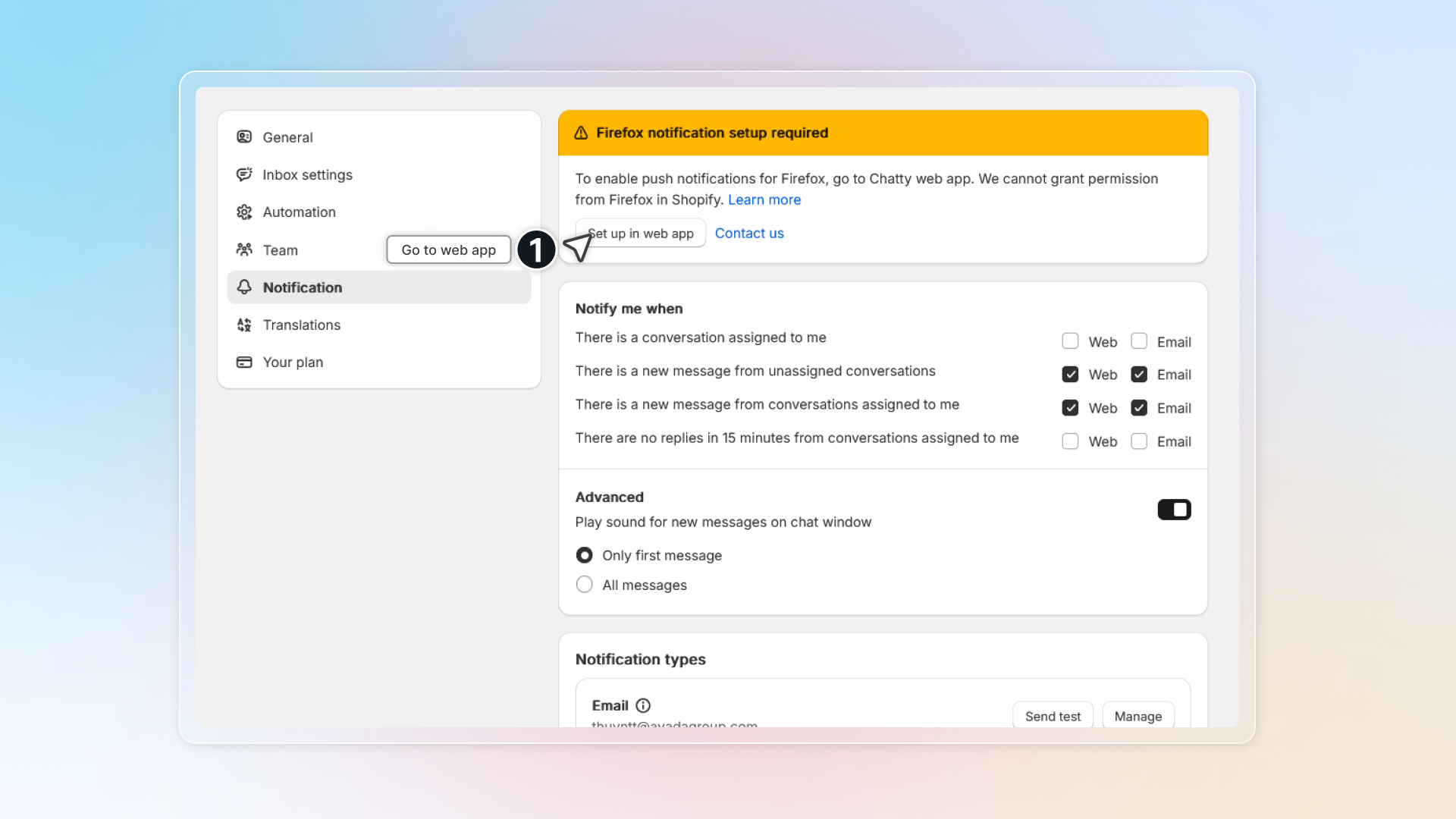
We cannot help you grant permission for Chatty in Shopify embed mode1 if you use Firefox web browser. Go to Chatty web app to activate notification.
In top banner, click Set up in web app. You'll redirected to Chatty web app.
Learn how to activate account for web app.
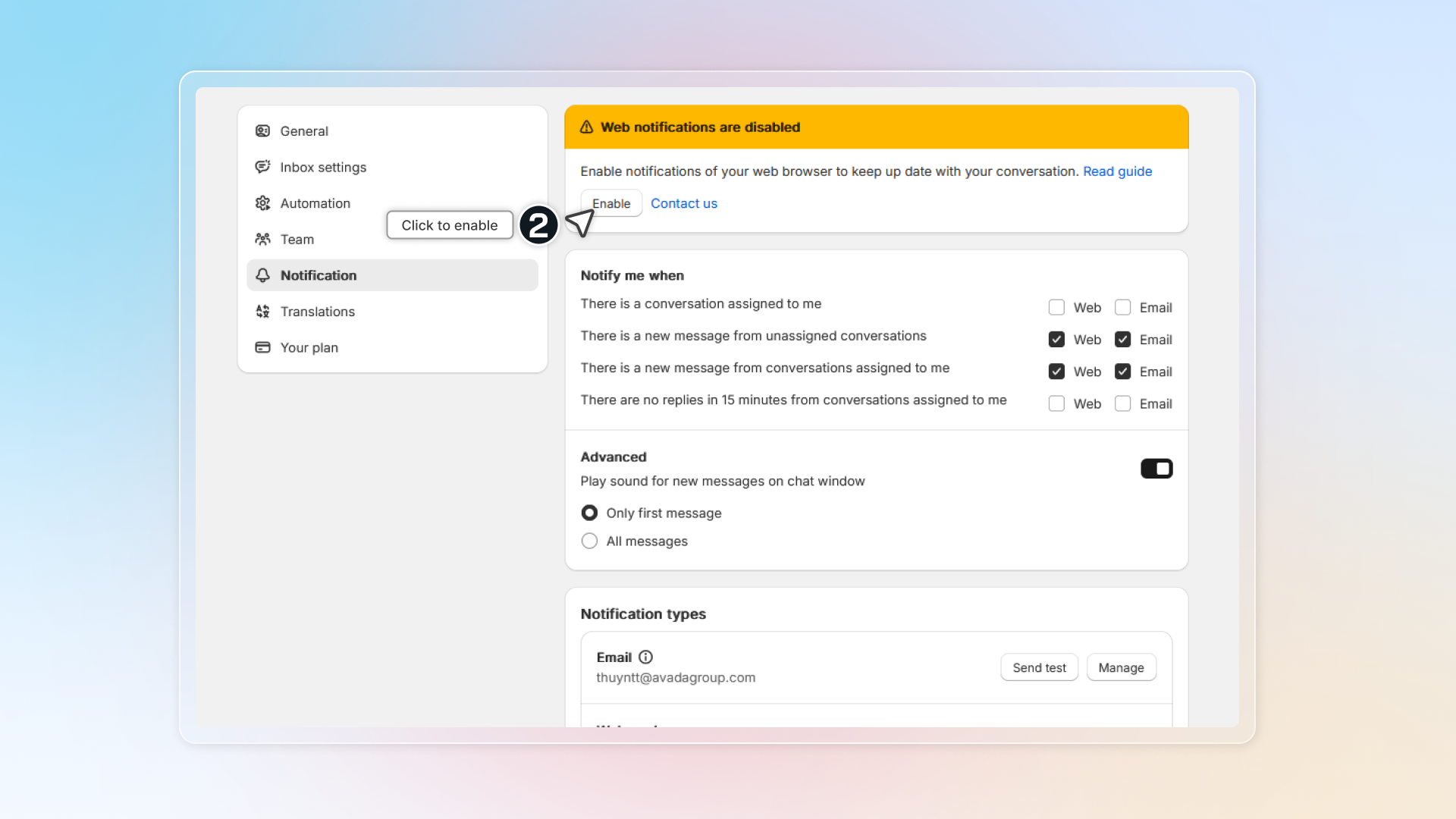
In web app, click Subscribe this device in the Web push is off in this browser banner
You will see a browser pop up. Click to open notification settings.
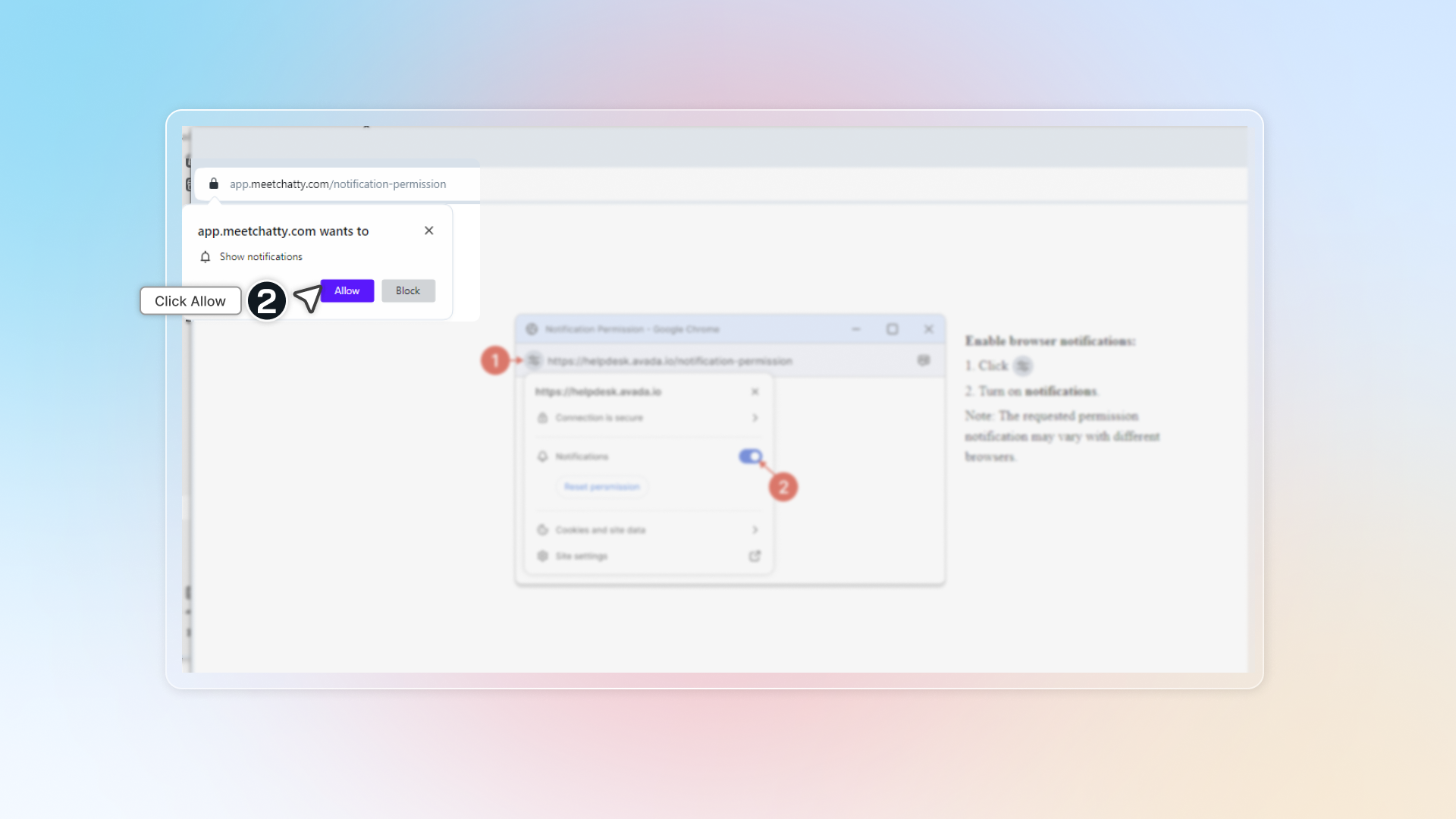
Click Allow
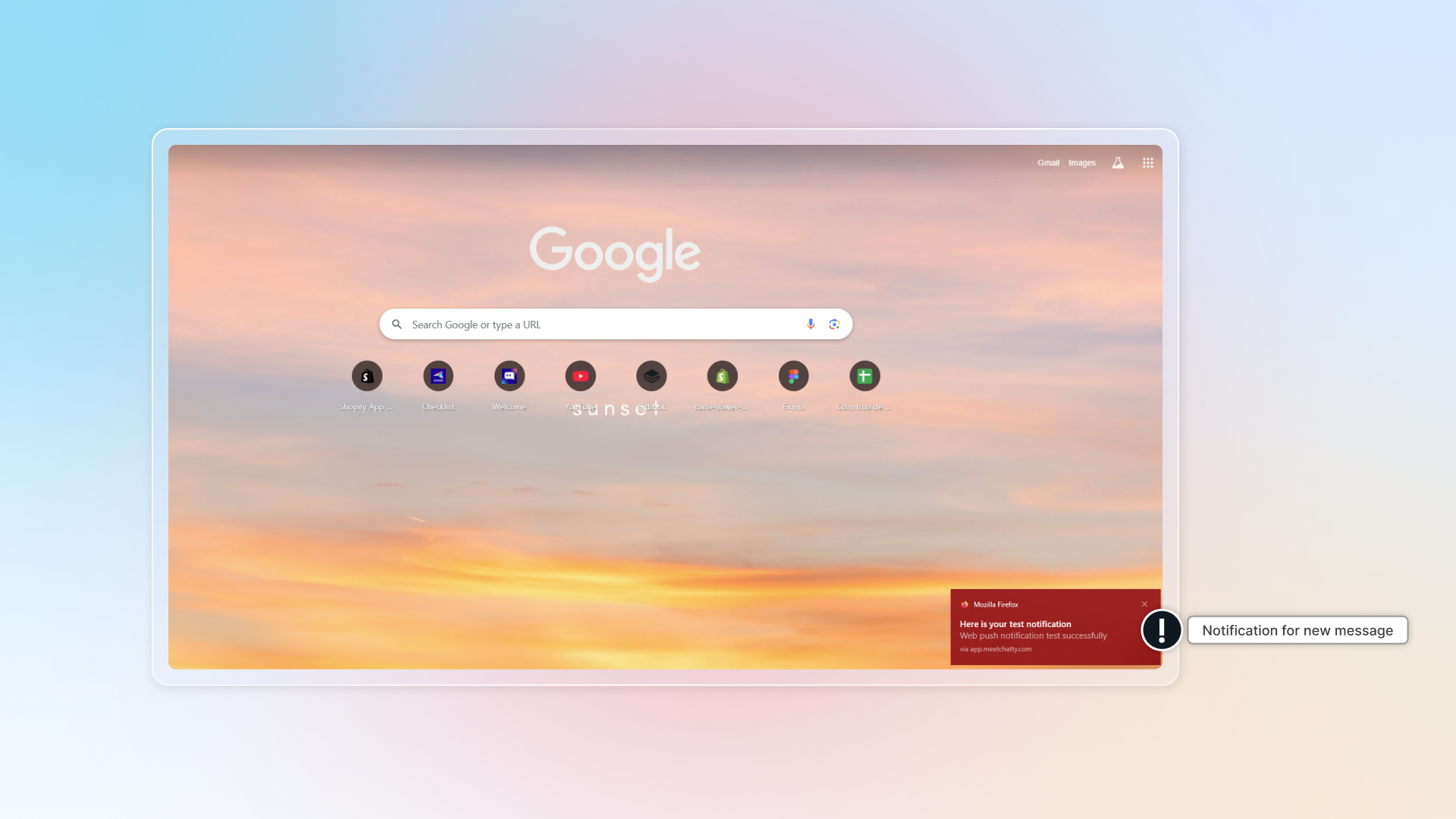
Get back to Chatty and refresh page. Click Send test to check if notification works.
Opera
-
In Web push, click Subscribe
-
You might see a new window is opened and click Allow
-
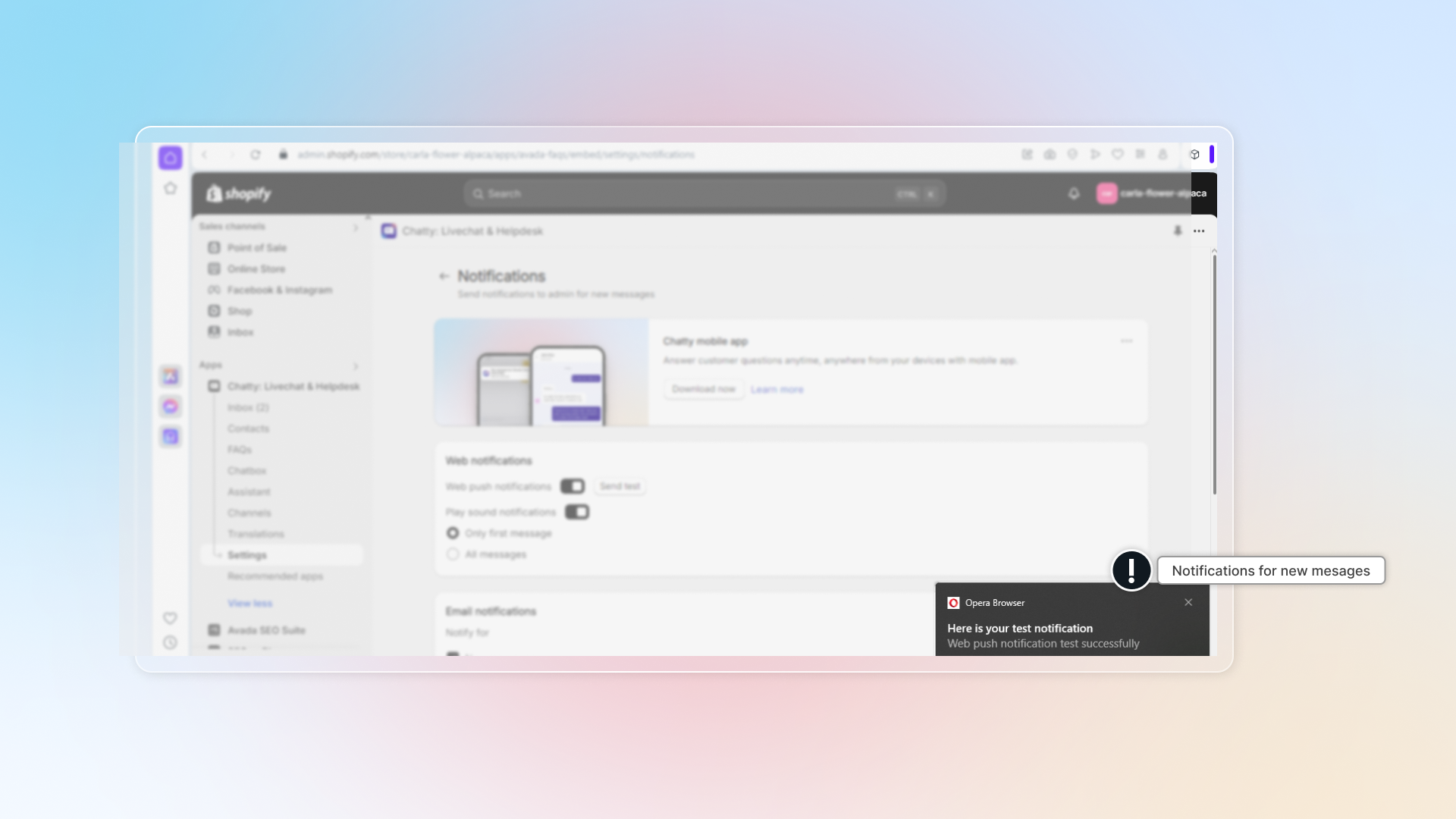
Get back to Chatty. Web push now shows Subscribed.
-
Click Send test to check if notification works.
:loud_sound: Play sound notifications
In Sound settings, turn on the sound alert and your browser plays a sound when a new customer message arrives.
You can select which messages get a sound: Only first message or All messages.
Notification link
Notification link decides where a push notification opens when you click it.
- Open in Chatty app on: the notification opens the conversation in the Chatty web app
- Open in Chatty app off: the notification opens the conversation inside your Shopify admin
The card shows both addresses so you can see which one is active before you save.
:incoming_envelope: Email notifications
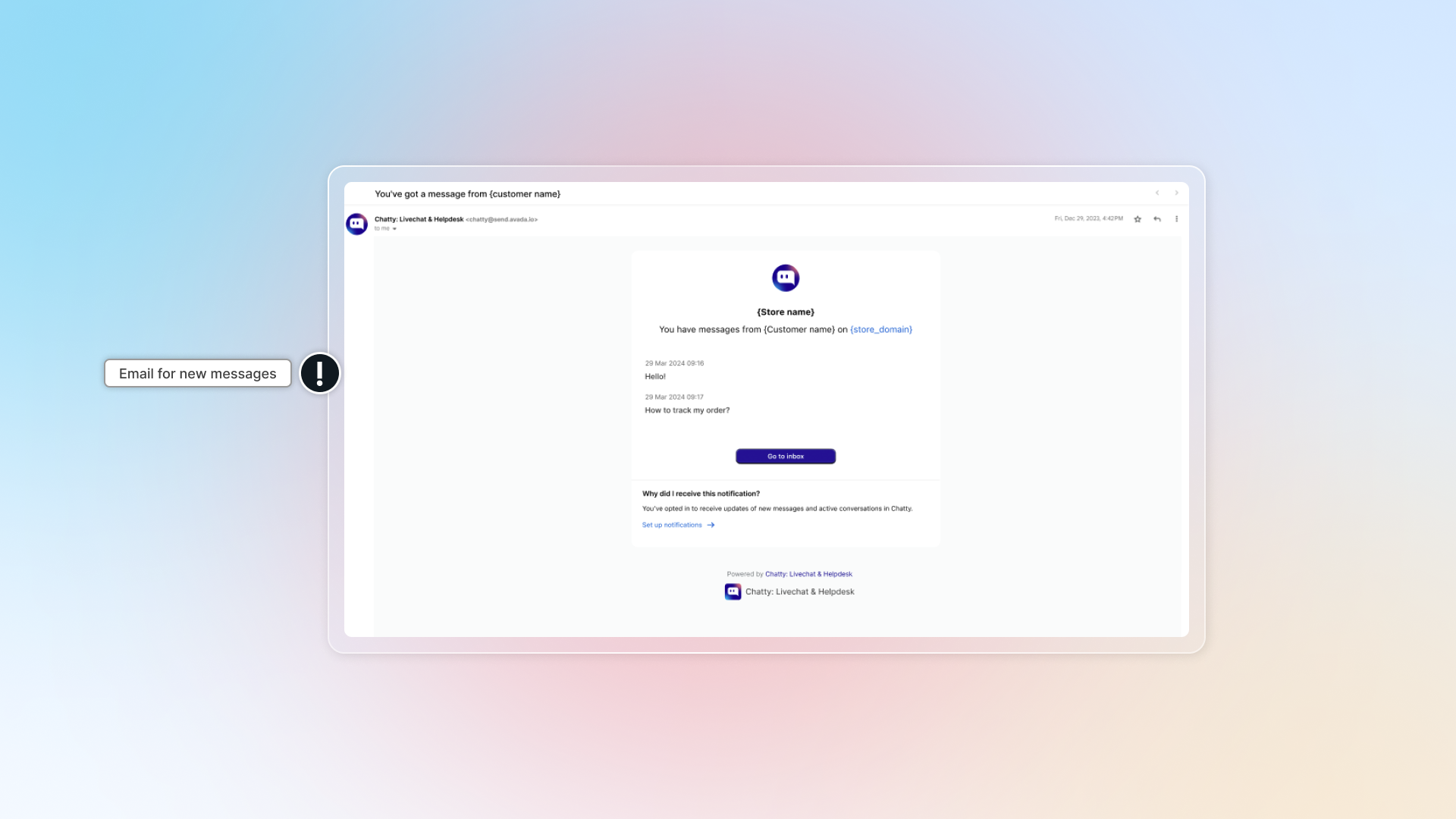
By turning on email notifications, you will get emails for new messages or any other settings you want to.
You can add more emails to get notifications in Manage.
- Go to Settings → Notifications.
- In Notify me about, check the Email box for each row you want:
- Conversations assigned to me
- Conversations assigned to other members
- Conversations assigned to AI assistant
- Unassigned conversations
- No reply for 15 minutes in my conversations
- Click Save
Send test email
After saving, you can click Send test email to get sample test.
How to customize the email subject
Only an admin can change this. The subject can be up to 500 characters. Leave it empty to keep today's subject.
- Go to Settings → Notifications.
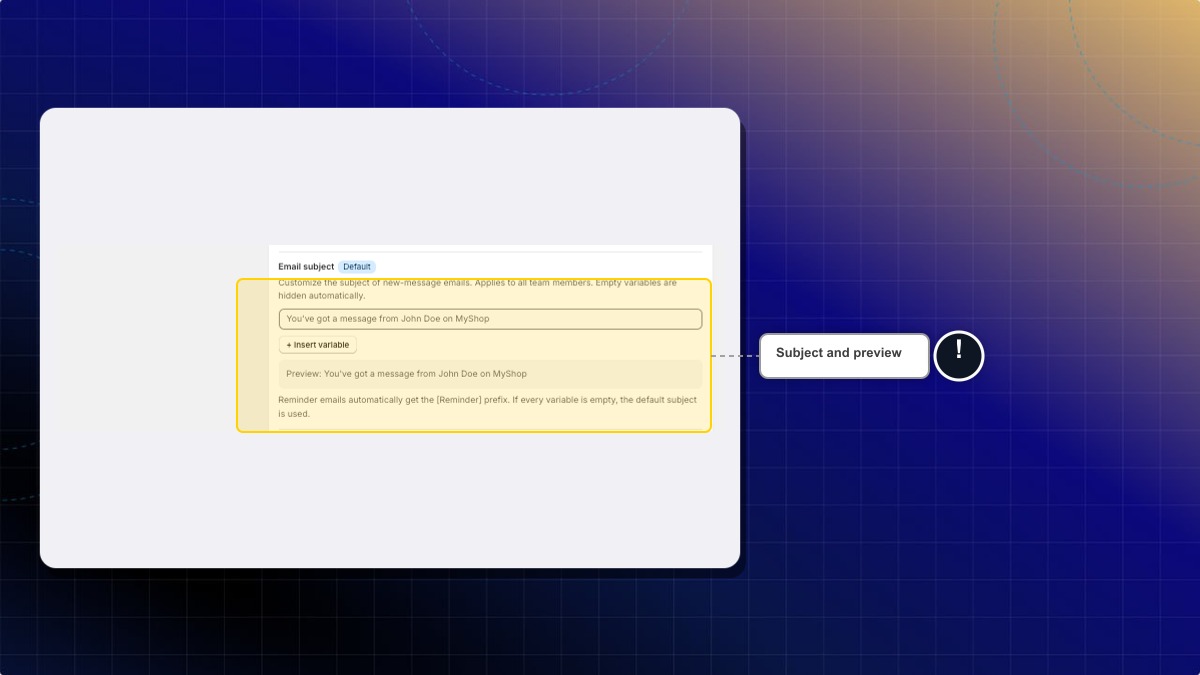
- In Notification types, find Email subject.
- Type a subject. Example:
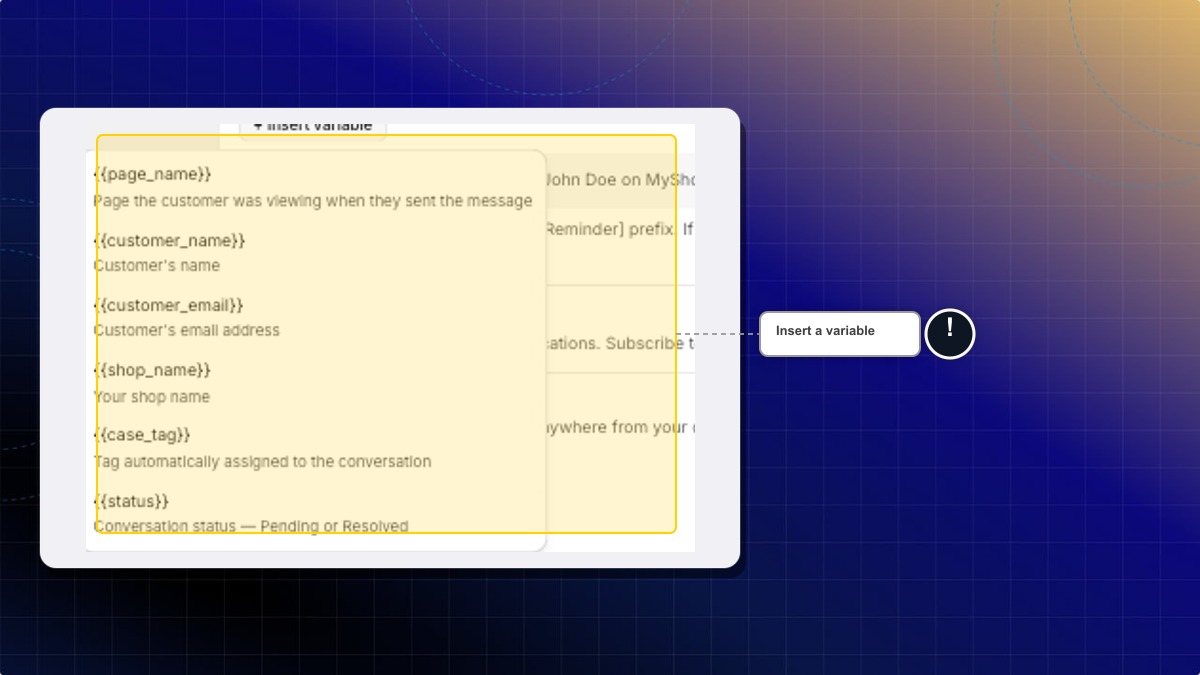
[Chatty] {{customer_name}} - {{page_name}} - Click + Insert variable to add a variable at the cursor.
- Check the Preview line. The example shows
Preview: [Chatty] John Doe - Blue Cotton Dress. - Click Save.
Expected result: New notification emails use your subject. The Default label next to Email subject disappears.
| Variable | What it shows |
|---|---|
{{page_name}} | Page the customer was viewing |
{{customer_name}} | Customer name |
{{customer_email}} | Customer email |
{{shop_name}} | Shop name |
{{case_tag}} | Tag assigned to the conversation |
{{status}} | Pending or Resolved |
How to resubscribe an unsubscribed address
Each Chatty notification email has an unsubscribe link at the bottom. When your main notification email is unsubscribed, Chatty usually stops new-message emails to you, and your CC addresses don't get those emails either. You can turn it back on in your notification settings.
- Go to Settings → Notifications.
- Find Unsubscribed addresses above Notify me about. The number next to it shows how many of your addresses unsubscribed.
- Check the address and the date it unsubscribed. Primary marks your main notification email.
- Click Resubscribe next to the address you want back.
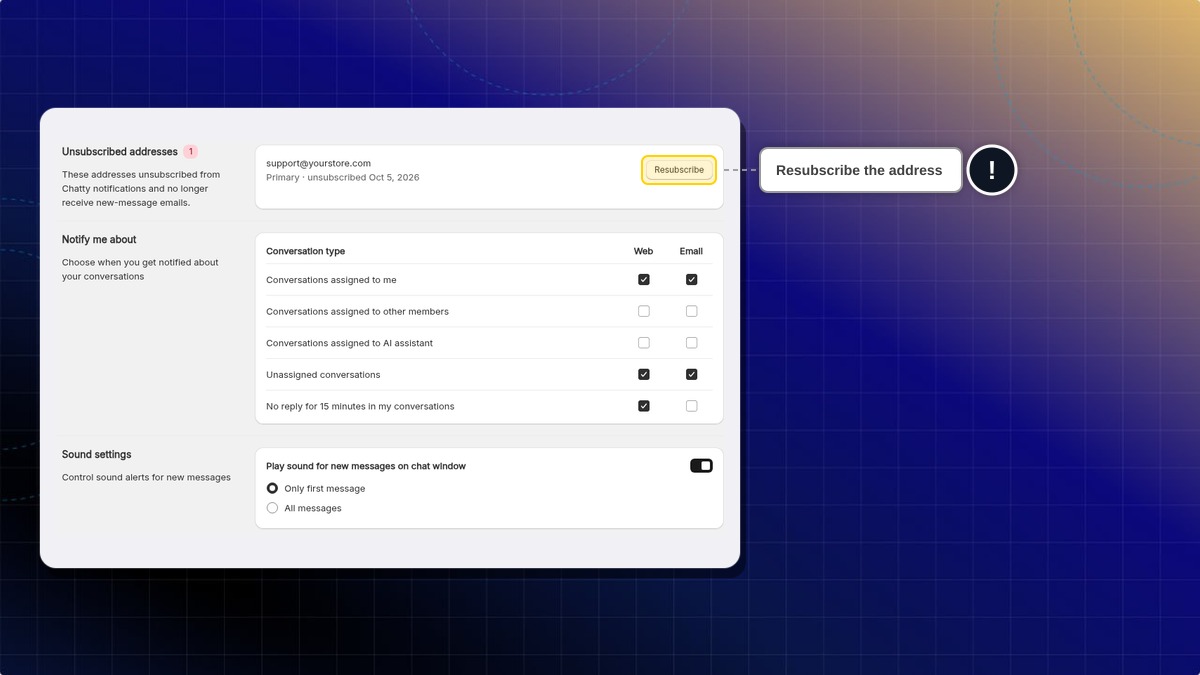
Expected result: The address leaves Unsubscribed addresses and gets new-message emails again.
The unsubscribe link usually turns off your main notification email, even when a CC recipient clicks it. To stop emails to one CC address only, remove it in Manage. If your main email was unsubscribed by mistake, resubscribe it with the steps above.
Why don't I see Unsubscribed addresses?
None of your notification addresses has unsubscribed. The section only appears when at least one has.
Can an unsubscribed address still get emails?
Sometimes, yes. An email about a conversation that notifies several teammates at once, for example a new unassigned conversation, can still reach an unsubscribed address. An unsubscribed CC address can also still get emails while your main email is subscribed. To stop emails to a CC address for sure, remove it in Manage.
Can I resubscribe a teammate's address?
No. You only see your own notification addresses here. Ask your teammate to open Settings → Notifications and click Resubscribe.
How to ensure Chatty notifications reach your inbox?
This helps prevent important notifications from being filtered to spam. You'll receive Chatty notifications in your primary inbox and never miss customer messages.
To keep Chatty emails out of spam, you can follow one of these ways:
- Add Chatty email to safe sender list
- Mark emails as important/not spam
🅰️ Add Chatty email to safe sender list
Open Chatty email
Click the three dots menu (⋮) next to the sender's name
Select "Filter messages like this"
Click "Create filter"
Select "Never send to Spam" and "Always mark as important"
Click "Create filter" to save
🅱️ Mark emails as important/not spam
-
Open Chatty email
-
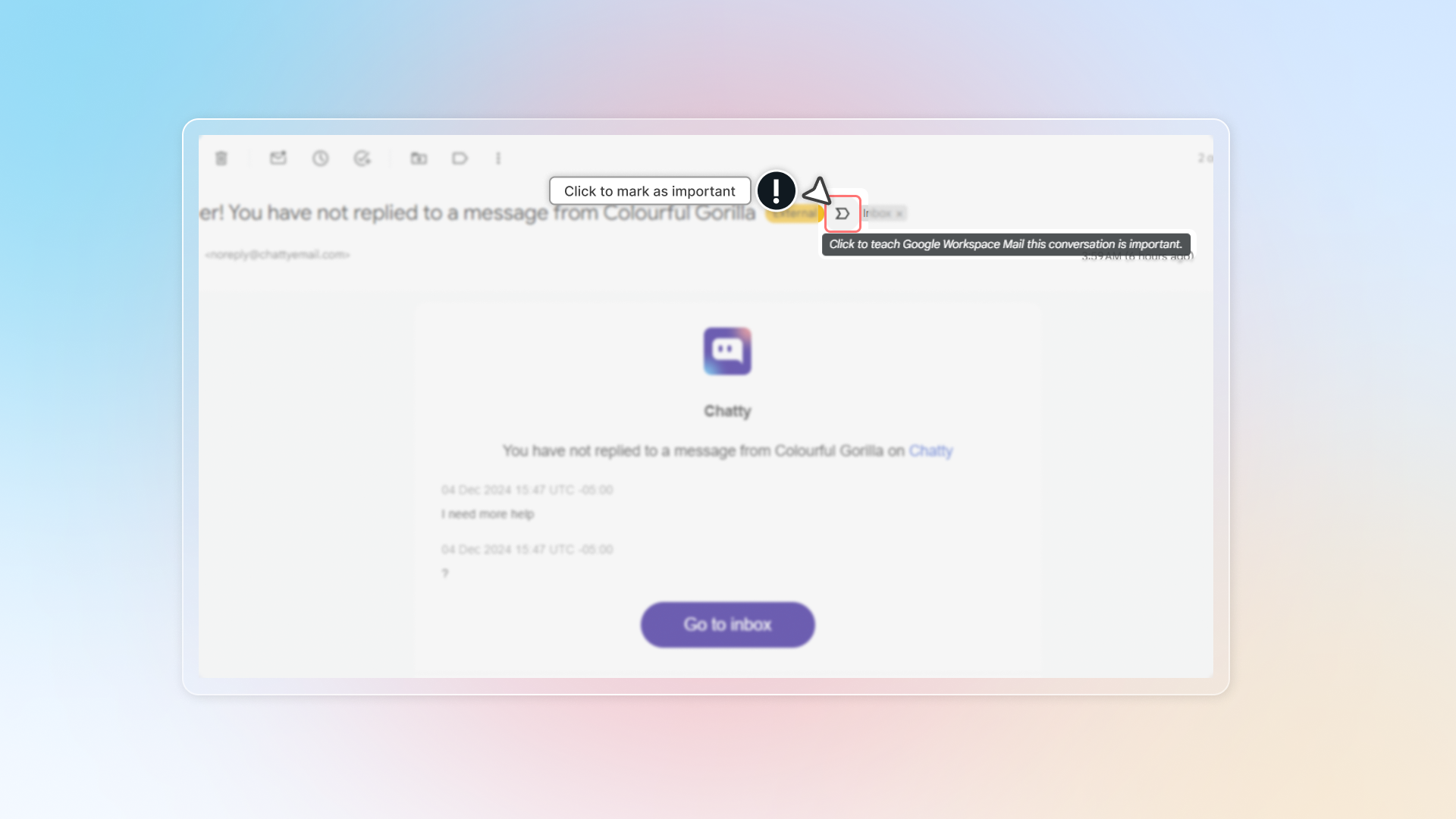
Click the importance marker next to the email subject
When marked as important, the icon will turn yellow.
Footnotes
-
Embed app in Shopify admin ↩
 Chatty Help Center