Real-time translation
Who can use this feature?
- This feature is available on paid plans.
- Each plan has a monthly translation quota: Basic 50, Pro 300, Plus 700. The Free plan has no quota, so the bar shows Upgrade to translate instead of the Translate button. When a paid plan runs out and usage charges are not turned on, the bar shows Limit reached with the count used, and clicking it opens the upgrade page. If the quota runs out while a conversation is being translated, the bar shows Translation limit reached with the count used and an Upgrade plan link.
Real-time translation detects the customer’s language and lets you translate messages in Inbox.
Translate the customer message
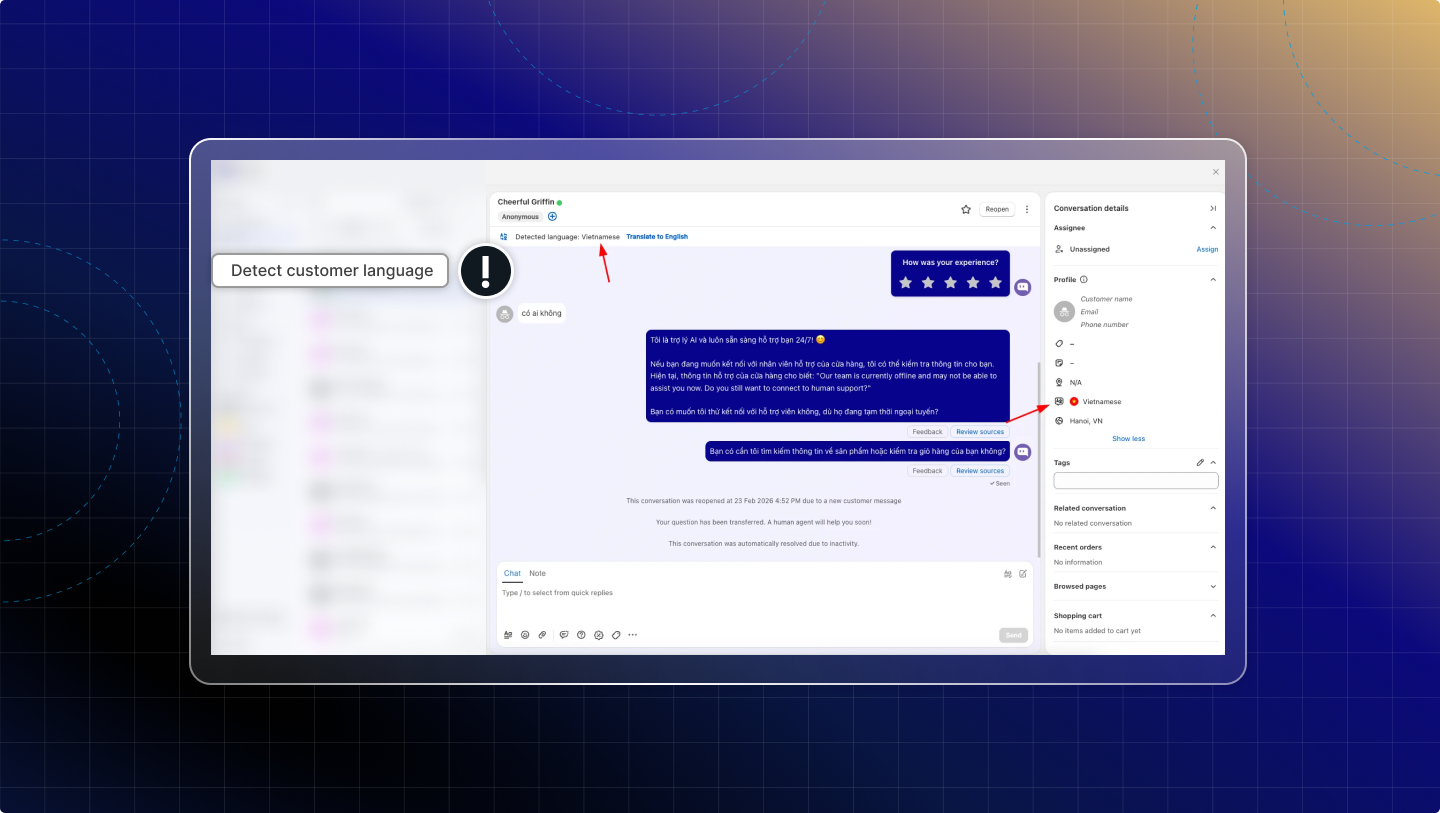
Detect customer language
Chatty automatically detects the customer’s language and shows it in the conversation and in the customer profile.
You can see the detected language while viewing the conversation.
Auto-translate new messages
When Translate is turned on, Chatty automatically translates any new customer message that comes in.
Chatty translates all customer messages to your default language (set in Settings → Translations).
You always see the latest customer message in your selected language.
If you want to stop translating, click Stop. Messages show in the original language again.
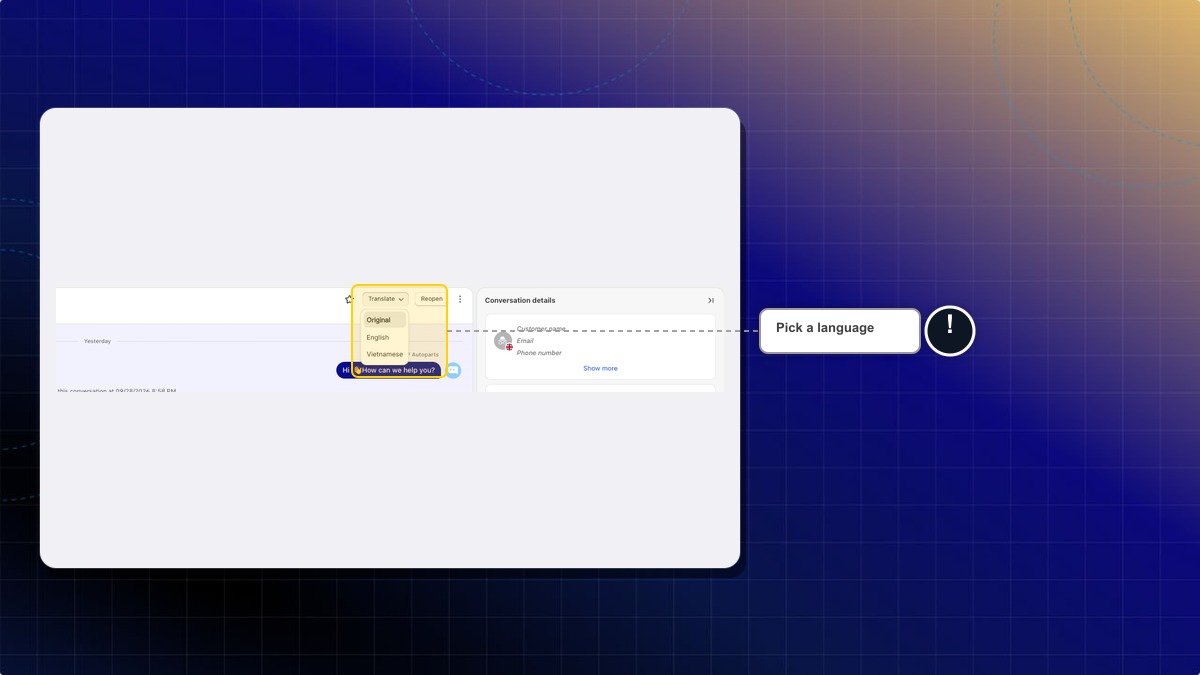
You can translate into any language your store has published, not only your default language.
- Open a conversation in Inbox.
- Click the arrow next to Translate to [your language].
- Under Published, pick a language. Example: French.
Expected result: The bar shows Translating [customer language] to French. Your choice applies only to you, and only to this conversation.
Live Translate
Live Translate helps you write a reply in your language and preview the translated version before sending.
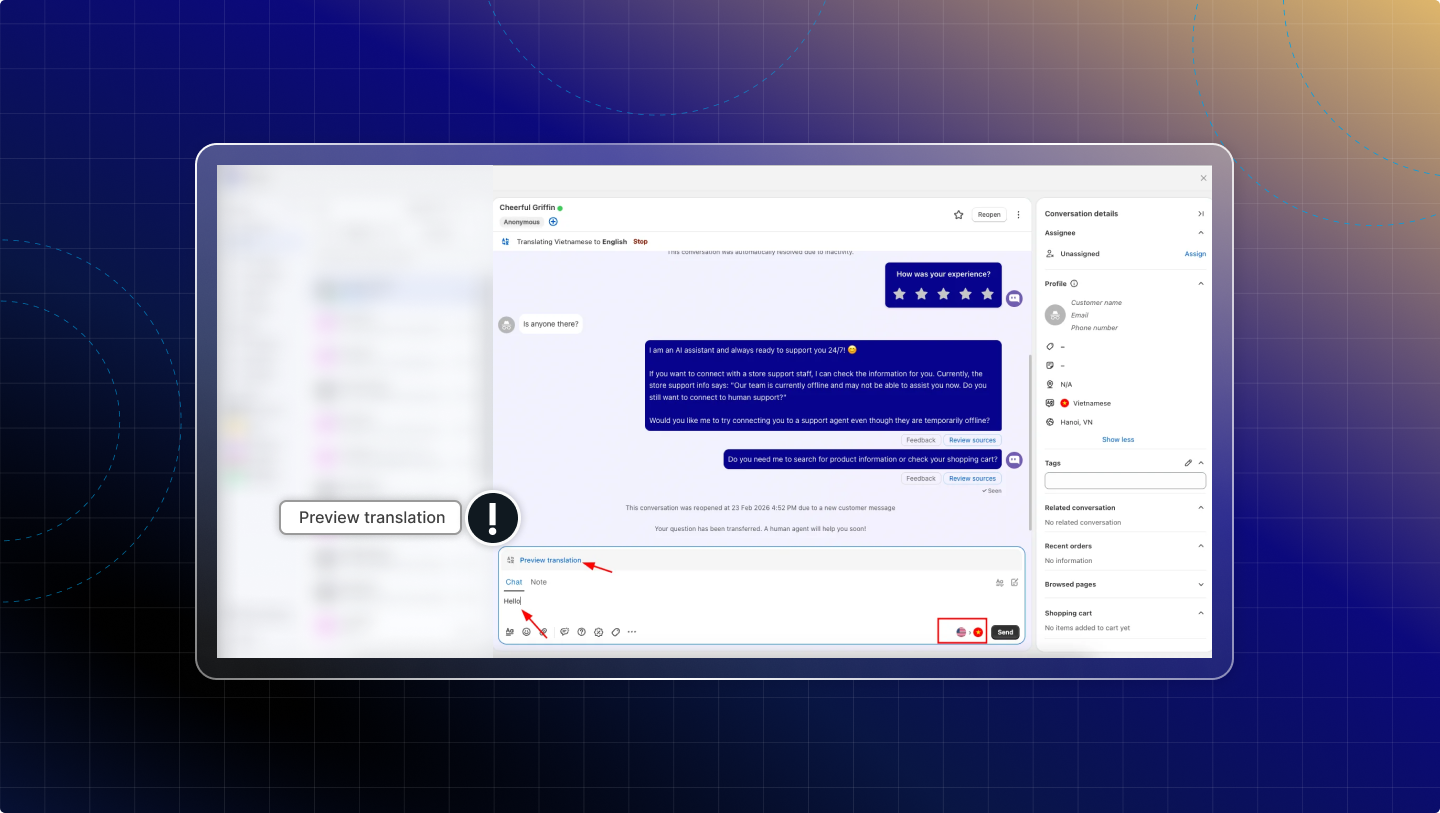
Preview translation
In Inbox, open a conversation.
On the bar above the chat, click Translate to [your language]. The Preview translation bar appears above the message box while you are on the Chat tab.
Type your message.
Click Preview translation.
A translated preview displays before you send.
Refresh translation
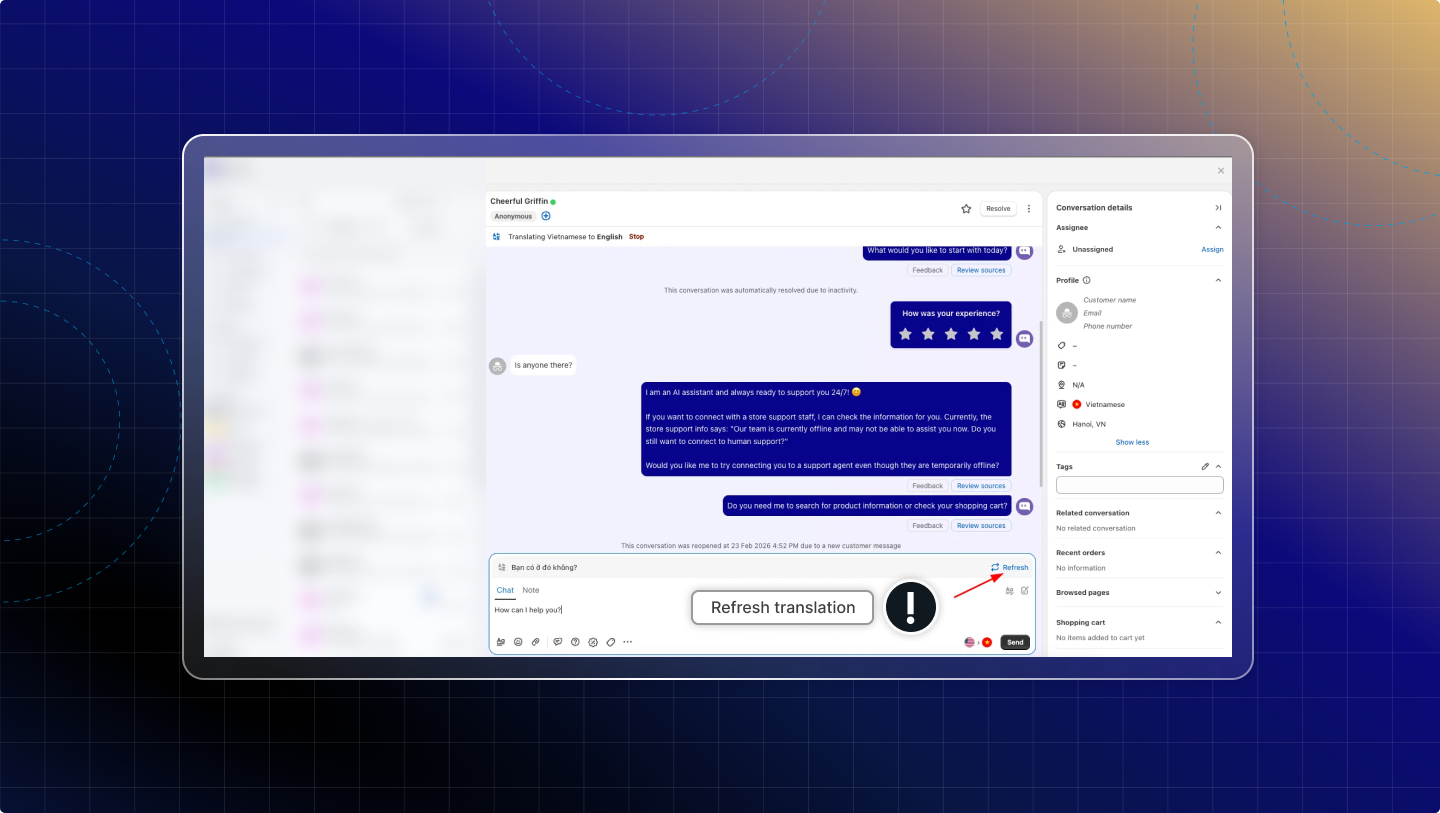
When you edit the message, click Refresh to update the latest translated preview.
 Chatty Help Center