AI product recommendations
Who can use this feature?
- This feature is available for all users.
- Custom recommendations are available for Pro & Plus plan users.
What are product recommendations
Smart recommendations control which products your AI suggests during a chat. You can rely on the built-in sets, pull in Shopify's own recommendations, or write your own rules.
This is where you steer the AI toward the products you actually want to sell.
This page is for recommendations inside an AI conversation. To greet visitors with products before they ask, see Proactive chat product recommendations.
How to open Smart recommendations
- Go to AI agent → Skills.
- Under Shopping, find Smart recommendations and click the settings icon (gear).
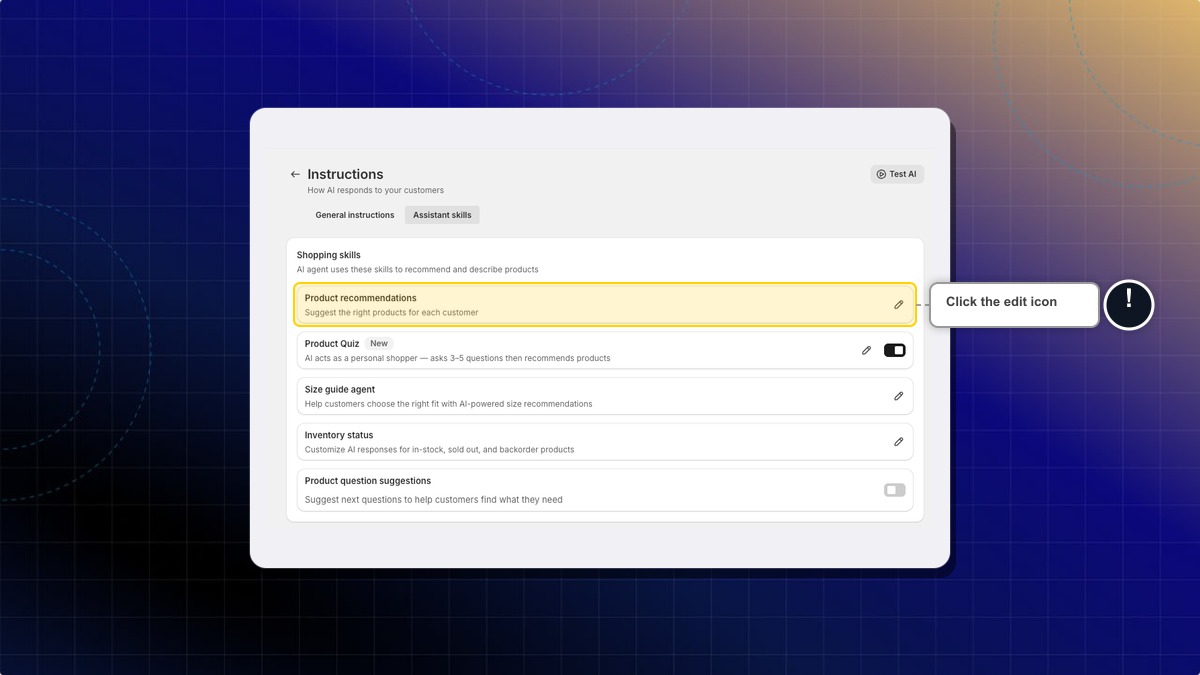
Expected result: The Smart recommendations page opens, subtitled "Suggest the right products for each customer". It holds System recommendations, the Shopify recommendations card, Custom recommendations, and Similar product matching.
System recommendations
These are built in and answer common shopping questions. You never pick the products yourself, but you do have to turn each one on.
| Recommendation | Answers questions like |
|---|---|
| Best sellers | "What are your best sellers?" |
| New arrivals | "Any new items?" |
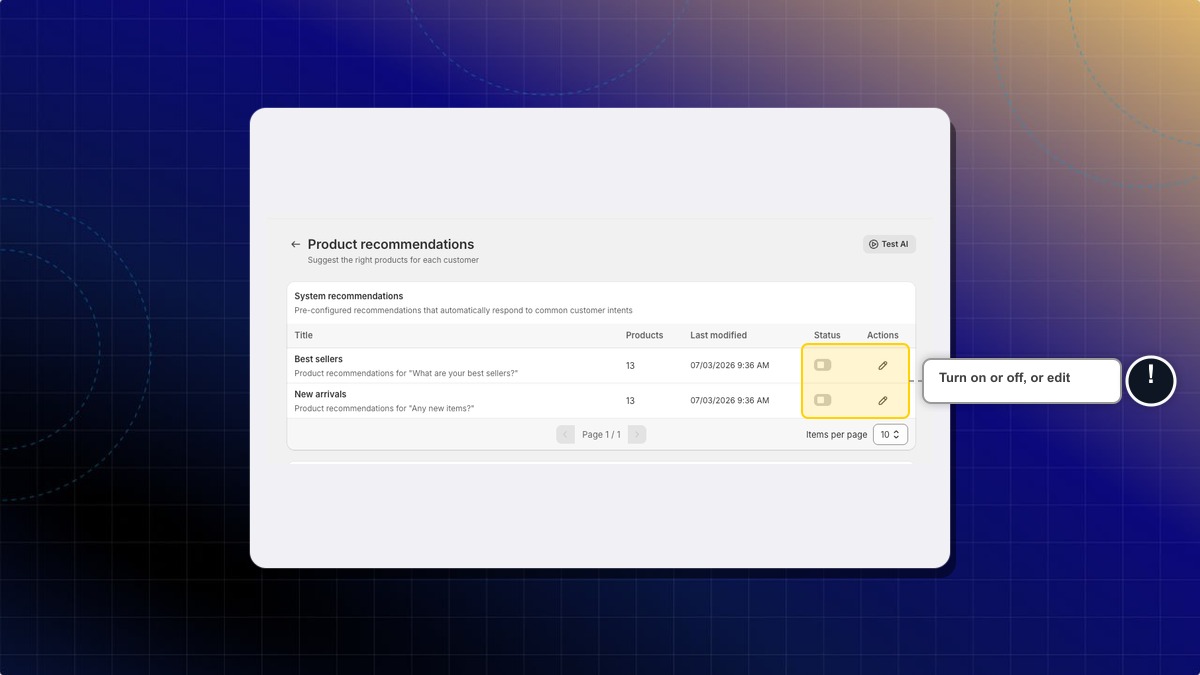
Each row shows how many products it covers and when it last changed. Turn a row on with the Status toggle. Click the edit icon to see and change the products it uses.
Smart syncing. Best sellers and New arrivals fill themselves. Best sellers takes the top 20 products in Shopify's own best-selling order. New arrivals takes your 20 newest products. Chatty refreshes both lists daily. You can keep smart sync on and still add or remove products by hand, up to 20 products per set.
Rank best sellers by sales in the last 30 days. You can also let your AI rank best sellers by how many units each product actually sold in the last 30 days, taken from your Shopify sales reports. This is a separate switch in AI agent → Settings → Best seller ranking, and it is off by default. Turning it on asks you to approve read-only access to your Shopify reports. Sales figures sync every night. Products with no recent sales still come from the Best sellers list above, after the ones that sold. See Rank best sellers by recent sales for the steps.
How to turn on Shopify recommendations
Shopify already calculates product relationships from your store data. You can let your AI use them.
| Type | What it suggests |
|---|---|
| Related products | Similar items customers may also like |
| Complementary products | Items that go well together |
- On the Shopify recommendations card, turn on the type you want.
- Click the row, or the eye icon under Actions, to preview which products Shopify returns.
- Click Save.
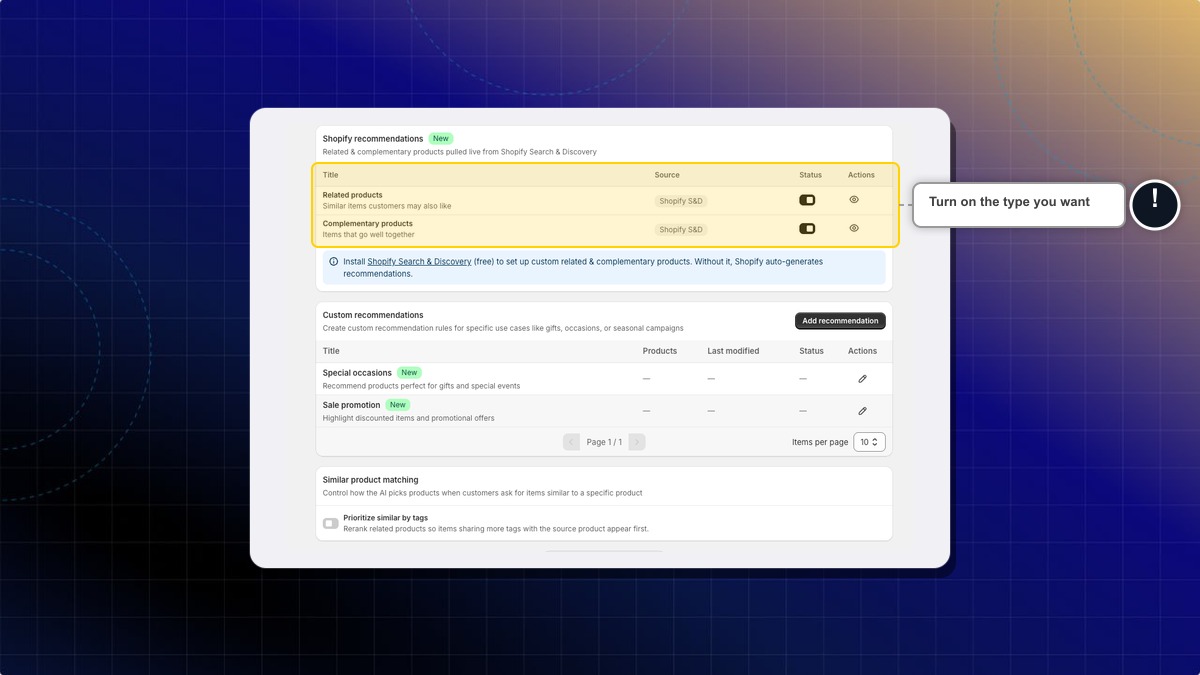
Expected result: Your AI can suggest related or complementary products during a conversation.
Shopify generates these lists on its own. Install the free Shopify Search & Discovery (opens in a new tab) app if you want to pick the related and complementary products yourself.
How to create a custom recommendation
Use a custom rule when you want specific products for a specific moment. For example, gifts, a seasonal sale, or a one-off occasion.
The card ships with two templates: Special occasions, for questions like "gifts" or "birthday presents", and Sale promotion, for questions like "discounts", "deals", or "what's on sale". They already carry search terms, so editing one is faster than starting from scratch. A template is only saved once you edit it.
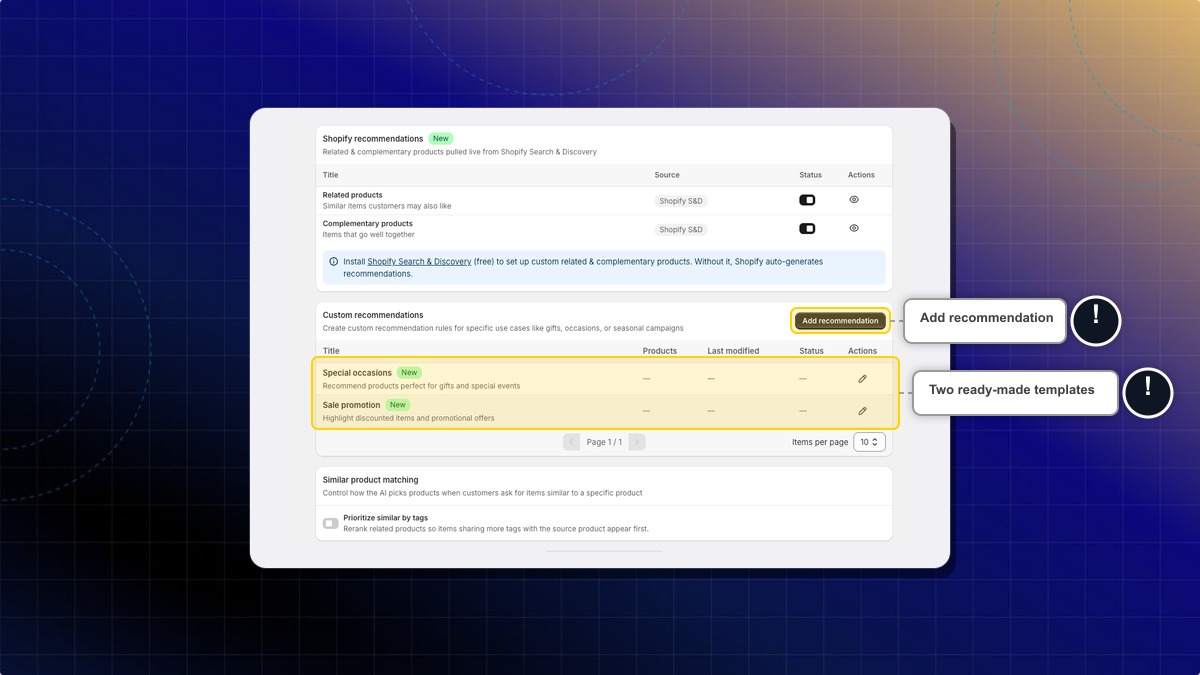
- On the Custom recommendations card, click Add recommendation, or click the edit icon on a template.
- In Title, name the rule. For example, "Valentine gifts under $50".
- Under Search terms, add the phrases customers use. For example, "gift for her", "valentine present", "romantic gift".
- Under Products conditions, pick the products or collections the AI should suggest.
- Turn on Enable recommendation.
- Click Save.
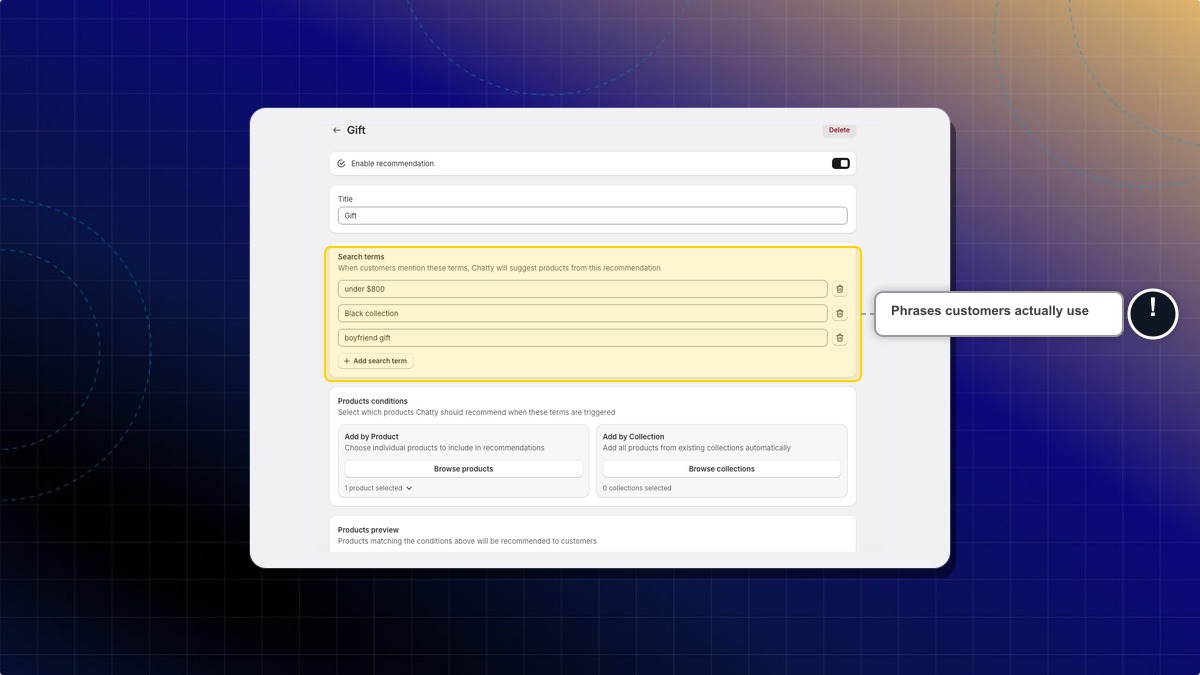
Expected result: The rule appears in the Custom recommendations table with its status on. The row shows how many products it covers and when you last changed it. When a customer mentions one of your search terms, the AI suggests those products.
To remove a rule you no longer need, click the trash icon on its row.
How to prioritize similar products by tag
By default the AI ranks similar products by automatic relevance. You can force it to favor products that share your tags.
- Scroll to Similar product matching.
- Turn on Prioritize similar by tags.
- In Priority tags, pick the tags that matter. For example, "linen", "summer", "unisex". The counter next to the label shows how many you have used.
- Click Save.
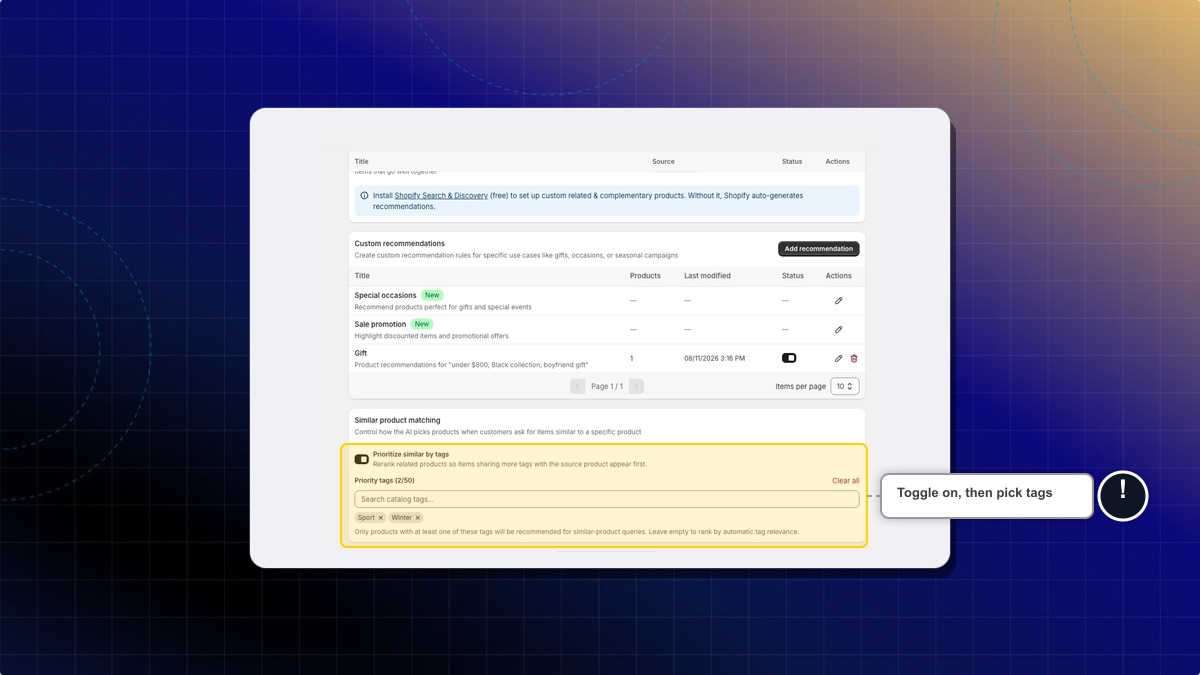
Expected result: When a customer asks for something similar to a product, the AI ranks items that share more of your tags first.
Once the toggle is on, only products carrying at least one priority tag can be recommended for similar-product questions. Leave the tag list empty and the save is blocked, because an empty list would silently recommend nothing.
How many priority tags can I add?
Up to 50. Click Clear all to start over.
What if two custom recommendations match the same question?
Keep your search terms specific to each rule. Overlapping terms make the match unpredictable, so split them by intent instead of repeating the same phrase.
Do I need to add products manually for best sellers and new arrivals?
No. With smart syncing on, both lists fill themselves from your Shopify store and refresh daily. You only edit them if you want to add or remove specific products.
My custom recommendation never fires. What should I check?
Check three things. The rule is set to Active, the search terms match how customers really phrase it, and the products you picked are in stock and synced.
 Chatty Help Center