Tickets
Who can use this feature?
- Helpdesk is in early access. Request early access (opens in a new tab) and we turn it on for your store.
- Once Helpdesk is on for your store, it works on every plan
- You see Helpdesk when your role can view tickets
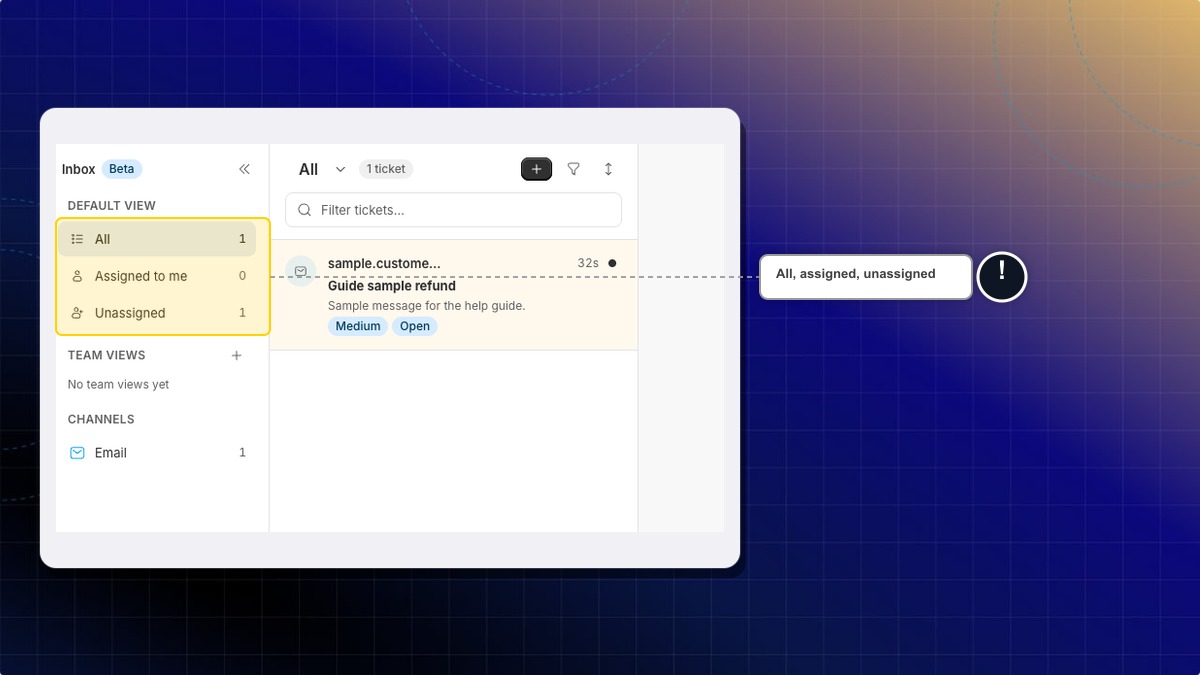
How to find a ticket
- Open Helpdesk.
- Click Inbox.
- Choose All, Assigned to me, or Unassigned.
- Choose a status: All, Open, Pending, Snoozed, Resolved, Spam, or Trash.
Expected result: The list shows tickets in that view and status.
Where are closed tickets?
Open the Resolved status. That is the closed list.
How to create a ticket
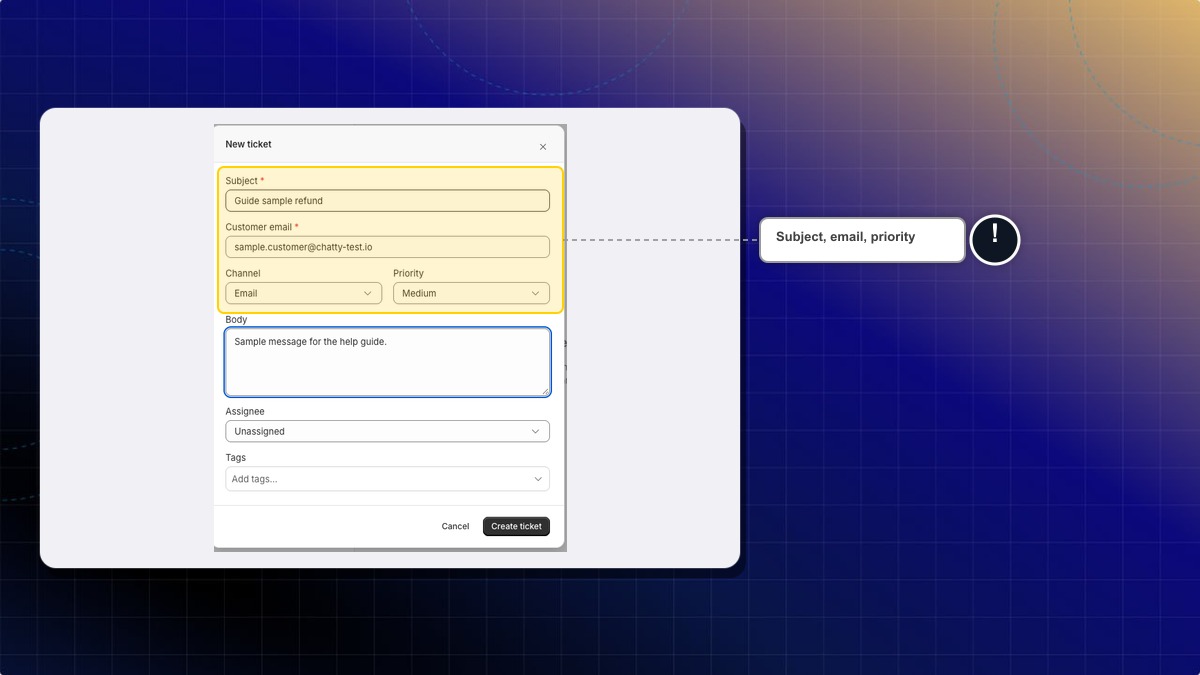
- In Inbox, click New ticket.
- Fill Subject. Example:
Refund request for order 1042. - Fill Customer email. Example:
customer@example.com. - Choose Channel: Email or Manual.
- Set Priority. The choices are Low, Medium, High, and Critical.
- Fill Body with the first message. Example:
Customer asked for a refund on order 1042. - Choose Assignee, or leave Unassigned.
- Click Create ticket.
Expected result: Helpdesk confirms "Ticket created." The new ticket opens in Inbox.
How to filter tickets in Table view
Table view has more filters than Chat view. You can filter by what the customer bought and by market.
- In Inbox, switch from Chat to Table.
- Use the filters above the table. Status, Channel, and Tag show first.
- Click + filters to add one more: Priority, Assignee, Stage, Market, Product intent, or Read status.
- Pick one or more values. For Channel, Tag, Stage, and Market, you can choose is or is not. Example: Stage is Awaiting delivery.
Expected result: The table shows only tickets that match all your filters. Click Clear all to remove them.
Status, Priority, and Assignee stay set when you switch back to Chat view. The other filters only apply in Table view.
Stage shows where the customer is with their newest order. Chatty skips cancelled and refunded orders.
| Stage | What it means |
|---|---|
| Not purchased | The customer has no order, or the ticket has no customer |
| Awaiting delivery | The newest order is not fully fulfilled yet |
| Purchased | The newest order is fulfilled |
Market lists the market names from your Shopify store. A new ticket takes the market of the same customer's last ticket.
is not also keeps tickets that have no Stage or Market yet.
How to update many tickets at once
- Select the tickets.
- In Chat view, hover over a ticket's channel icon and tick the box.
- In Table view, tick the box on each row. The box in the header selects every ticket loaded on screen.
- Pick an action in the bar that appears.
In Chat view, the bar shows Assign, Tags, Market, Resolve, Priority, Spam, Trash, Mark as read, and Mark as unread. Actions that don't fit move to More actions.
In Table view, the bar shows Close, Assign, Tag, Market, Mark read, and Mark unread.
Expected result: Helpdesk shows how many tickets changed. Example: 3 tickets updated, 1 ticket skipped (trash/spam).
- Assign, tag, market, and mark unread skip tickets in Spam or Trash.
- Market shows only when your store has at least one market to pick.
- To mark one ticket as spam, your role needs permission to delete tickets.
- Only admins can mark many tickets as spam at once. Other roles still see the Spam button, but they get an error when they click it.
- Trash shows only when your role can delete tickets.
 Chatty Help Center