Human handover
What is human handover
Human handover controls how a conversation moves from AI to your team. It is split into three parts:
- When should AI hand off to your team? — the situations that start a handover
- Where does the customer go? — what happens to the conversation once AI hands off
- Can customers ask for a person themselves?: when the chat menu shows Talk to a person
Keeping these separate makes it easy to decide when AI should step back and where each customer should land, without mixing the two.
When should AI hand off to your team?
There are two ways to decide when AI steps back: auto-triggers and intent rules.
Auto triggers
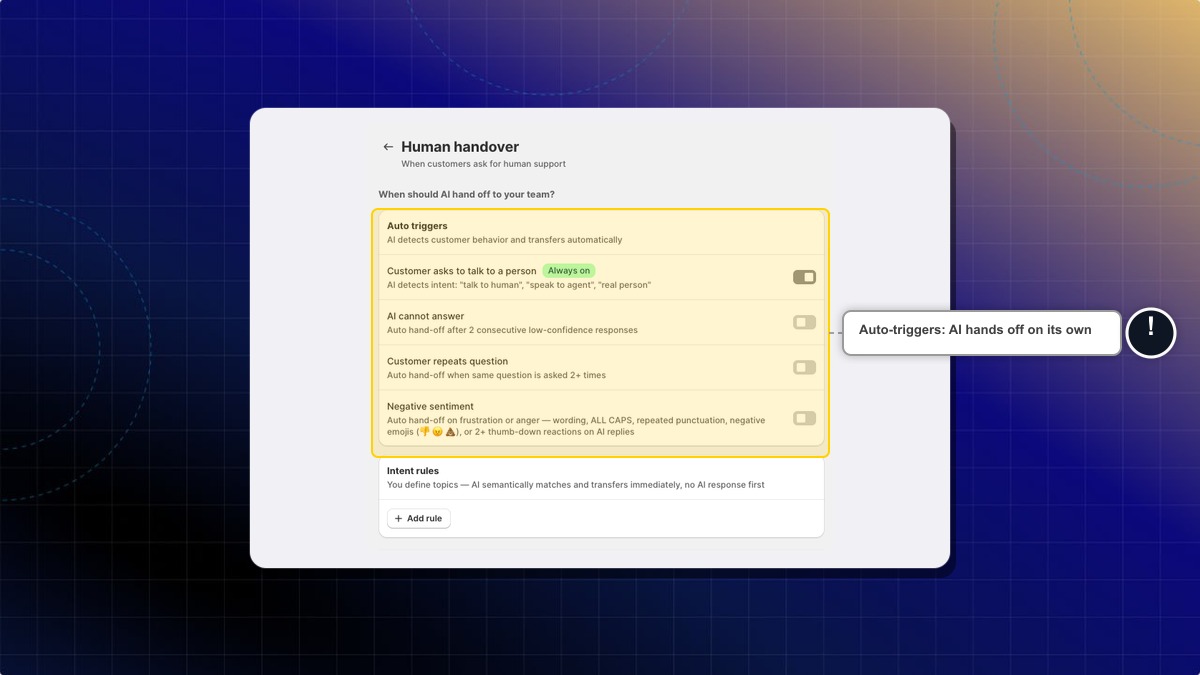
AI detects customer behavior and hands off automatically. Turn on the triggers that fit your team:
- Customer asks to talk to a person — Always on. AI detects intent such as "talk to human", "speak to agent", or "real person".
- AI cannot answer — auto hand-off after 2 consecutive low-confidence responses.
- Customer repeats question — auto hand-off when the same question is asked 2+ times.
- Negative sentiment — auto hand-off on frustration or anger, detected from wording, ALL CAPS, repeated punctuation, negative emojis, or 2+ thumb-down reactions on AI replies.
The first trigger stays on so customers can always reach a person on request.
Intent rules
Use intent rules to define topics that should hand off immediately, with no AI response first. AI semantically matches the topic (covering keyword variations) and transfers right away.
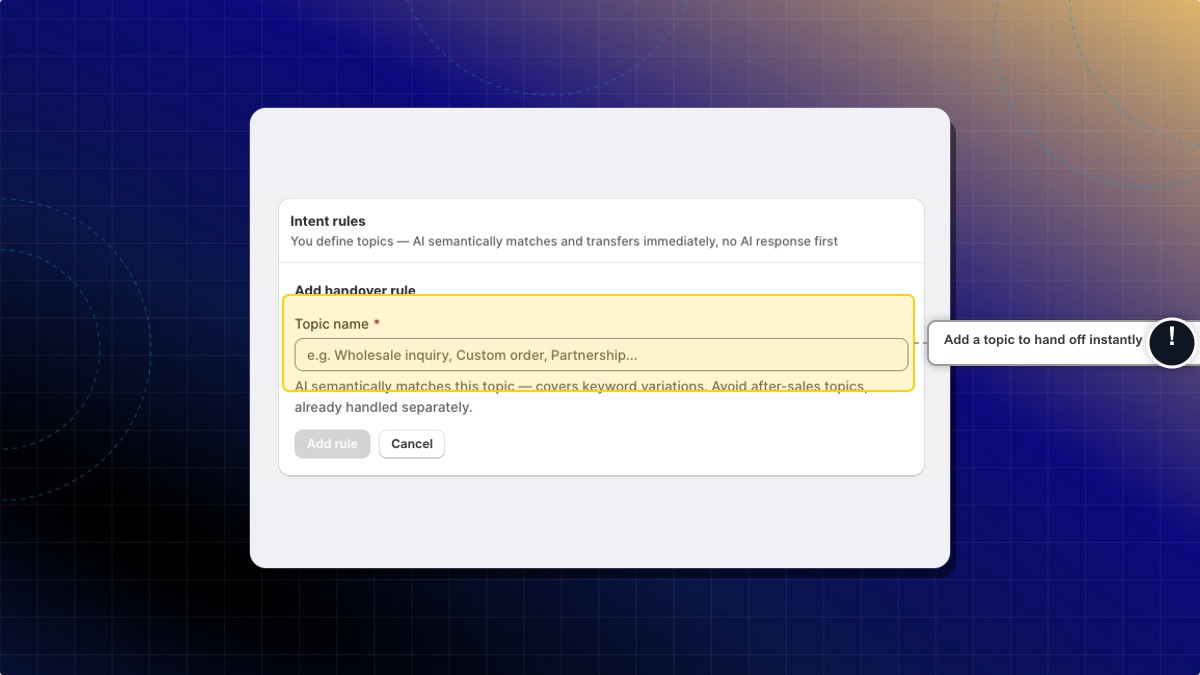
Click Add rule, give the topic a name (for example Wholesale inquiry, Custom order, or Partnership), and save. Avoid after-sales topics that are already handled separately.
Where does the customer go?
Once AI decides to hand off, choose where the conversation lands. Each destination has its own messages that AI sends to the customer.
Pick one of three destinations:
Transfer to human in Chatty inbox Recommended
The agent joins the chat directly and the customer stays in the same window, with no friction. Agent routing is managed in your Automation settings, and working hours come from your Chat availability settings.
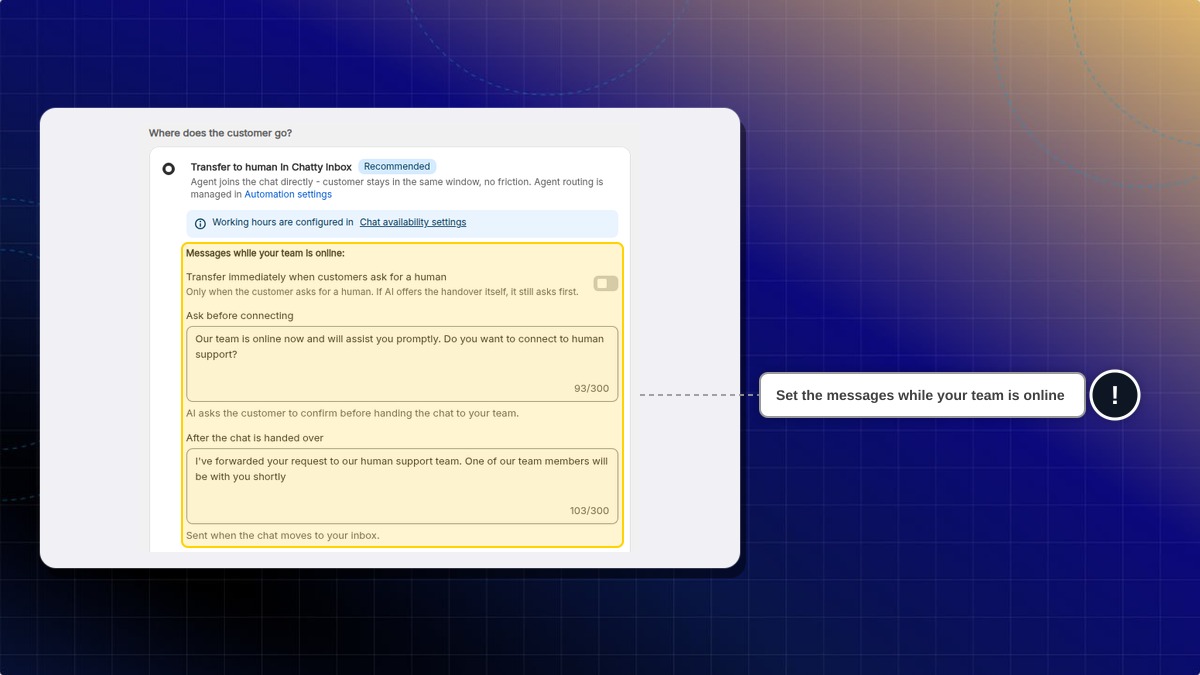
Messages while your team is online:
- Transfer immediately when customers ask for a human: off by default. Turn it on to skip the confirm question when the customer asks for a person. If AI offers the handover itself, it still asks first.
- Ask before connecting: the question AI asks before handing the chat to your team. The default is Our team is online now and will assist you promptly. Do you want to connect to human support?
- After the chat is handed over: the message sent when the chat moves to your inbox.
When your team is offline, show customers:
- Leave a message — we'll follow up: AI collects the customer's email and issue description, and your team follows up when back online. Set When customers can expect a reply (for example Within 24 hours), and pick extra details to collect under Information collected from customer: Order number, Phone number, Sales channel or Photo upload. Email and Issue description are always collected. You can also edit Message shown with the form and Message shown after the form is submitted.
- Show contact methods: AI shows the contact methods configured in your Chatbox settings so the customer can reach out while your team is away. Edit Message shown with the contact methods to add a line or a link, for example to your contact page.
While the customer waits for your team, let AI keep replying:
- Don't allow — AI stops replying once the customer is waiting for an agent.
- Allow only outside business hours — when your team is offline, AI keeps handling the conversation instead of handing off.
- Allow all the time — AI keeps replying while the customer waits, even during business hours.
Collect info & follow up by email
No live agents needed — AI collects the customer's details and sends a summary to your support email address (set under AI settings) for follow-up. Set When customers can expect a reply (for example Within 24 hours). The form fields and the two form messages work the same as in Leave a message — we'll follow up.
Show contact methods
AI shows the contact methods configured in your Chatbox settings (phone, WhatsApp, email, contact form, and more) and lets the customer pick how to reach out. The text above the methods comes from Message shown with the contact methods.
Can AI hand the chat over to Helpdesk instead?
Yes, once Helpdesk is on for your store. Helpdesk is in early access. Request early access (opens in a new tab) to get it. You then see a fourth destination that turns the conversation into a Helpdesk ticket, and your team replies from Helpdesk. This handover works at any hour, so the offline options above don't apply to it. If Helpdesk is later turned off for your store, handovers go to your Chatty inbox instead.
Can customers ask for a person themselves?
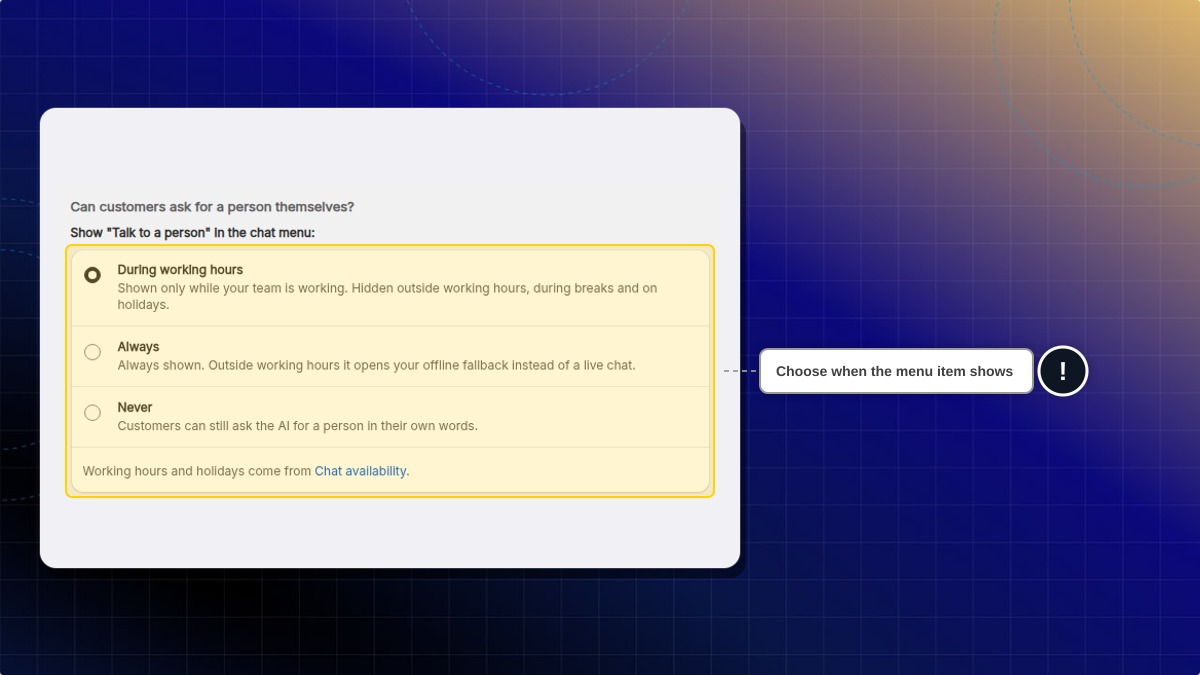
Choose when the chat menu shows Talk to a person:
- During working hours: shown only while your team is working. Hidden outside working hours, during breaks and on holidays.
- Always: always shown. What a tap does depends on where the customer goes:
- Transfer to human in Chatty inbox: outside working hours, it opens your offline option instead of a live chat.
- Collect info & follow up by email: it shows your contact form, at any hour.
- Show contact methods: it shows your store contact methods, or your contact form if none are set up.
- Helpdesk: it hands the conversation to Helpdesk, at any hour.
- Never: hidden. Customers can still ask AI for a person in their own words.
During working hours is the default.
Working hours and holidays come from Chat availability.
How to set up human handover
1. Open Human handover
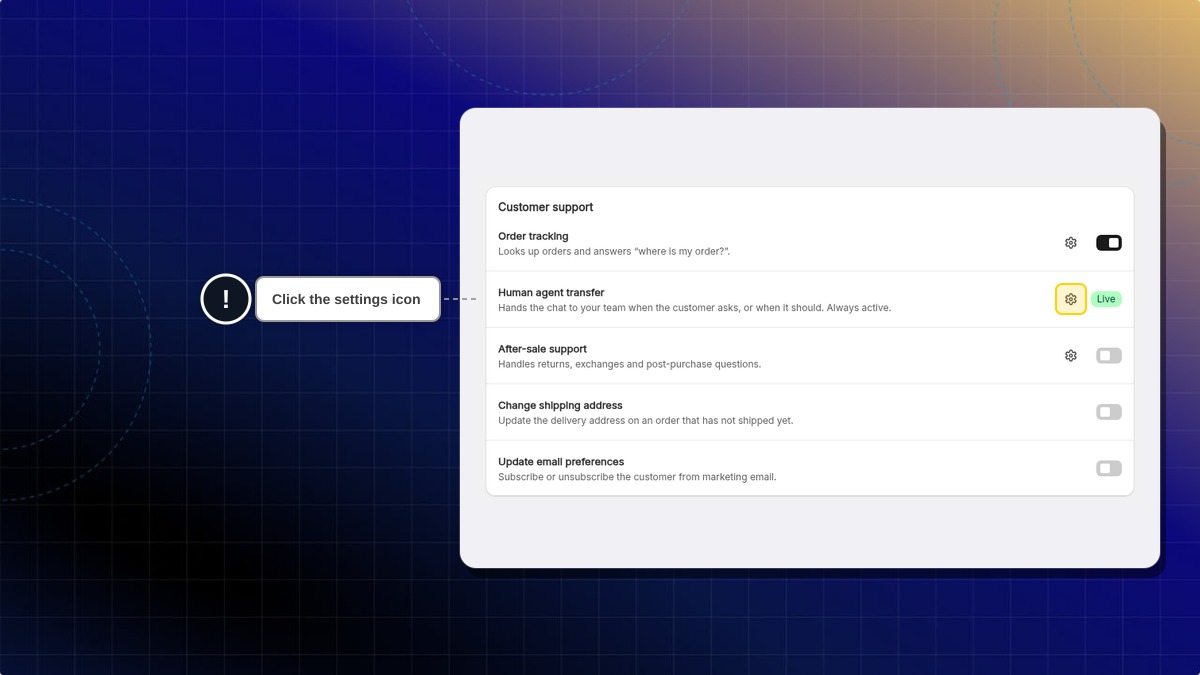
Go to AI agent → Skills. Under Customer support, click the settings icon next to Human agent transfer. The Human handover page opens.
2. Set when AI should hand off
- Turn on the auto triggers you want: Customer asks to talk to a person, AI cannot answer, Customer repeats question, and Negative sentiment.
- Add intent rules for any topics that should hand off immediately.
3. Choose where the customer goes
Pick a destination — Transfer to human in Chatty inbox, Collect info & follow up by email, or Show contact methods — and configure its details (messages, offline behavior, reply time, and whether AI keeps replying while the customer waits).
4. Choose when customers see Talk to a person
Under Can customers ask for a person themselves?, pick During working hours, Always or Never. Then save your changes.
Expected result: AI hands chats over at the moments you picked, sends the customer to the destination you chose, and uses your messages.
 Chatty Help Center