Inventory status
What is inventory status
Inventory status controls how your AI talks about stock. You decide whether it names exact numbers, what counts as low stock, and what it says for sold out or backorder items.
This helps you create urgency on low stock without promising availability you cannot deliver.
Every field on this page is saved together from the save bar at the top, and nothing is kept until you click Save.
How to control what stock numbers customers see
Before you start, make sure your products are synced to Chatty. Your AI reads stock from that synced catalog, so these settings do nothing until the sync has run. Learn how to add data sources.
-
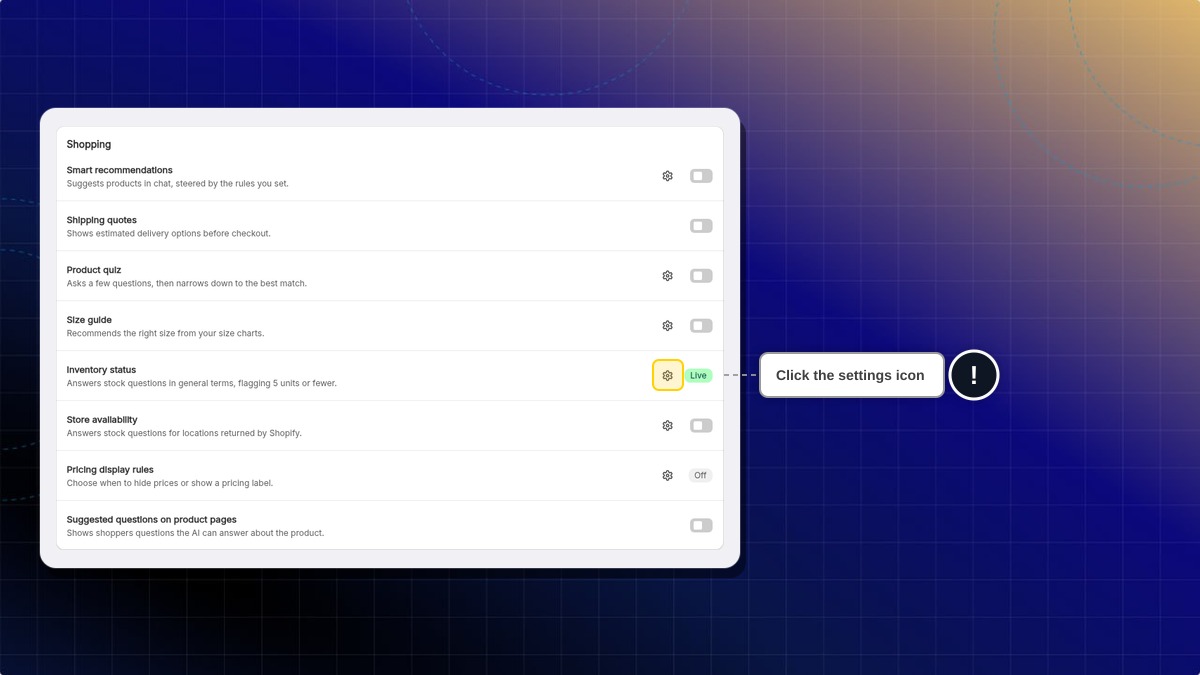
Go to AI agent → Skills.
-
Under Shopping, find Inventory status and click the settings icon.
-
Turn Show exact quantity to customers on or off.
-
Click Save in the top bar.
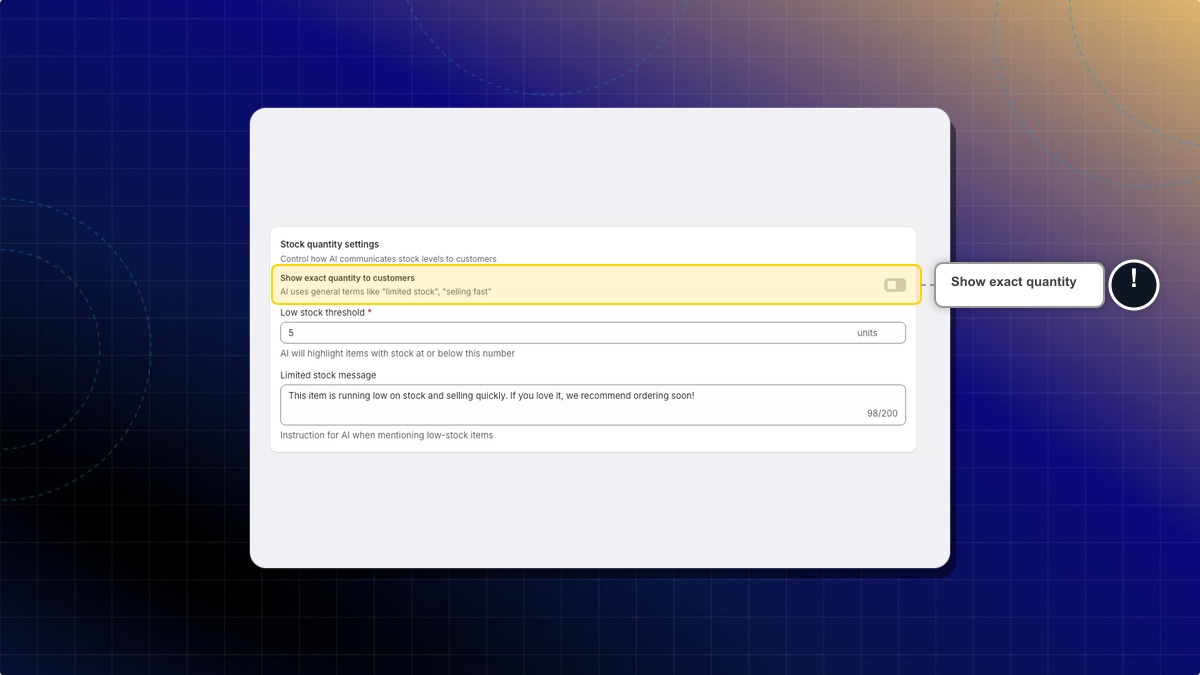
Expected result: With the toggle on, your AI may say "Only 3 left!". With it off, it uses general terms like "limited stock" or "selling fast".
How to set your low stock threshold
- In Low stock threshold, enter a number between 1 and 100. For example,
5. - Click Save in the top bar.
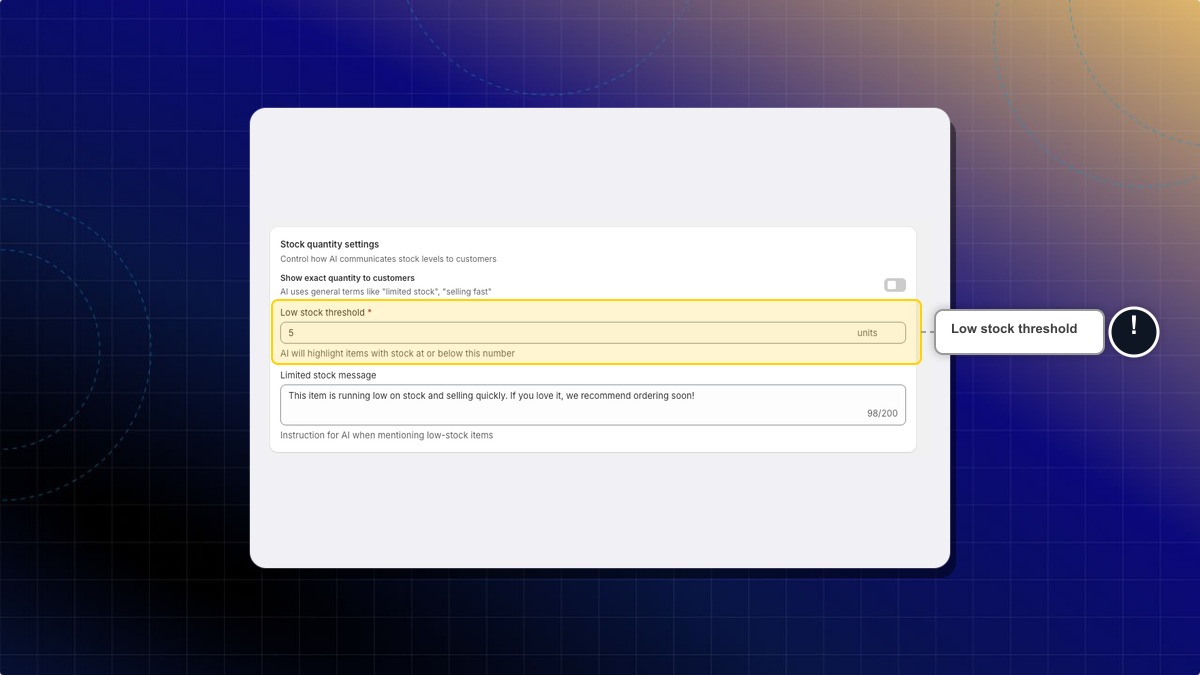
Expected result: Your AI treats any item with stock at or below that number as low stock.
How to write your low stock message
This field is an instruction for the AI, not a script it repeats word for word.
- In Limited stock message, describe the tone you want. For example:
Mention that this item is selling fast and suggest ordering soon. Create gentle urgency without being pushy. - Click Save in the top bar.
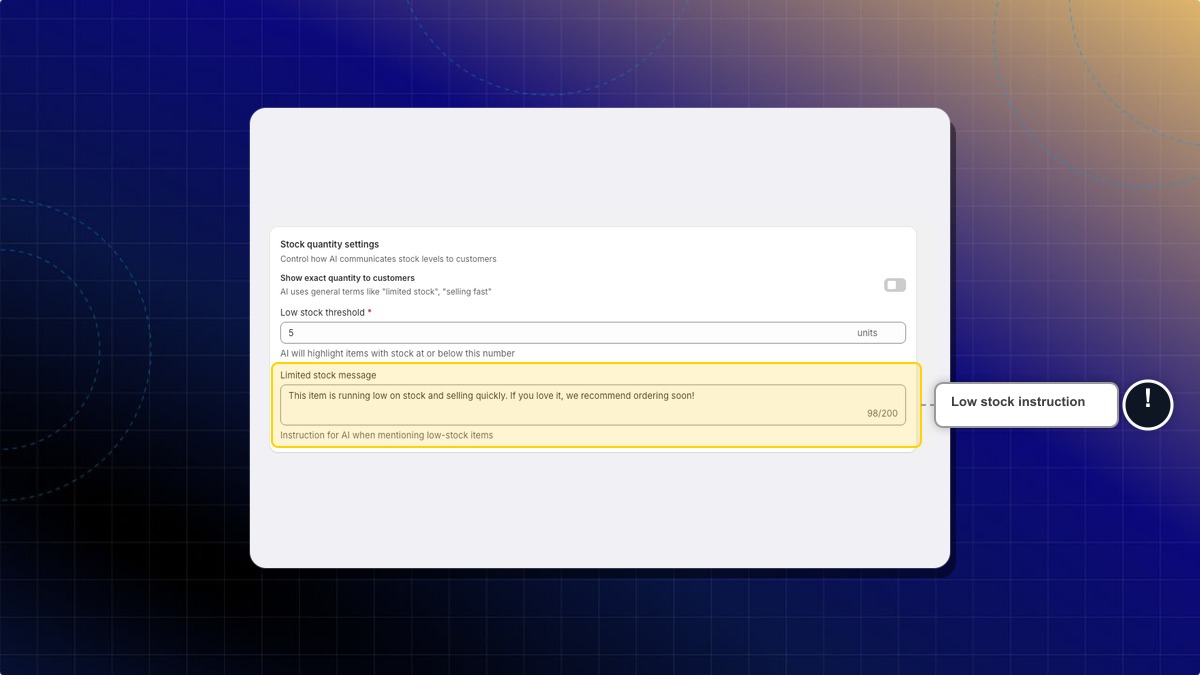
Expected result: When your AI mentions a low-stock item, it follows your instruction instead of a default line.
Each instruction field on this page holds up to 200 characters. The counter under the field shows how much you have left.
How to set instructions per availability status
Status messages let you give the AI a different instruction for each variant state.
- Scroll to Status messages.
- Fill in the statuses you care about.
- Click Save in the top bar.
| Field | When the AI uses it | Example instruction |
|---|---|---|
| In stock | The variant is available for immediate purchase | Inform the customer that this item is currently available in stock for immediate dispatch. Urge them to place their order soon as stock is limited. |
| Sold out | The variant is out of stock | Tell the customer this variant is currently sold out. Advise them to check back in a few days or subscribe for restock notifications. |
| Available on backorder | The variant is out of stock but can still be ordered | Let the customer know they can secure their item by ordering on backorder today. Clarify that orders will be fulfilled on a first-come, first-served basis as soon as new stock arrives. |
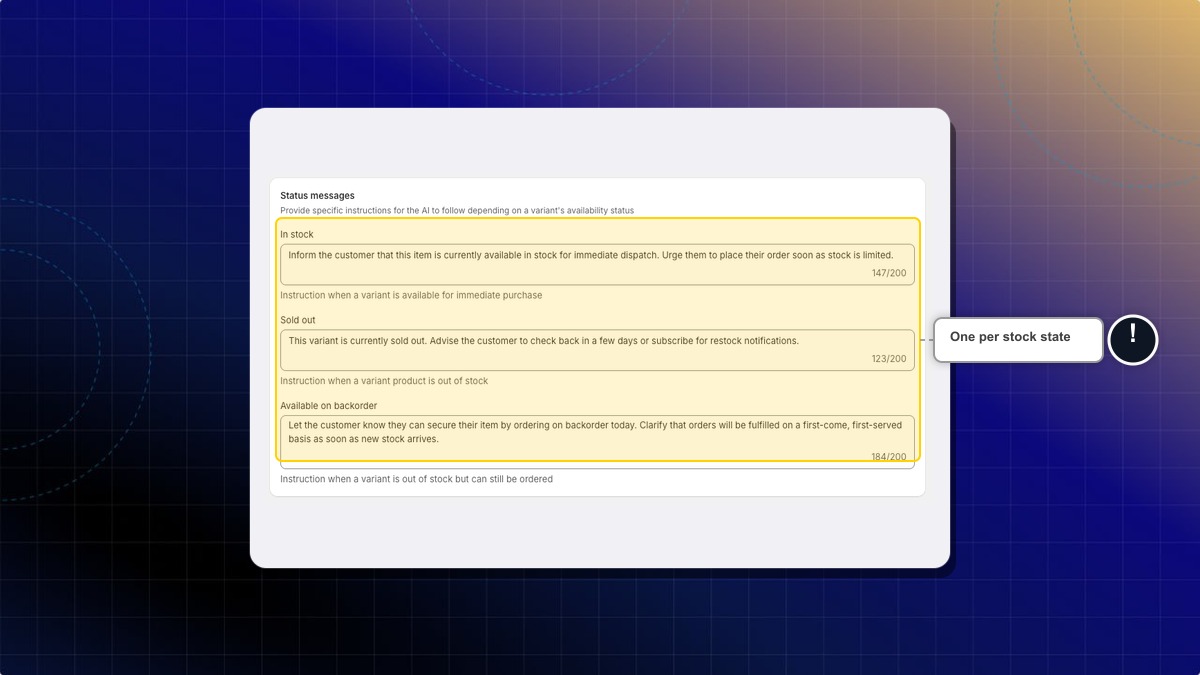
Expected result: Your AI switches its wording based on the real availability of the variant the customer asked about.
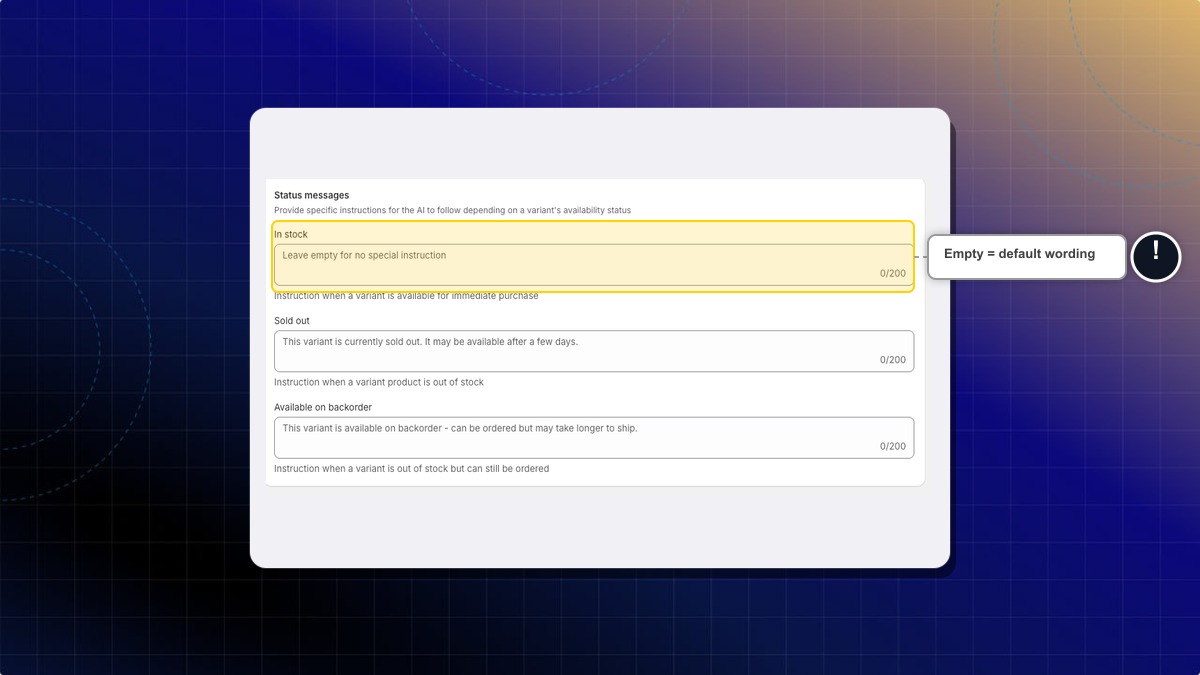
What happens if I leave a status field empty?
Your AI answers with its default wording for that status. Leave a field empty when the default is fine.
The grey text you see in an empty field is that default, not something you wrote. The counter still reads 0/200 until you type.
Will my AI ever invent a stock number?
No. It reads availability from your synced catalog. If the number is not available, it falls back to general wording.
Should I turn on exact quantities?
Turn it on when low stock is real and you want the urgency. Turn it off when your stock numbers change fast, so customers do not see a number that is already stale.
 Chatty Help Center