Online hours
Who can use this feature?
- This feature is available on all plans.
- You need the Chat availability permission to open the page. Without it you see a no-access banner.
This helps you to set up online and offline time in chat.
To open it, go to Settings → General and click Manage on the Chat availability card. Only admins see this card.
You can define your working hours, break times, and holidays so customers know when they can expect a live support from your team.
Online and offline status only works when you turn on block Live chat in Chatbox style settings.
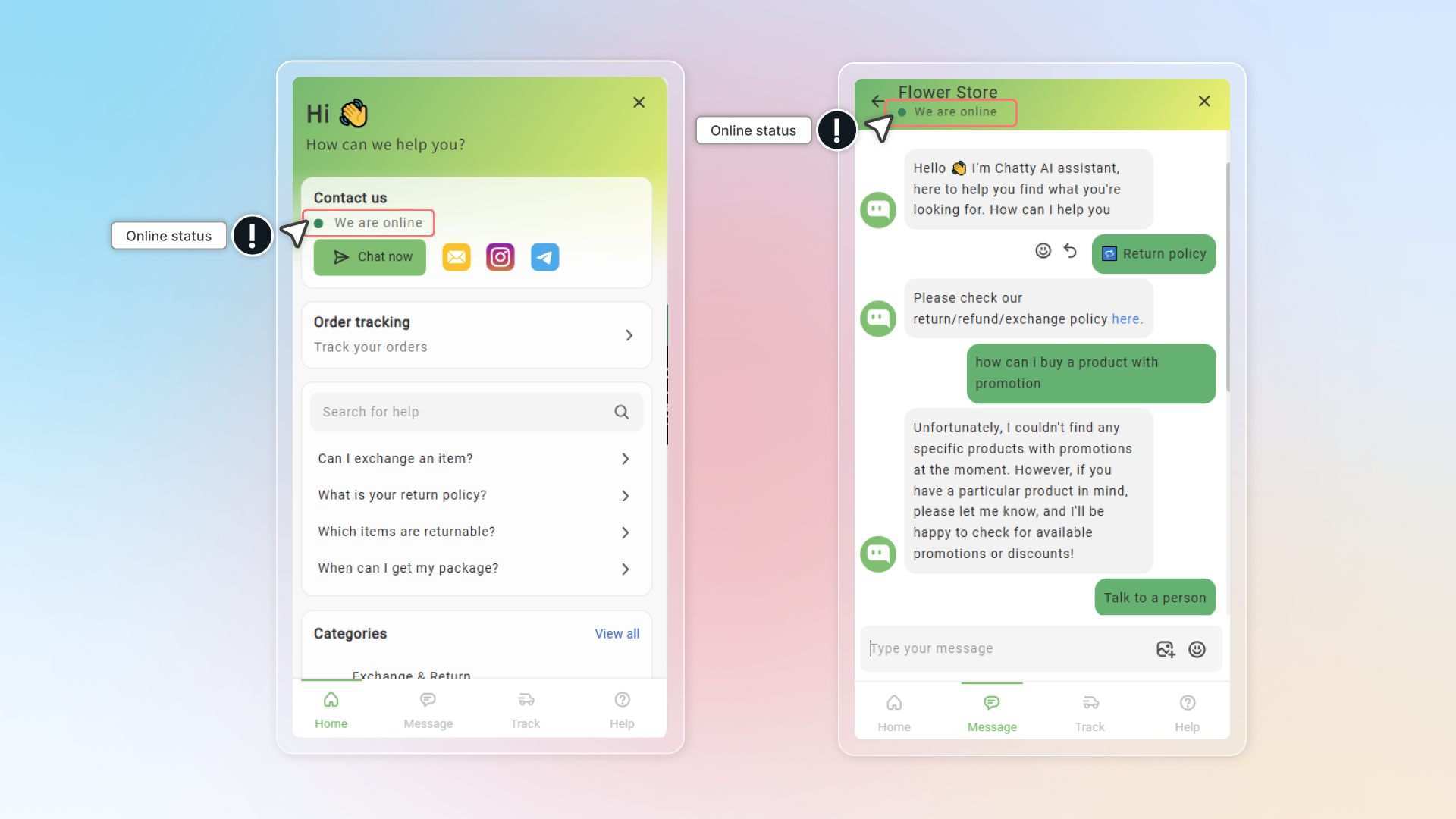
How to set up online/offline hour
Set up working hour
- 24 hours/7 days: You can be online to chat with customers all the time
- Custom time: Set up time which is suitable with your schedule
Add break time or holiday time
- Break time: offline in a short period of time during your working hour
- Holiday time: offtime for certain days
Select timezone
Select timezone to ensure that your availability displays correctly to customers in your local time
If you have team members in different time zones, select the primary time zone where most support is handled.
Set up status
Under Show online status, pick one of three rules:
- During working hours: follows the schedule above, whatever your team is doing
- During working hours, or when any agent is online: an agent who is online shows the status as online even outside working hours
- Only when an agent is online during working hours: shows offline when nobody is online, even inside working hours. Your AI agent still replies while the status is offline
Customize the status messages
Enter the message customers see for each state.
| Field | When customers see it | Default |
|---|---|---|
| Online status | You are available | We are online |
| Offline status | Only on 24 hours / 7 days, or on days with no schedule | Usually reply in a few minutes |
| Offline status (with schedule) | Only on Custom time, when there is an opening time coming up | — |
| Break status | During a break time | — |
| Holiday status | During a holiday | — |
In the last three fields you can type {{schedule}} and Chatty fills in when you will be back — the next opening hours, the end of the break, or the day you return from the holiday.
You only ever see four of these fields at once. Offline status appears on 24 hours / 7 days, Offline status (with schedule) appears on Custom time, and never both.
Click Save
You can preview online and offline status on chatbox.
How to set up welcome messages
The welcome message is the first message customers see when they open the chat. You set it on the Chat availability page, in the Welcome message card, so the online and offline greetings follow the same schedule as your working hours, breaks, and holidays.
- Go to Settings → General and click Manage on the Chat availability card.
- In the Welcome message card, fill in Welcome message from your team. You can type up to 150 characters. To add the customer's name, click Insert customer name above the field. Example:
Hi {{customer_name}}, how can we help you today? - Fill in Welcome message from the AI agent. Customers see it when the AI agent replies. You can use the variables
{{customer_name}},{{ai_name}}, and{{store_name}}. Example:Hello {{customer_name}}, I'm {{ai_name}}. How can I help you?
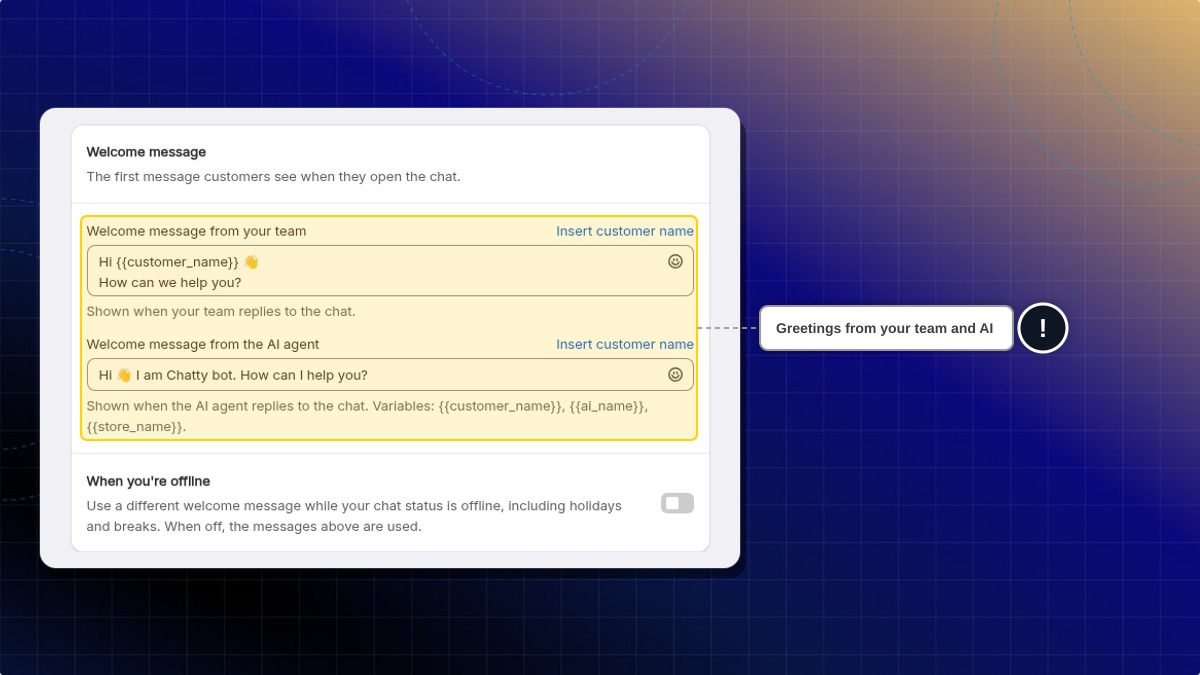
- Turn on When you're offline to use different greetings while your chat status is offline.
- Fill in Offline welcome message from your team. You can type up to 150 characters. Example:
Thanks for reaching out! We're closed for the holiday and will reply when we're back. - Fill in Offline welcome message from the AI agent. Leave it empty to use the AI agent's welcome message from step 3. The same variables work here.
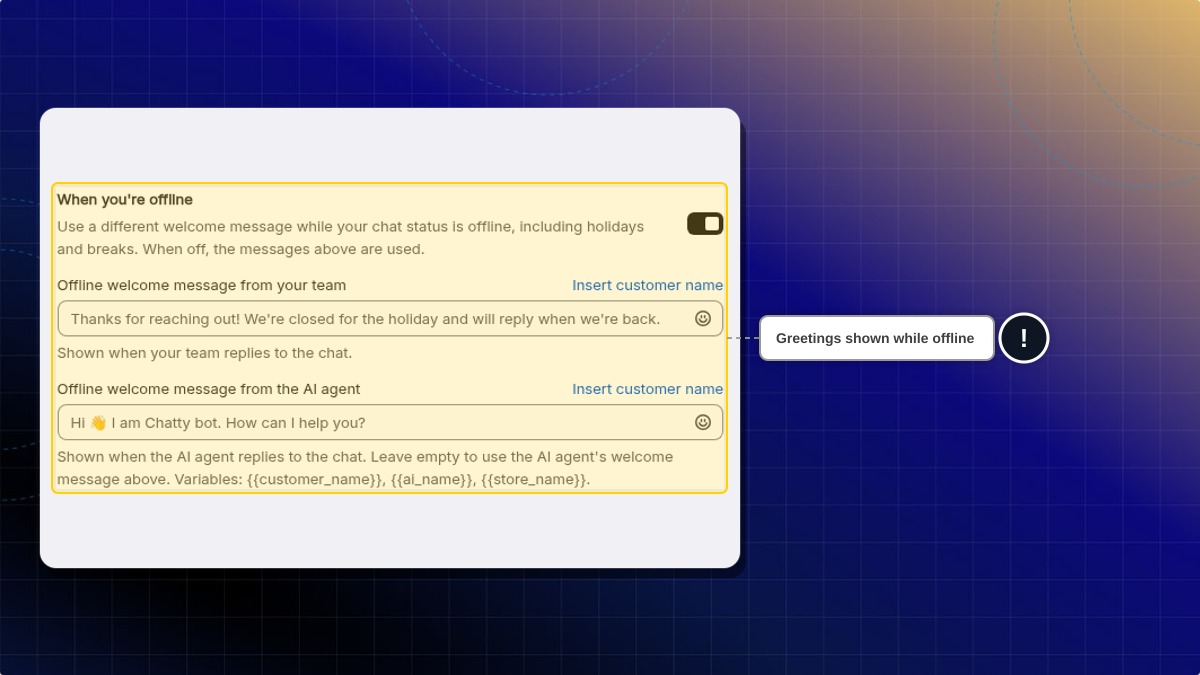
- Click Save.
Expected result: Customers see the team greeting when your team replies, and the AI agent greeting when the AI agent replies. While your status is offline, they see the offline greeting instead.
| Who answers the chat | Your status | Greeting customers see |
|---|---|---|
| Your team | Online, or When you're offline is off | Welcome message from your team |
| Your team | Offline, When you're offline is on | Offline welcome message from your team |
| AI agent | Online, or When you're offline is off | Welcome message from the AI agent |
| AI agent | Offline, When you're offline is on, offline AI message filled in | Offline welcome message from the AI agent |
| AI agent | Offline, When you're offline is on, offline AI message empty | Welcome message from the AI agent |
Offline includes breaks and holidays.
The AI agent fields show even when your AI agent is off. Chatty starts using them once you turn the AI agent on.
Where did the welcome message fields in Chatbox and AI agent settings go?
They moved to Chat availability. In Legacy chatbox → General, the Welcome message card now has an Edit welcome message link. In the AI agent Settings, the Welcome message field shows your current text and an Edit in Chat availability link.
Can I translate the offline AI welcome message?
Yes. Translate it in Settings → Translations, like your other chat texts.
First auto-reply
The first auto-reply is the message Chatty sends back as soon as a customer sends their first message, so nobody waits in silence.
It sits at the bottom of the same Chat availability page.
- Turn on First auto-reply.
- Fill in Online message — sent when your status is online.
- Fill in Offline message — sent when your status is offline, on a break, or on a holiday.
- Click Save.
The first auto-reply is only sent when your AI agent is turned off. While the AI agent answers the conversation, this message is not sent. When your AI agent is on, the card shows the note Not sent while the AI agent answers the conversation.
This is not the same as the welcome message above. The welcome message greets everyone who opens the chat. The first auto-reply is sent after the customer types their first message.
How to turn on the offline contact form
When nobody can answer the chat, the offline contact form asks new visitors for their name, email and question. Chatty emails the request to you, so you can reply later.
- Go to Settings → General and click Manage on the Chat availability card.
- Turn on Offline contact form.
- Click Save.
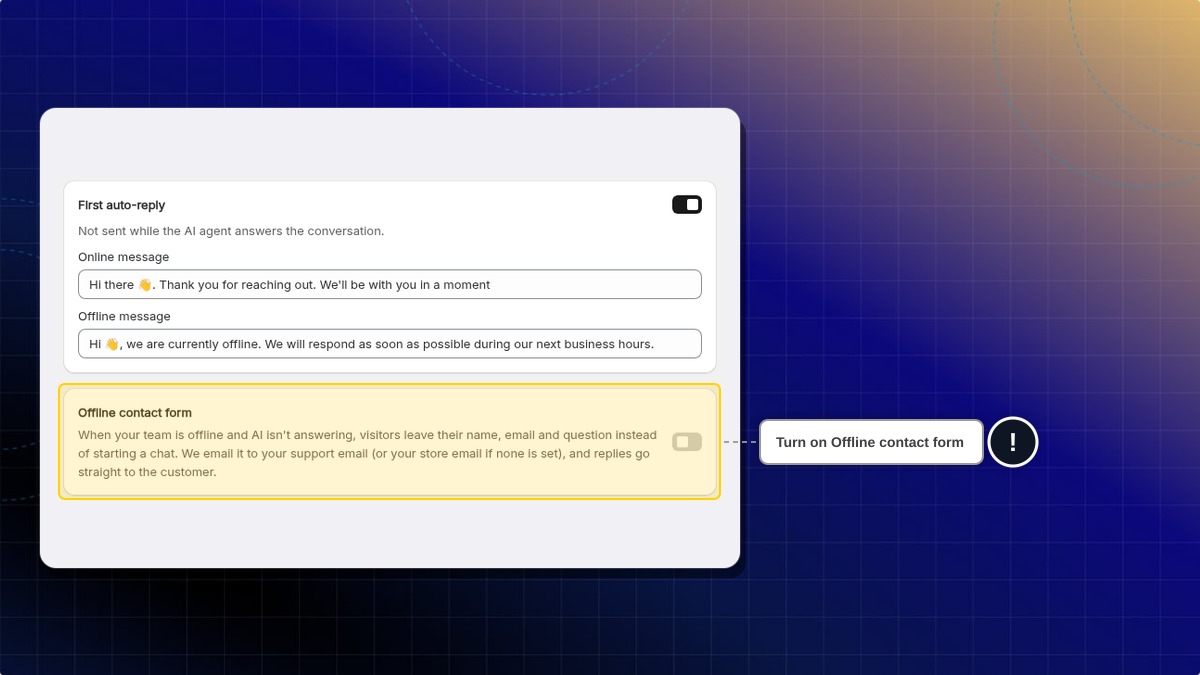
Expected result: While your status is offline, a new visitor who opens the chat sees a form with Name, Email address and Message. All three are required before they can click Send.
After the visitor clicks Send:
- Chatty emails the request to the first address in Contact support email, in your AI agent Settings. The second address, if you entered one, gets a copy (CC). If that field is empty, the email goes to your store email.
- The email's reply-to is the customer's address, so replying from your mailbox reaches the customer directly.
- The request also appears as a new conversation in your Inbox. You get the email instead of the usual new message notification.
- The visitor sees the message set in Message shown after the form is submitted in Human handover. If you never changed that message, the visitor sees the default one.
The form shows only when all of these are true:
- Your chat status is offline, including breaks and holidays.
- Your AI agent is off. While the AI agent is on, visitors chat with it as usual.
- The Live chat block is on.
- The visitor has not started a conversation yet.
- Your store uses the Legacy chatbox. AI Mode does not show the form.
The form is off by default.
Is there a limit on how many forms visitors can send?
Yes. Each visitor can send up to 5 forms per hour, and your store accepts up to 100 forms per hour.
 Chatty Help Center