Translation
Who can use this feature?
- Free: Default language only. Cannot add new languages or use auto-translate.
- Basic, Pro, Plus: Add multiple languages and enable auto-translate. Limits vary by plan.
- Only team members with admin access see Translations in Settings.
What is Translation?
Translation lets your chatbox and FAQs appear in your customers' language automatically.
Instead of showing the same language to every visitor, Chatty shows each visitor the language your storefront is displaying to them. No manual work is needed for each customer.
How Translation works
Languages
A language in Chatty is a display language for your chatbox. Chatty shows the language your storefront is currently displayed in. Your store's languages are set in Shopify admin under Settings → Languages.
If a customer views your store in French, the chatbox shows French only when French is published in Chatty. If it is not, the chatbox falls back to your default language.
Auto-translate
Auto-translate machine-translates your FAQ categories and questions, suggested FAQs, homepage questions, AI thinking statuses, AI Mode invite messages, and Help center content. When you edit an FAQ, languages with auto-translate on are translated again automatically.
Chatbox labels work differently. Chatty fills them from ready-made translations. If you wrote your own label text, it stays as you wrote it, so review it in each language.
If auto-translate is off, you can still add and publish a language, but you translate the content yourself. Languages with auto-translate on are labelled in the language list.
Default language
Your default language is shown to all visitors when their language is not published in Chatty. English is the default when you first install Chatty. You can pick any of the 41 supported languages as the default.
Set up languages
(Basic plan and above)
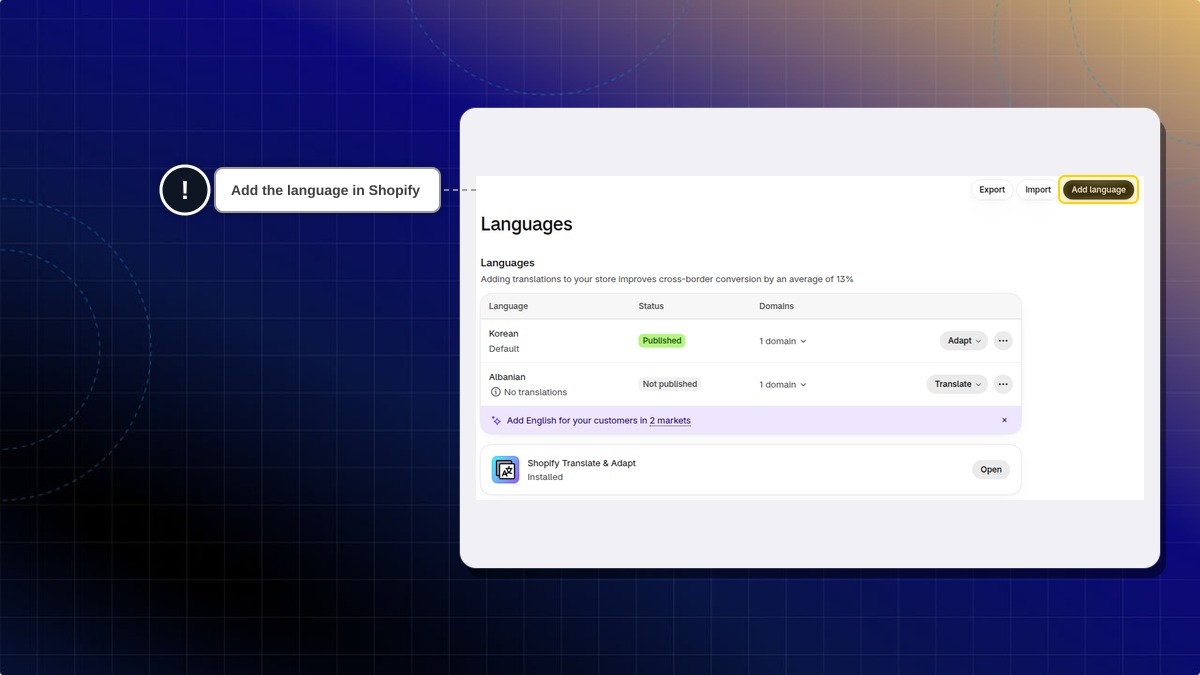
Step 1: Add the language in Shopify
Before adding a language in Chatty, make sure your store can show it.
- In Shopify admin, go to Settings → Languages
- Click Add language and choose your language
- Publish the language in Shopify so customers can switch to it
Step 2: Add and publish in Chatty
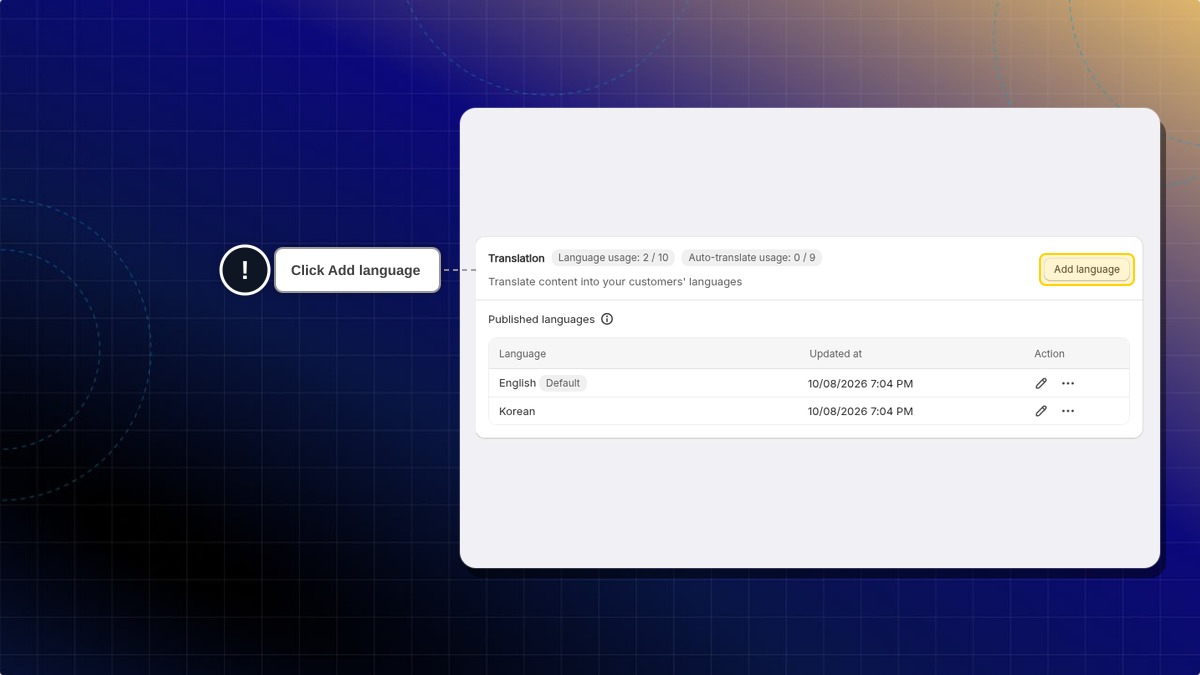
- In Chatty, go to Settings → Translations and click Add language
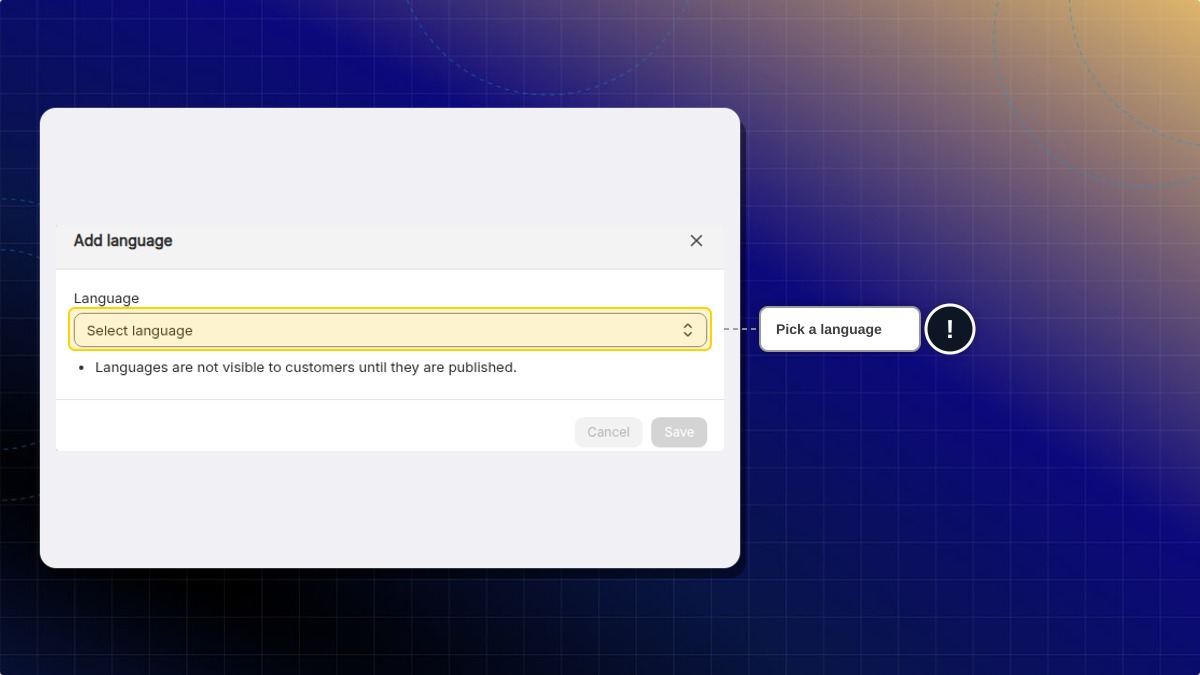
- Pick a language from the Language list, for example French, then click Save
- The language appears in your unpublished languages. If you have auto-translate slots left, its content is translated automatically
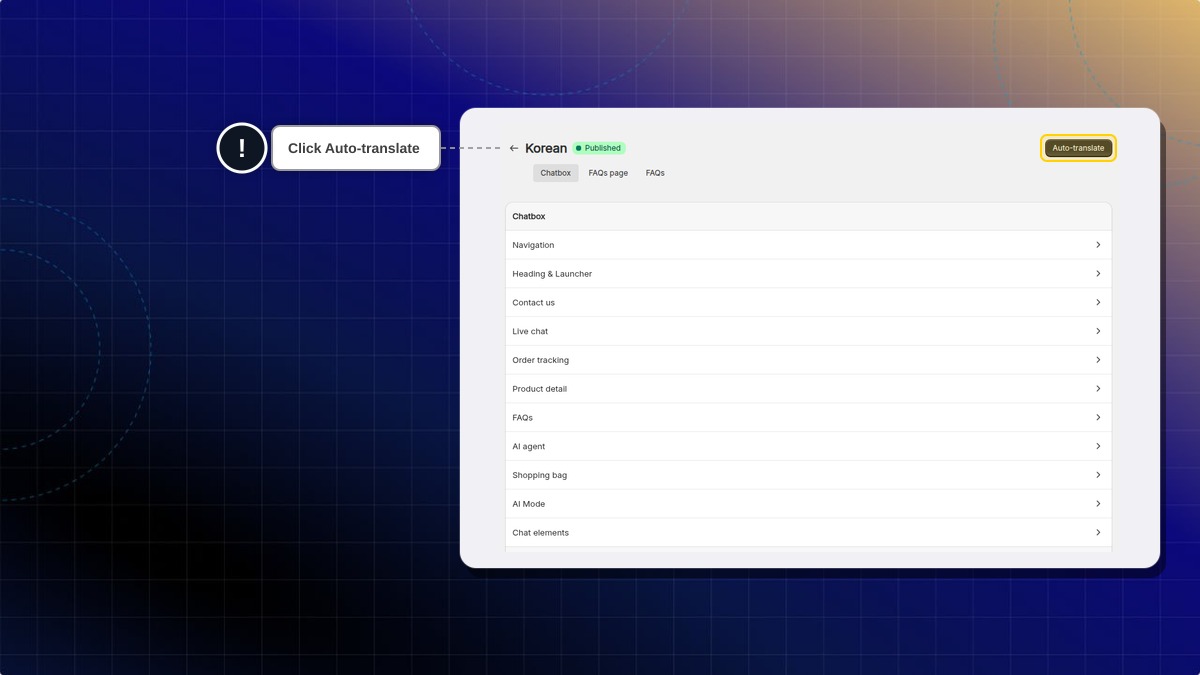
- Click the pencil icon on the language row to review the Chatbox, FAQs page and FAQs tabs
- To translate all content at once, click Auto-translate at the top of the page. You can also type translations yourself
- Save your changes
- Click the ... icon on the language row → Publish
Unpublished languages are not visible to customers until they are published.
Auto-translate at the top of the edit page is not available on the Free plan or for your default language. Once auto-translate is on for a language, the button translates the content again.
Translate AI Mode texts
You can translate every text shoppers see in AI Mode. This covers the search tabs, chat messages, product buttons, chat history and the contact form.
- Go to Settings → Translations
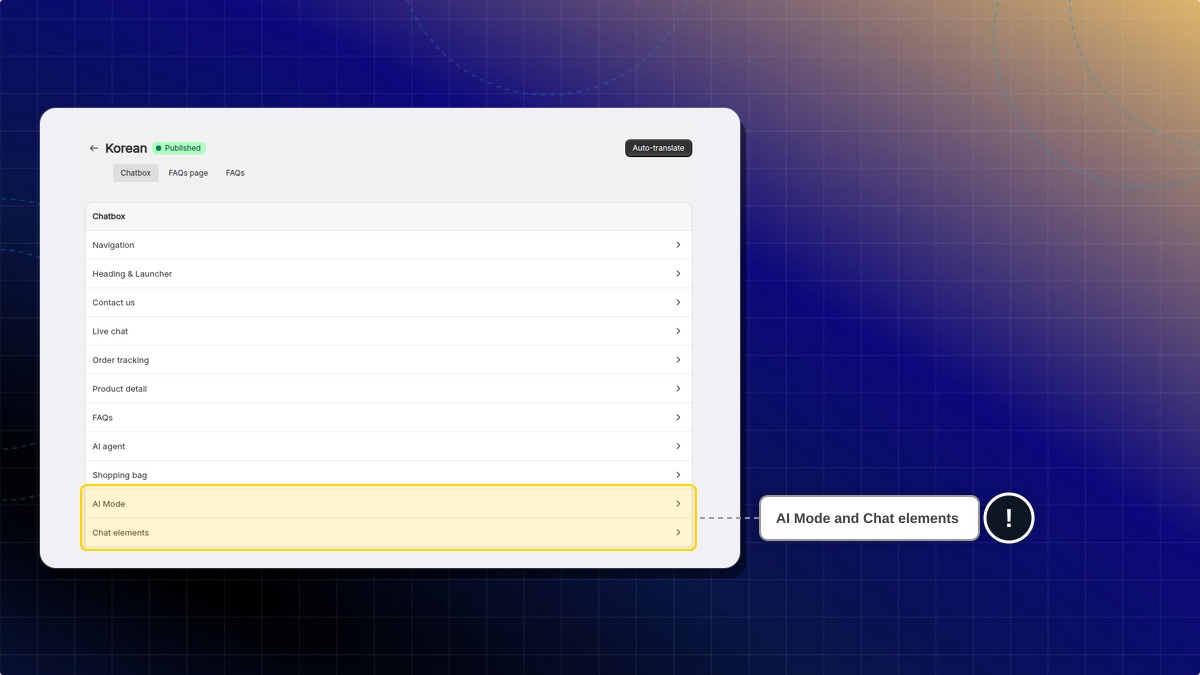
- Click the pencil icon on the language you want, for example Korean
- In the Chatbox tab, click AI Mode
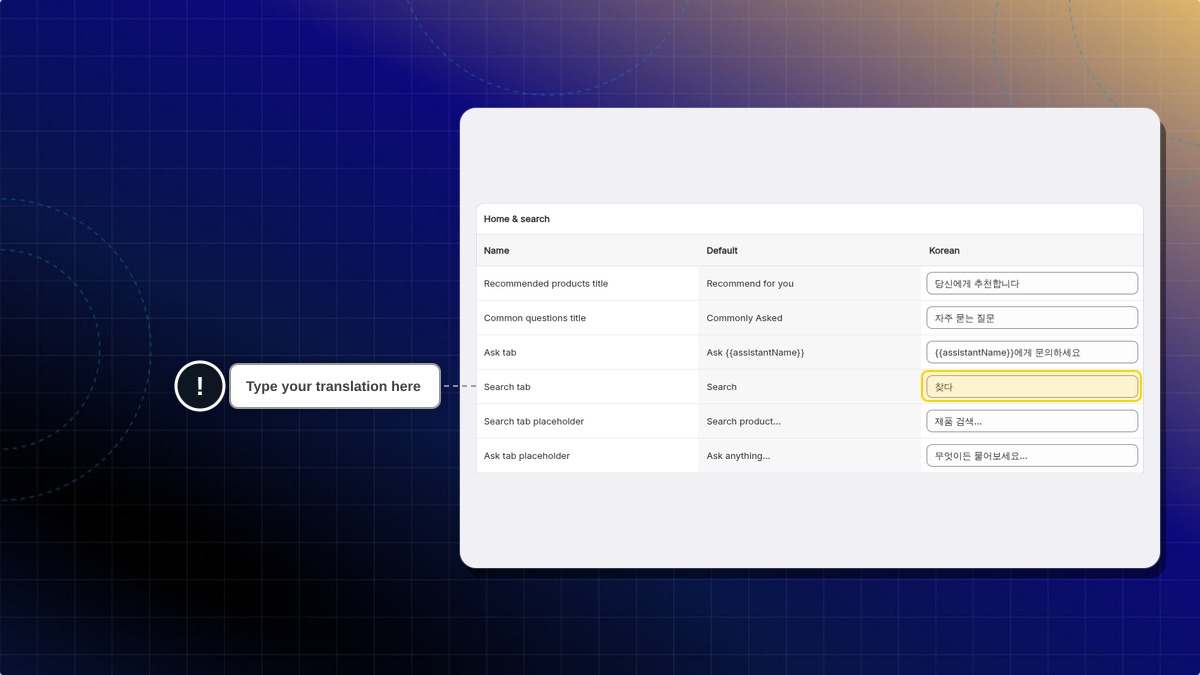
- Type your translation next to each text. The Default column shows the original text
- Save your changes
Expected result: Shoppers who view your store in that language see AI Mode in their language.
AI Mode texts are grouped into Home & search, Search suggestions, Chat, Attachments, Chat history, Products, Compare & select and Contact form.
Texts shared across the chatbox sit in Chat elements. These include Time labels, Attachments, Products, Size guide, coupons & orders, and Forms & surveys.
Keep placeholders such as {{assistantName}} or {{count}} as they are. Chatty replaces them with real values.
Where do I translate my AI Mode invite messages?
In the AI agent section of the Chatbox tab, under AI Mode invite messages. Each invite message can be up to 20 characters. If you have not created any yet, click Manage AI Mode invite messages to set them up first.
Translate proactive chat messages
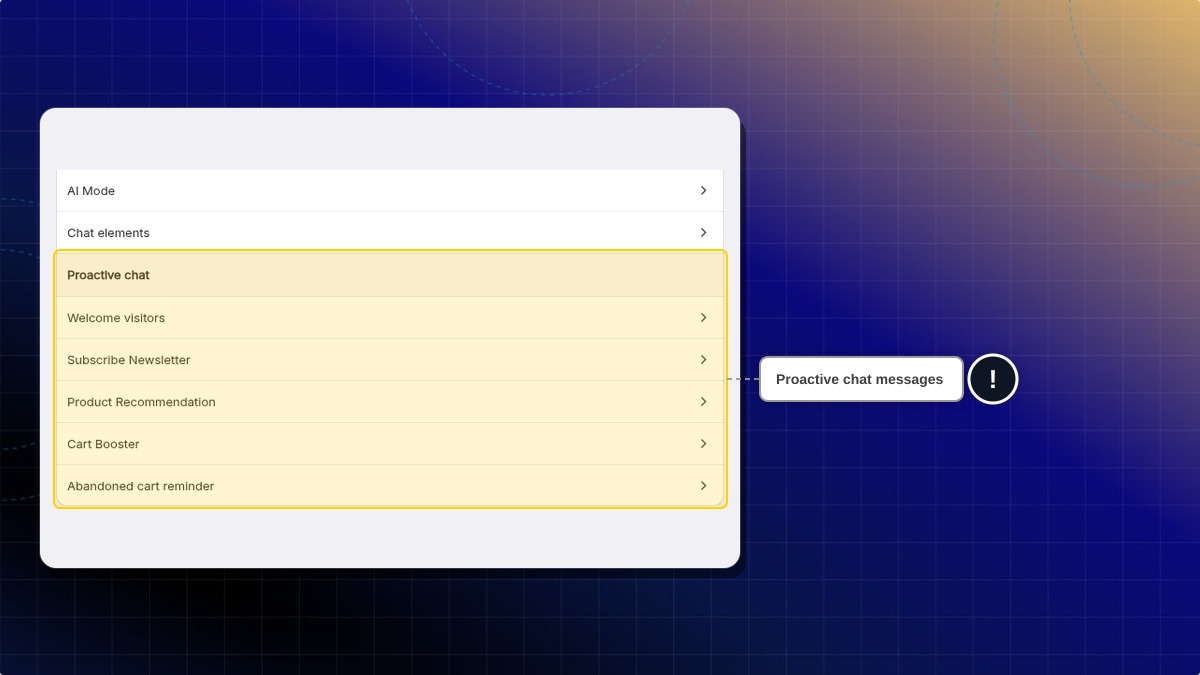
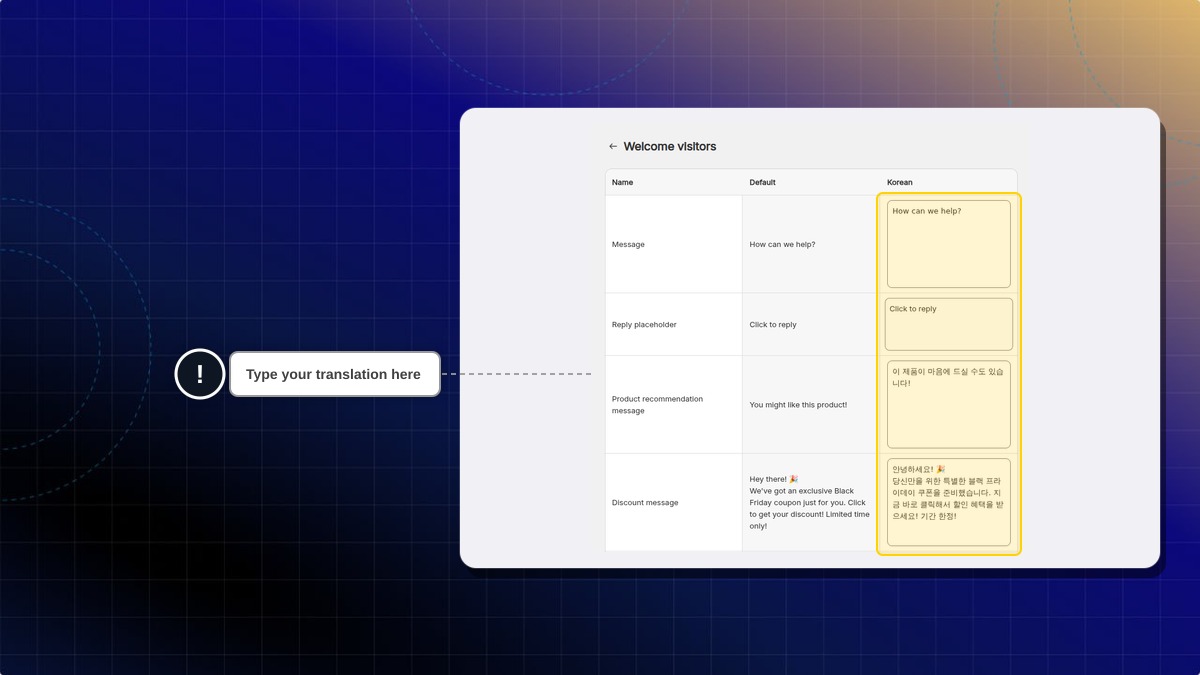
Each proactive chat has its own texts per language: the message, buttons, quick questions and, for some templates, product and discount messages.
- Go to Settings → Translations
- Click the pencil icon on the language you want, for example Korean
- In the Chatbox tab, scroll to Proactive chat and click a proactive chat, for example Welcome visitors
- Type your translation next to each text. The Default column shows the original text
- Save your changes
Expected result: Shoppers who view your store in that language see the proactive chat in their language.
Every field needs a value. Chatty does not save a field you leave empty.
When you add a language, Chatty fills some fields with a ready-made translation. Other fields, including some standard Chatty texts, keep the original text. Check every field.
When you edit the text of a proactive chat, Chatty rebuilds its translations in every language. Languages with auto-translate on get a new machine translation. Other languages go back to the ready-made translation or your original text. Translations you typed for that proactive chat are replaced, including the reply placeholder, so check them again after each edit.
Change default language
- Go to Settings → Translations
- Click the ... icon on the language you want and select Mark as default, then click Confirm
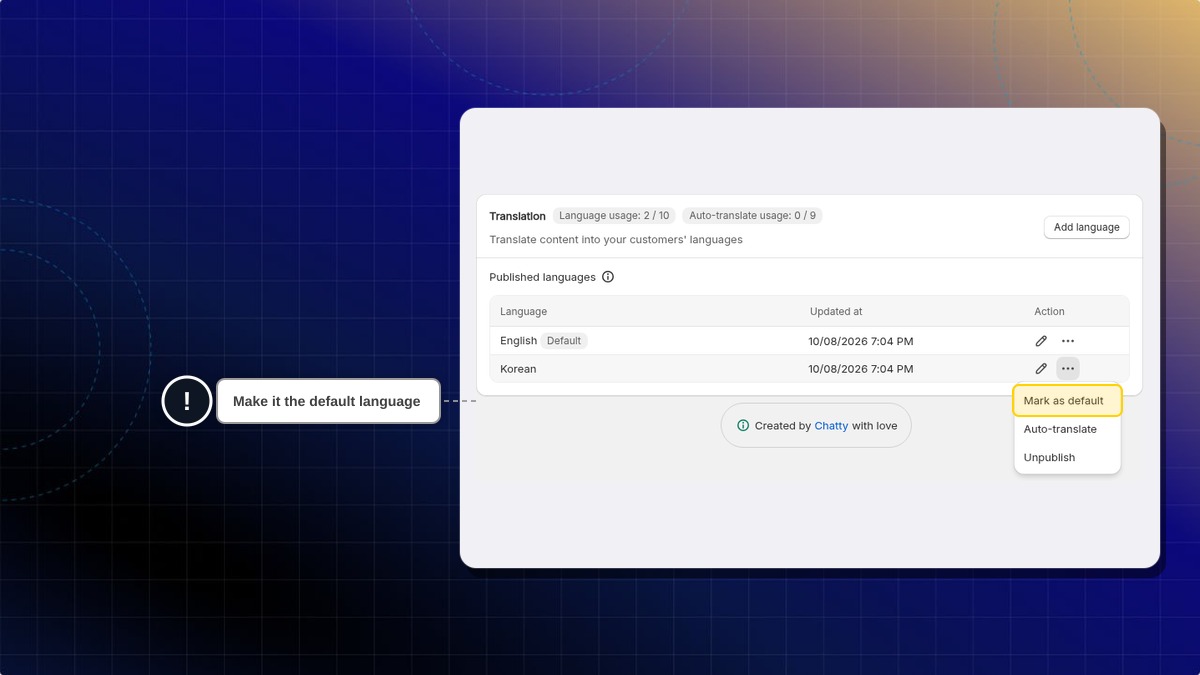
You can also click the ... icon on your current default language and select Change default. Pick any of the 41 languages, then click Save. A language you have not added yet is created for you.
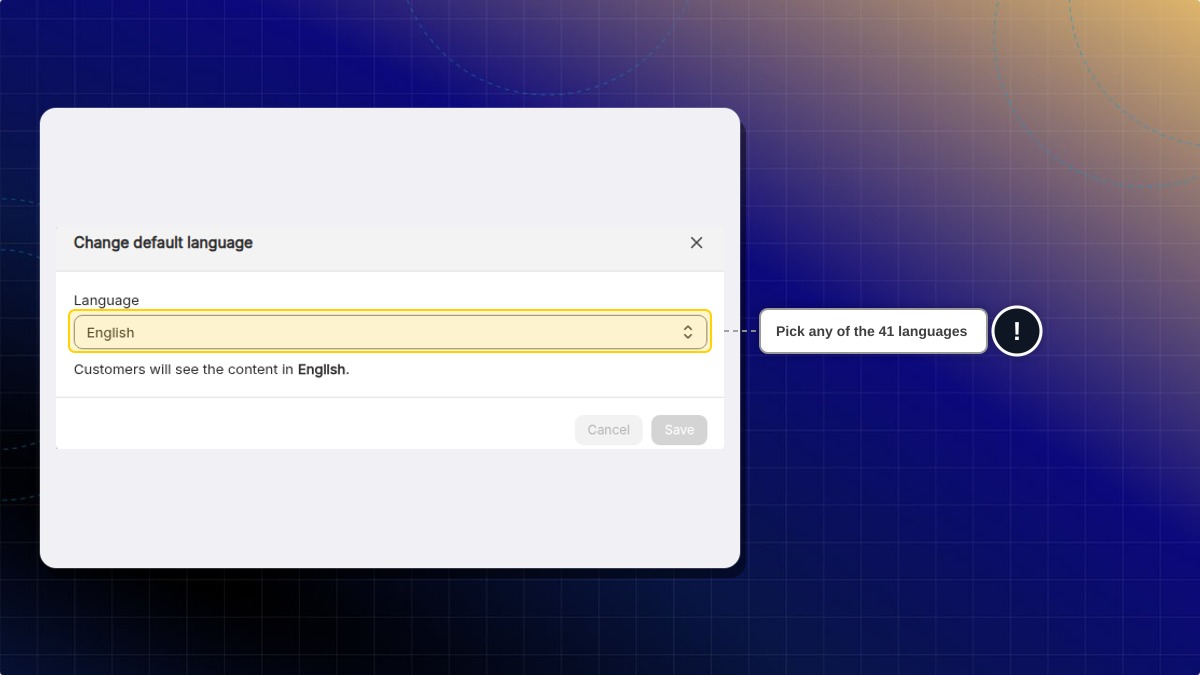
Expected result: The Default badge moves to the new language.
On the Free plan, stores that installed Chatty under the current pricing have their old default language unpublished when they change the default. Free stores still on the older pricing keep it published.
Update translation when FAQs change
When you add or edit FAQs, languages with auto-translate on are translated again automatically.
Other languages are marked as out of date. When you publish such a language or make it the default, the window shows an Update translation notice. Click Update to update the translation.
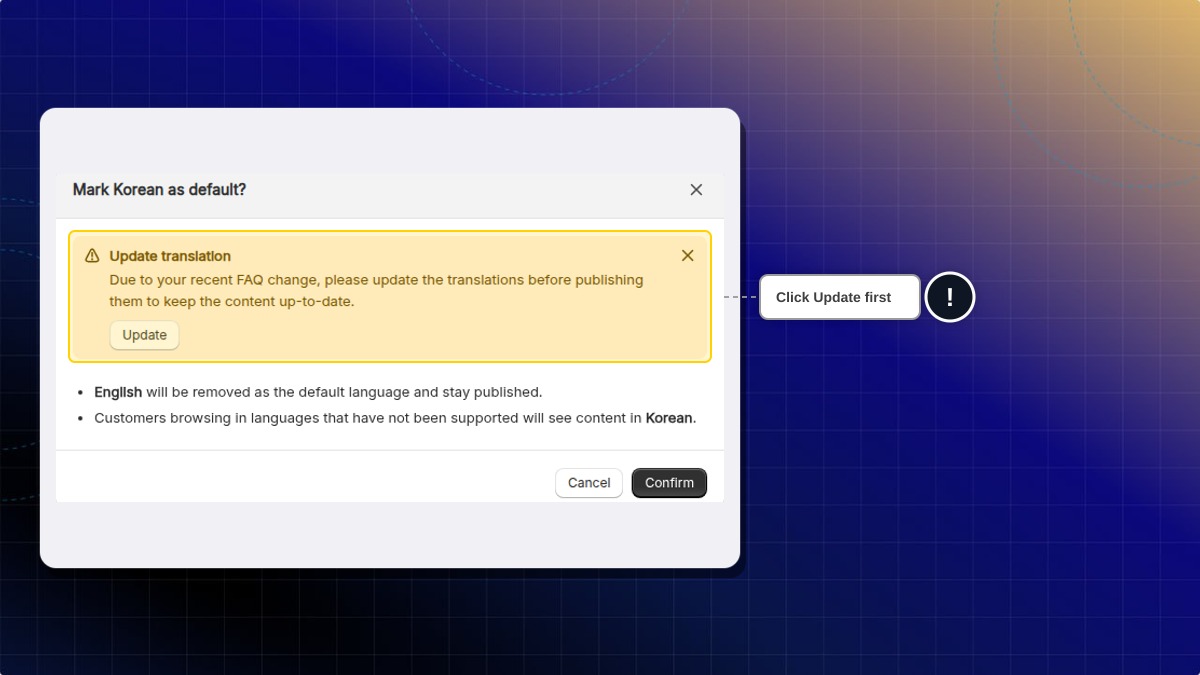
Supported languages
Chatty supports 41 languages: Arabic, Bosnian, Bulgarian, Catalan, Chinese (Simplified), Chinese (Traditional), Croatian, Czech, Danish, Dutch, English, Estonian, Finnish, French, German, Greek, Hebrew, Hindi, Hungarian, Indonesian, Italian, Japanese, Korean, Latvian, Lithuanian, Malay, Norwegian, Polish, Portuguese, Romanian, Russian, Serbian, Slovak, Slovenian, Spanish, Swedish, Thai, Turkish, Ukrainian, Urdu, and Vietnamese.
Plan limits
| Free | Basic | Pro | Plus | |
|---|---|---|---|---|
| Languages | 1 (default only) | 3 | 10 | Unlimited |
| Auto-translate | — | 2 languages | 9 languages | Unlimited |
Language usage: shown as Language usage: X / Y at the top of the Translation page. It counts published languages, including your default. When you reach the limit, you cannot add or publish another language.
Auto-translate usage: shown as Auto-translate usage: X / Y. It counts languages with auto-translate on, not including your default language.
FAQs
My language is added in Chatty but customers still see English. Why?
Check two things. The language must be published in Chatty, and your storefront must be showing that language. Add it in Shopify admin → Settings → Languages if it is not there.
Can I translate content manually without auto-translate?
Yes. Add and publish any language, then click the pencil icon to update the content yourself.
What happens when I reach my auto-translate limit?
Languages that already use auto-translate keep working. New languages you add are not auto-translated, so you translate them yourself.
Do translations update automatically when I add new FAQs?
Only if auto-translate is on for that language. If not, the language is marked as out of date and you update it yourself.
My language is not in the list. What should I do?
You can only add the 41 languages listed above. There is no option to add a custom language.
 Chatty Help Center