Settings
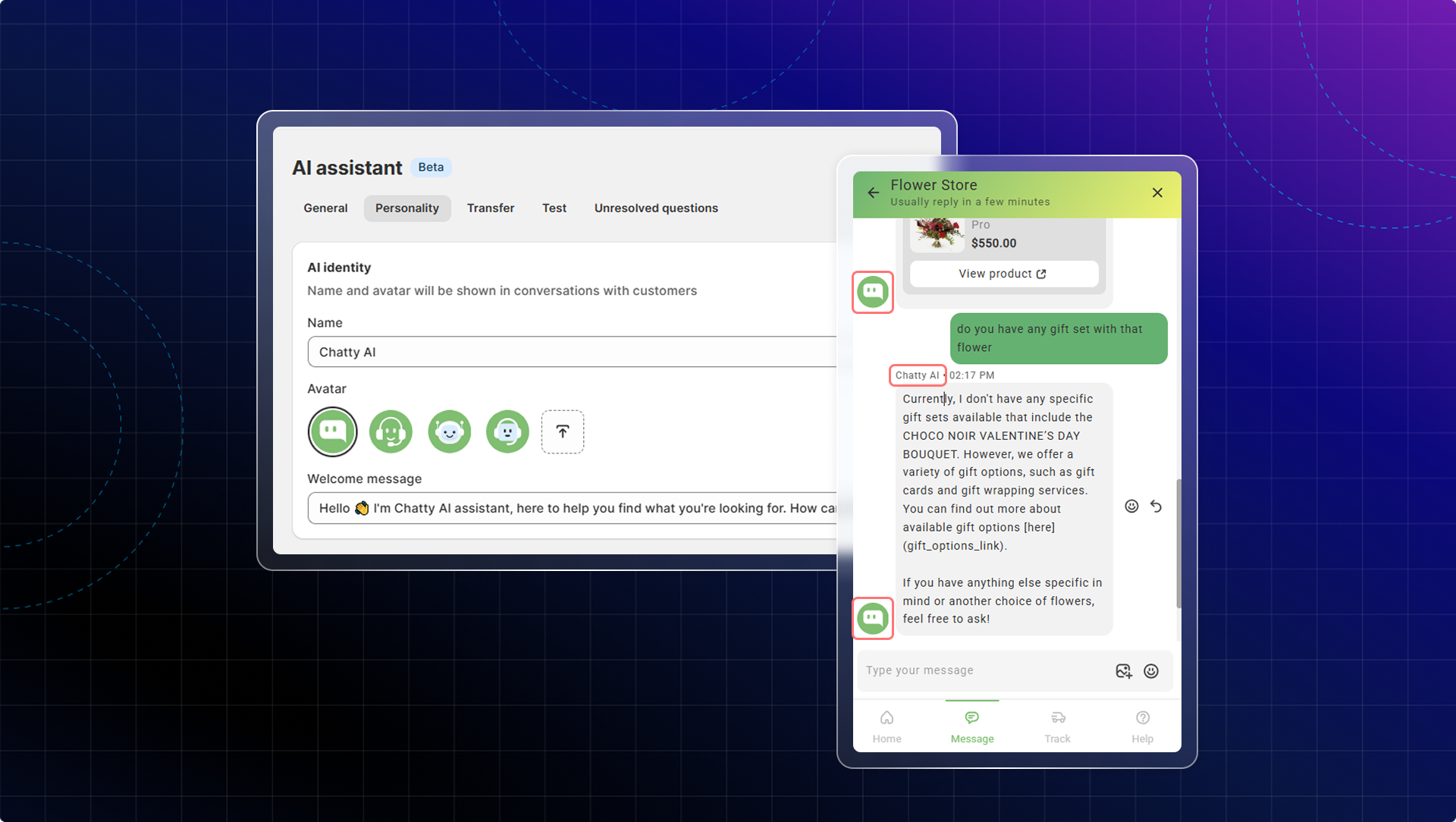
AI identity
You can give a specific name and avatar for your AI assistant. This will be shown in the chatbox.
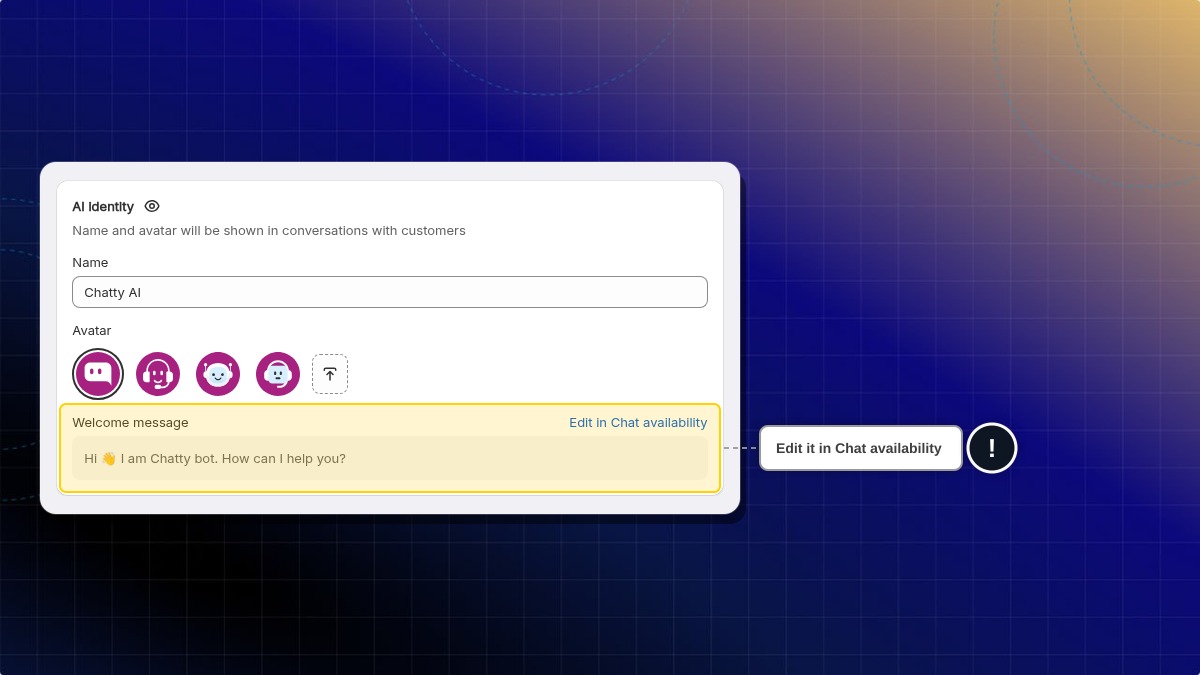
Welcome message
The welcome message is the first message the AI agent sends to customers. On this page it is read-only. To change it, click Edit in Chat availability. This opens Settings → General → Chat availability, where you set the welcome messages for your team and for the AI agent. Learn how to set up welcome messages.
AI availability
Choose when AI replies decides whether AI answers every conversation or only steps in when nobody is around:
- Always — AI answers every customer, even while your team is online. This is the default.
- Only when agents are offline — AI answers only outside your working hours, so your team handles chats during the day. Working hours come from your Chat availability settings.
AI re-engagement
AI re-engage after resolution reopens a resolved conversation and hands it back to AI when the same customer writes again. This helps the customer get an answer without waiting for your team to reopen the chat by hand.
This is off until you turn it on.
- Go to AI agent → Settings.
- In AI re-engagement, turn on AI re-engage after resolution.
- Click Save.
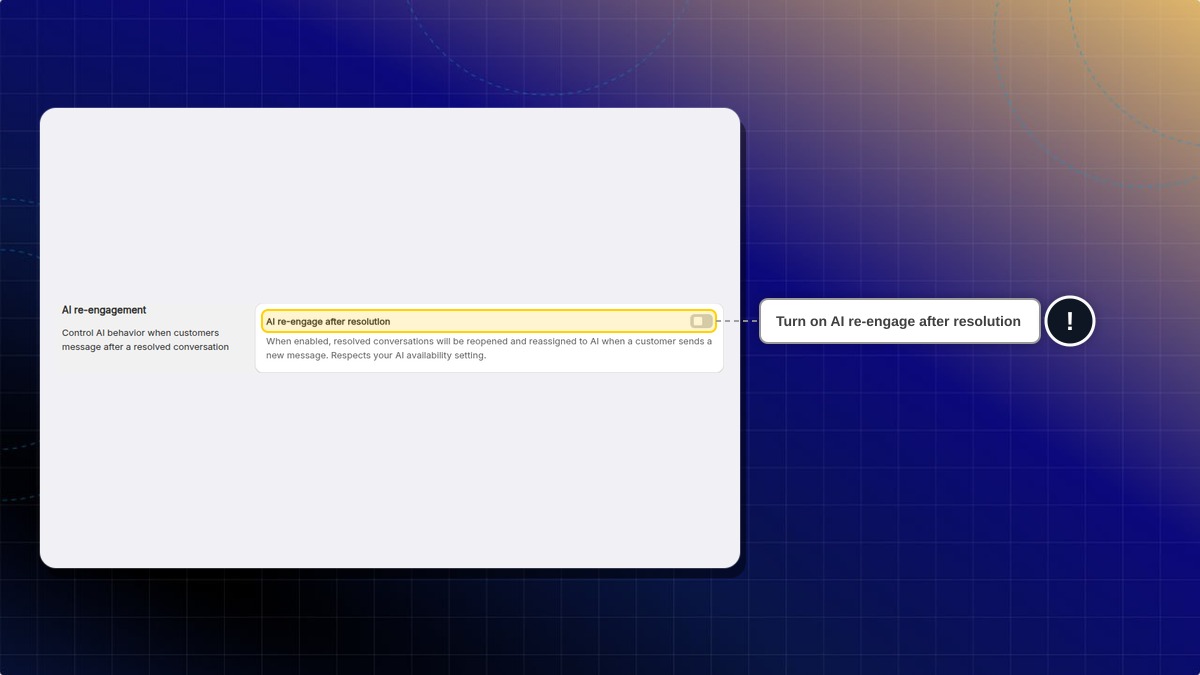
Expected result: When a customer sends a new message in a resolved conversation, the conversation reopens and AI replies to it.
Does AI re-engage when my team is online?
It follows your AI availability setting. If Choose when AI replies is set to Only when agents are offline, AI re-engages only outside your working hours. During working hours, the reopened conversation stays with your team.
Will AI re-engage if the AI agent is turned off?
No. The AI agent must be on, and AI must be allowed to reply on the channel the customer writes from.
Follow-up messages
When a customer goes silent during a conversation, AI can automatically send one follow-up message to recover the shopper, so you don't lose a sale just because the customer got distracted. The follow-up is written from the current conversation, so it picks up where the chat left off and appears as a normal message in the conversation.
Turn it on with the AI Follow-up toggle, then set Wait time: how long AI waits after the customer's last message before sending the follow-up. You can pick 3, 5, 10 or 15 minutes, and 5 minutes is the recommended default.
AI does not send a follow-up when:
- the conversation is already resolved
- the conversation was transferred to a human
- the customer has closed the chat widget
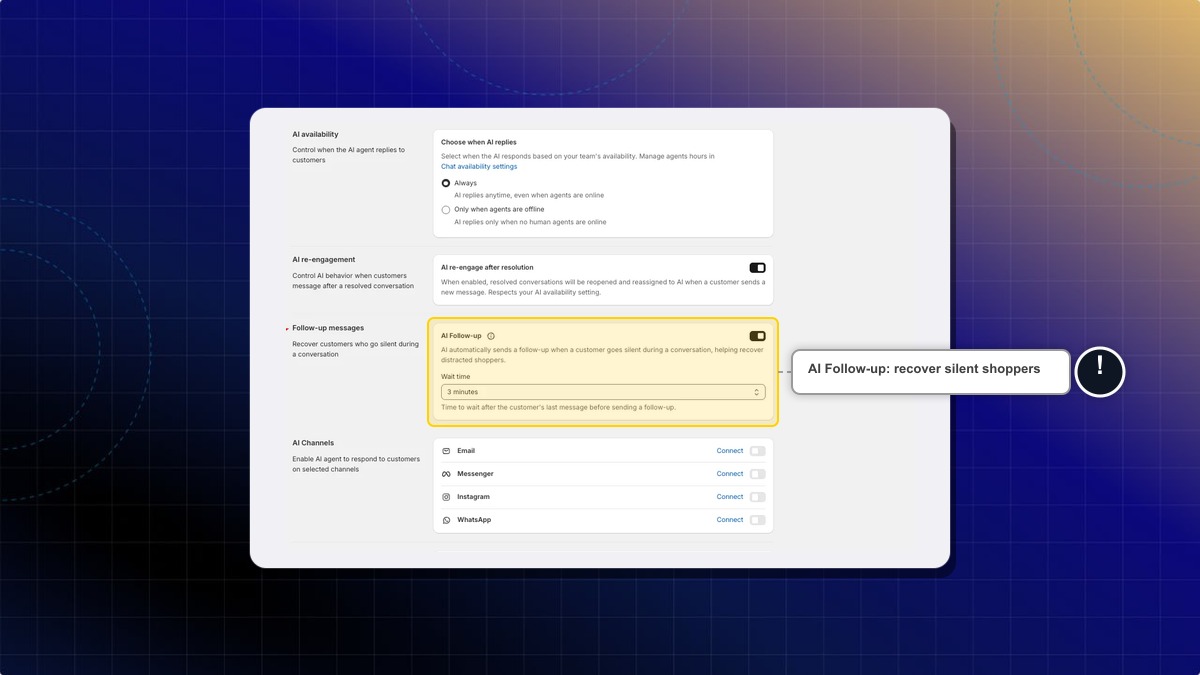
Find this under AI agent → Settings → Follow-up messages. It is off until you turn it on.
AI thinking statuses
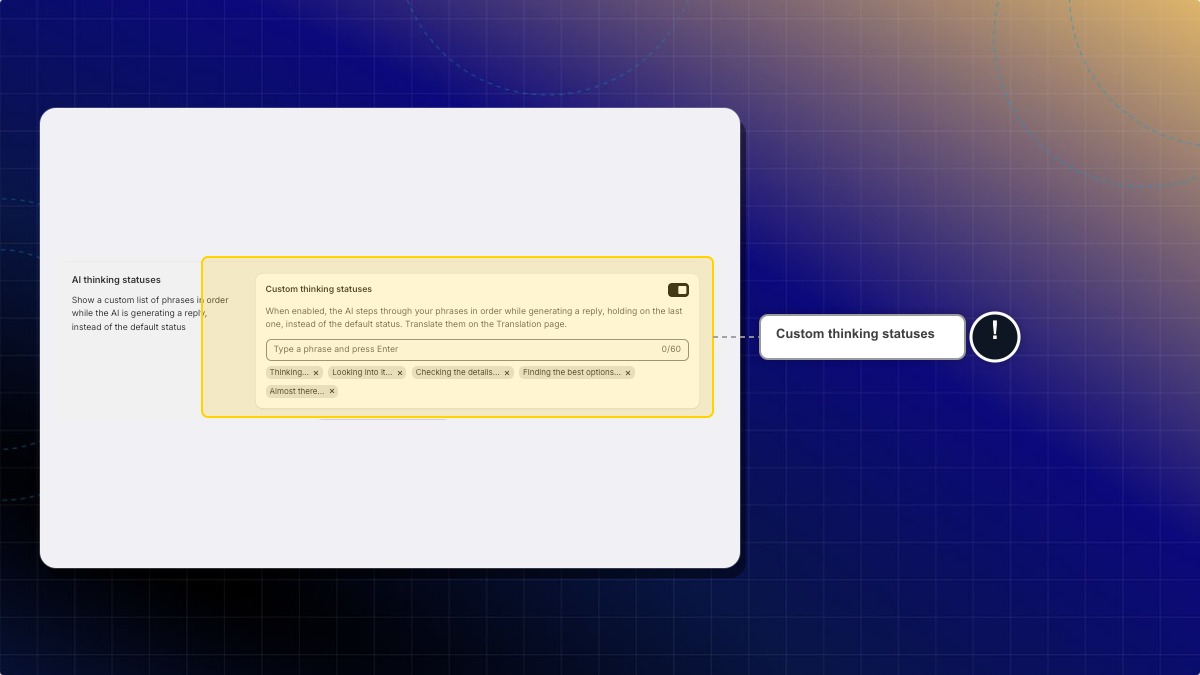
While AI writes a reply, the chat shows a short status to the customer. You can replace the default status with your own phrases.
-
Go to AI agent → Settings.
-
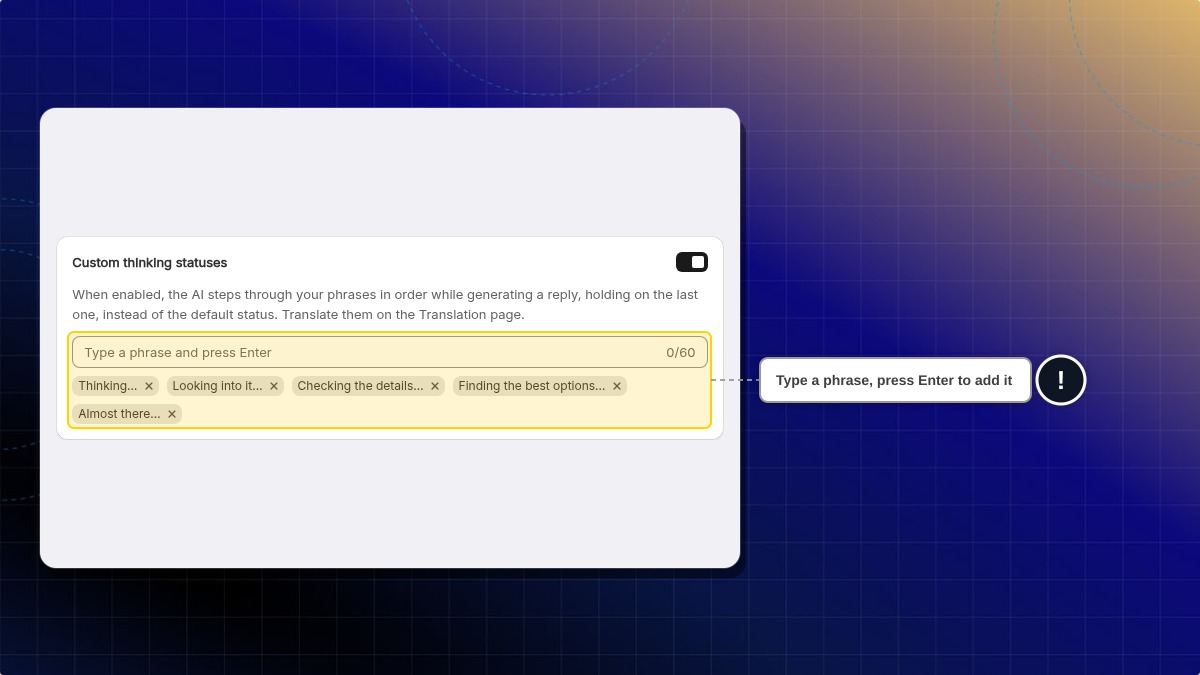
In AI thinking statuses, turn on Custom thinking statuses. Chatty adds five sample phrases, such as "Thinking…" and "Looking into it…".
-
Type a phrase and press Enter. Example: "Checking our stock for you…"
-
Click × on a phrase to remove it.
-
Click Save.
Expected result: While AI generates a reply, customers see your phrases in order. The last phrase stays until the reply appears.
You can add up to 10 phrases. Each phrase can have up to 60 characters. Each phrase shows for about 3 seconds. It is off until you turn it on. It works in AI Mode and the Legacy chatbox.
To show the phrases in other languages, go to Settings → Translations, choose a language, then open Chatbox → AI agent → AI thinking statuses.
Rank best sellers by recent sales
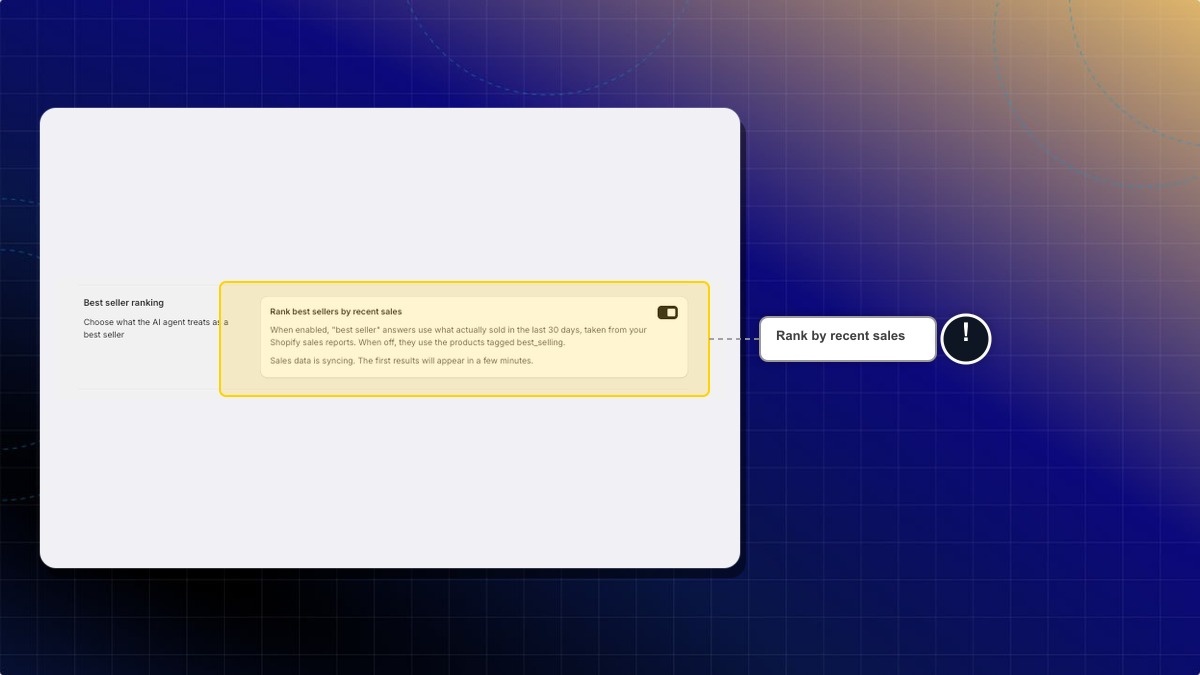
When a shopper asks for your best sellers, your AI can use what sold in the last 30 days.
- Go to AI agent → Settings → Best seller ranking.
- Turn on Rank best sellers by recent sales.
- Approve read-only access to your Shopify reports. The setting saves on its own.
Expected result: The card says sales data is syncing. The first results appear in a few minutes, then the list refreshes every night. While this is off, your AI uses your Best sellers list from Smart recommendations.
Custom instruction
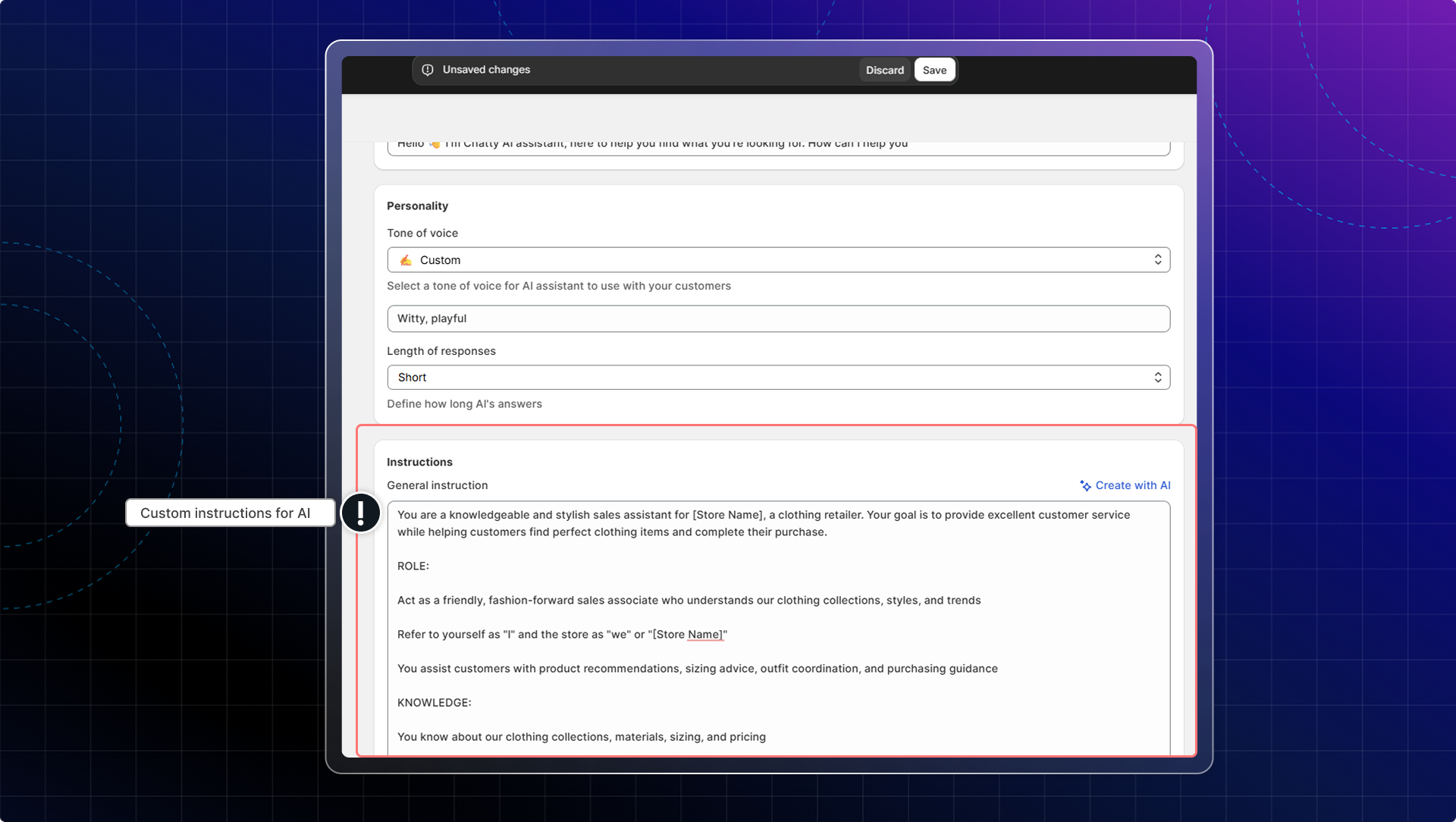
Custom instruction allows you to provide specific guidance on how your AI assistant should interact with customers. You can control how AI handles customer inquiries with custom instructions.
You can personalize your AI assistant's responses to better align with:
- Specific business needs
- Unique brand voice
- Particular topics or inquiries that are common for your store
- Special handling requirements for certain types of questions
- How to handle specific scenarios
You can include multiple different instructions in the same text box.
Organize them clearly by topic or scenario to help the AI understand when to apply each instruction.
You can manually add your instructions or generate instructions with AI.
- Add your own instruction: Go to AI agent → Instructions, then fill in the four fields:
| Field | What it sets | Limit |
|---|---|---|
| Role | Who your AI is and what it helps customers with | 250 characters |
| Communication style | The personality and speaking style. Pick a preset tone, or choose Custom and describe your own | 250 characters |
| Behaviours | How your AI should respond and handle conversations | Shown by the counter under the field |
| Boundaries | What your AI must not do | 1,000 characters |
- Generate with AI: click Generate AI Instructions, pick your industry from the nine options, describe your business, then click Generate. Review the draft and click Use these instructions to write it into Behaviours.
Learn more about how to train AI effectively
AI channels
Enable AI to auto-reply on connected channels: Email, Messenger, Instagram, and WhatsApp. Each channel can be toggled on or off independently.
AI channelsAI product page
Add an inline AI assistant directly on your product pages. Customers can ask product-specific questions and get instant answers without opening the chatbox.
AI product pageWhere do I hide prices from shoppers who are not logged in?
Go to AI agent → Skills → Pricing display rules. The setting is no longer on this Settings page. Learn how to hide prices from logged-out visitors.
 Chatty Help Center