Chatty attribution in Shopify
What is Chatty attribution in Shopify
Chatty writes its attribution data straight onto your Shopify orders and customers as metafields.
You read these fields inside Shopify admin. Pin them on the order page, filter your order list, or build customer segments. This helps you see which revenue came from chat without leaving Shopify.
Chatty creates the field definitions for you the first time it writes attribution data. You do not create them manually.
What Chatty saves on each order
Chatty adds these fields when the customer used Chatty before the order.
| Field | Type | What it means |
|---|---|---|
| Chatty Assisted | True or false | The customer chatted with Chatty, or viewed your FAQs, within 7 days before placing the order. |
| Chatty Direct | True or false | The order contains a product that Chatty showed or mentioned in that chat. |
| Chatty Conversation | Single line text | The ID of the chat before the order. Not added when the customer only viewed your FAQs. |
| Chatty Origin | Single line text | The last Chatty surface that created or added to the cart, such as the chat widget or the AI agent. |
Only assisted orders get Chatty Assisted, Chatty Direct and Chatty Conversation, so Chatty Assisted is always true when you see it. Chatty Direct is true when the customer bought a product from the chat, and false when the chat covered something else or the customer only viewed your FAQs. Chatty Origin comes from the cart, so it shows on orders whose cart Chatty created or added to.
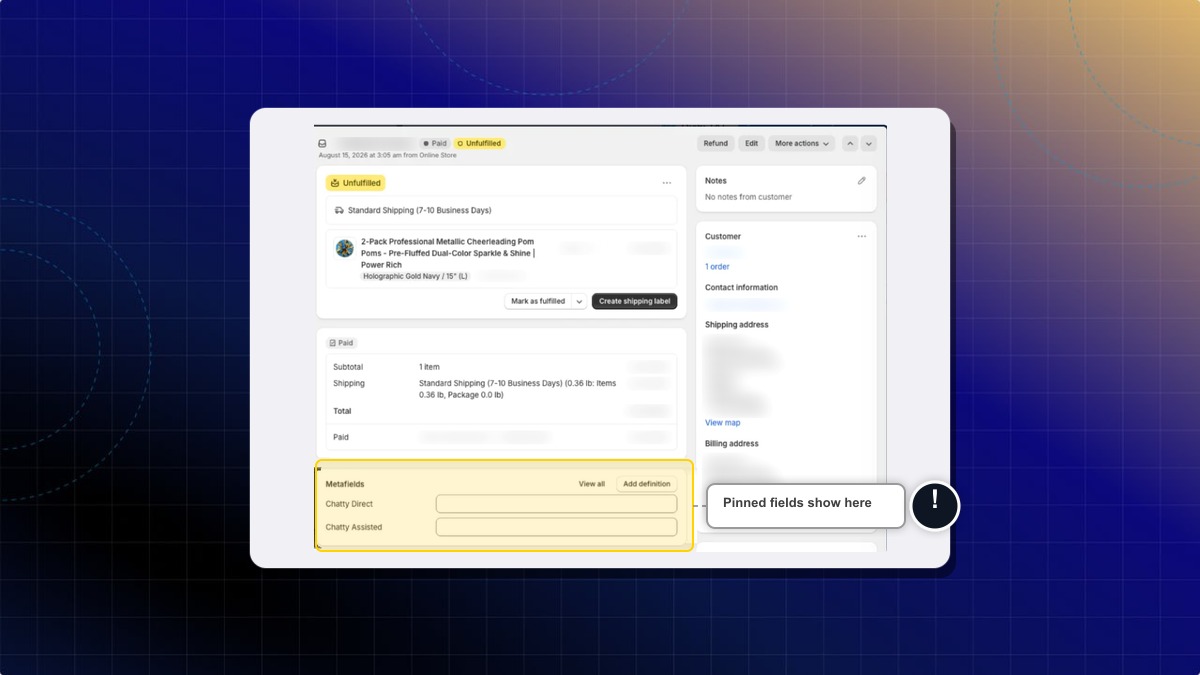
What Chatty saves on each customer
Chatty also adds fields to the customer record.
| Field | Type | Values you will see |
|---|---|---|
| Chatty Chat Status | Single line text | engaged when the customer has chatted, never_chatted when they have not. |
| Chatty Resolution Type | Single line text | ai_only, human_assisted, or human_only. |
| Chatty Responded to Proactive | True or false | true when the customer replied to a proactive message. |
Chatty Resolution Type describes the customer's latest resolved chat, not their whole history.
The fields store raw values such as ai_only. Shopify shows them exactly as written, so read human_assisted as "a human agent replied with AI help".
How to show the Chatty fields on the order page
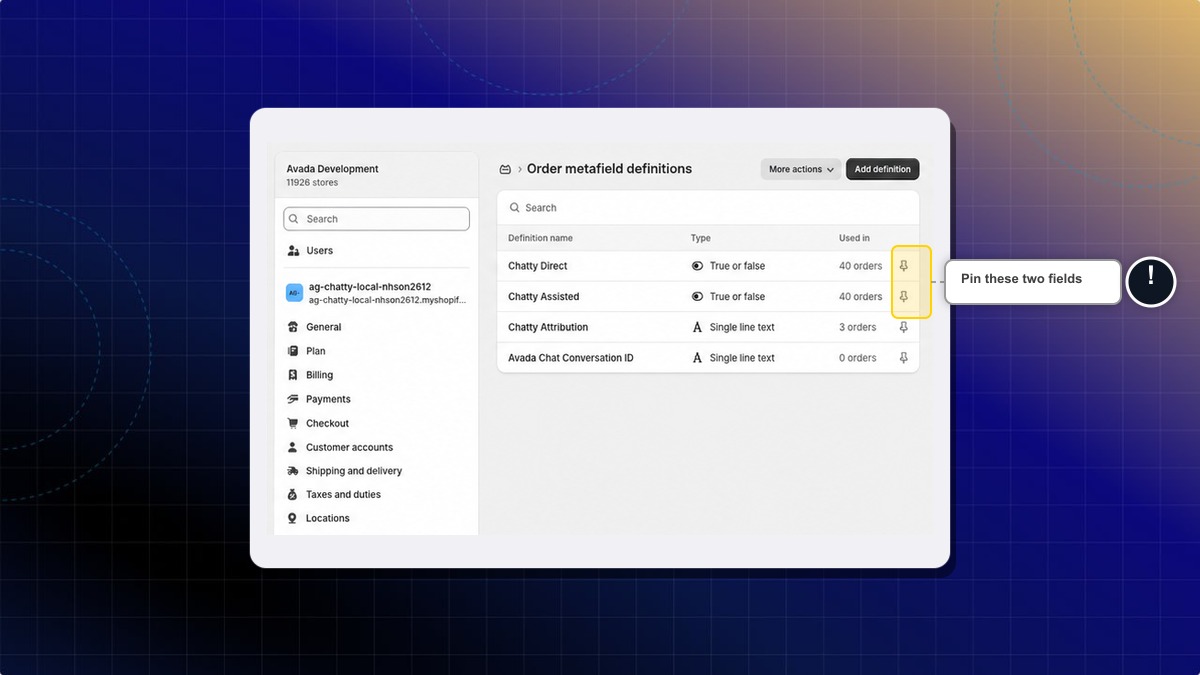
Chatty creates the definitions unpinned. Until you pin them, your order page shows No metafields pinned.
-
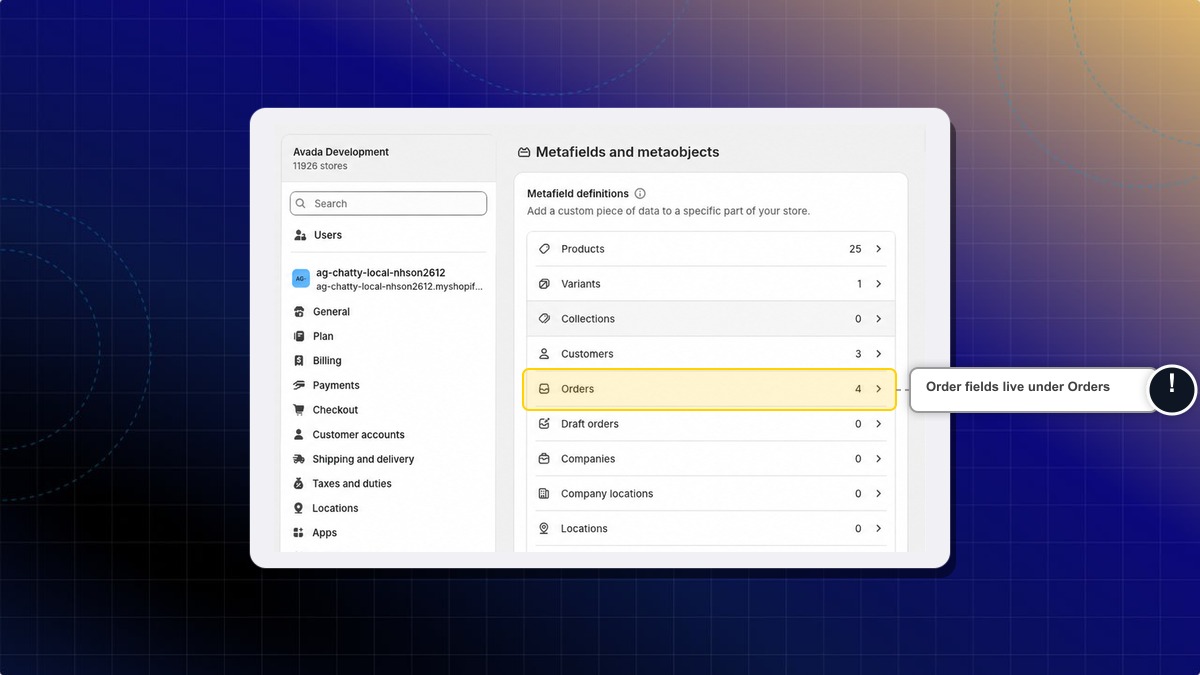
Go to Shopify admin → Settings → Metafields and metaobjects.
-
Click Orders.
-
Click the pin icon next to Chatty Assisted and Chatty Direct.
Expected result: Open any order that came from a chat. The Metafields card on the order page now lists Chatty Assisted and Chatty Direct.
How to filter orders by Chatty attribution
Shopify only filters the order list by a metafield after you turn the option on.
- Go to Shopify admin → Settings → Metafields and metaobjects → Orders.
- Click Chatty Assisted.
- Turn on Filter on the order list and in the Admin API.
- Click Save.
- Go to Orders.
- Click Add filter.
- Pick Chatty Assisted and set the value to
true.
Expected result: The order list shows only chat assisted orders, so you can total the revenue Chatty helped drive.
Shopify allows this filter option on 5 order metafield definitions per store. Turn it on for the Chatty fields you actually filter by.
How to segment customers by Chatty activity
-
Go to Shopify admin → Customers → Segments.
-
Click Create segment.
-
Add a filter on a Chatty customer field.
Example: filter Chatty Chat Status on
engagedto reach everyone who has chatted with you. -
Click Save segment.
Expected result: The segment lists only matching customers, ready to use for email or ad audiences.
How to remove the Chatty fields from the order page
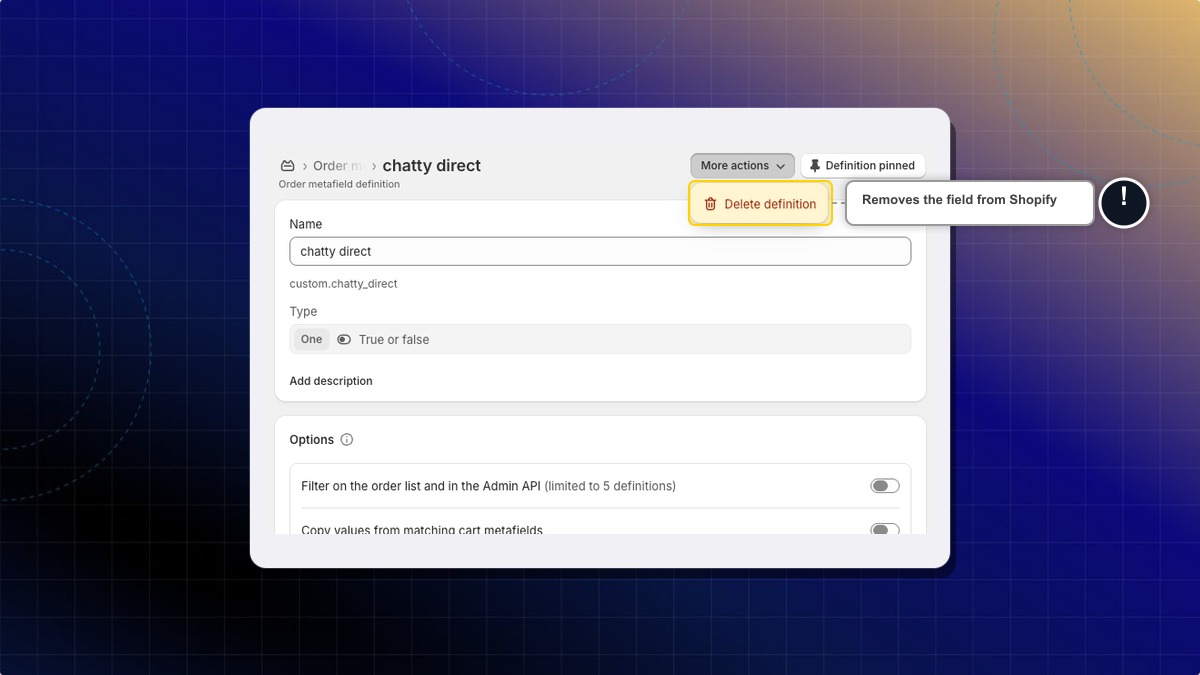
You have two options. Unpinning hides the fields and keeps your data. Deleting the definition removes the field from Shopify.
Hide the fields without losing data
- Go to Shopify admin → Settings → Metafields and metaobjects → Orders.
- Click the pin icon next to Chatty Assisted or Chatty Direct to unpin it.
Expected result: The Metafields card on the order page no longer lists the field. The values are still there, click View all on any order to read them.
Delete the field definition
-
Go to Shopify admin → Settings → Metafields and metaobjects → Orders.
-
Click Chatty Assisted or Chatty Direct.
-
Click More actions → Delete definition.
-
Choose what to delete.
- Delete field only keeps every value Chatty already wrote to your orders.
- Delete field and its saved values wipes the values from all of your orders.
-
Click Delete.
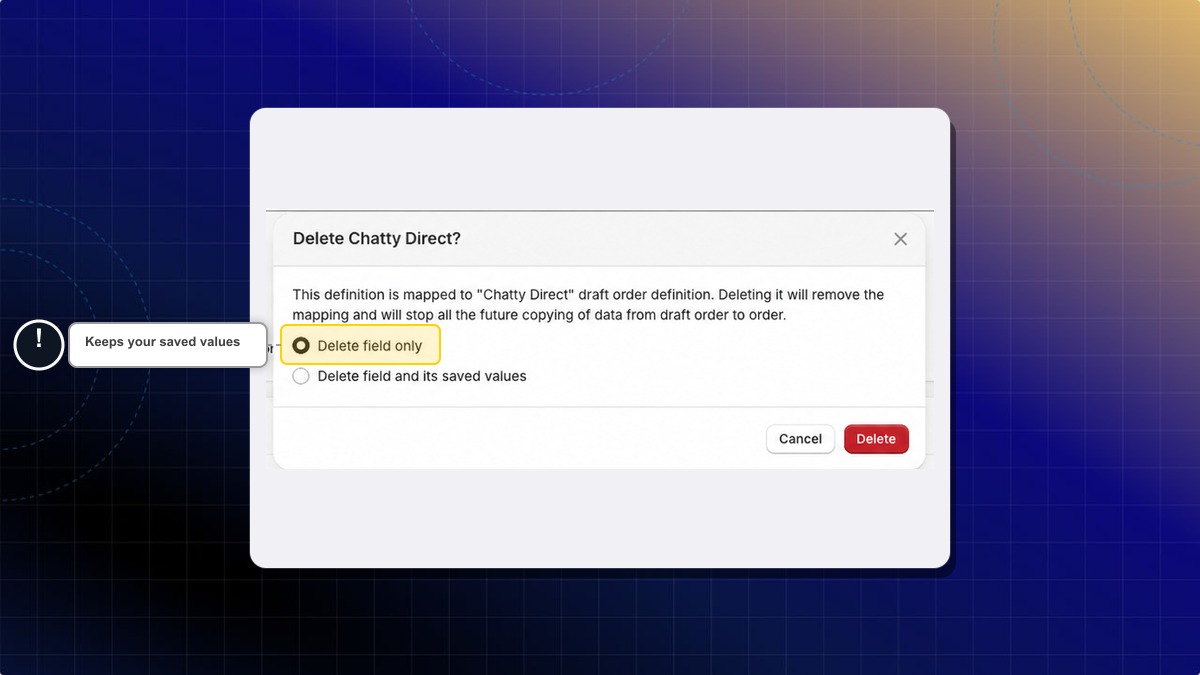
Expected result: The field is gone from Order metafield definitions and from the order page.
The same steps work for the Chatty customer fields under Customers.
Deleting the definition does not stop Chatty from recording attribution. New chat assisted orders still receive values, and they appear under View unstructured metafields. Chatty does not recreate the definition on its own, so add it back yourself when you want the fields visible again.
Why don't the order fields show up on my orders?
Chatty needs permission to update your orders before it can write them. Open Chatty from your Shopify admin and accept the permission request, then place a test order after a chat.
Orders placed before you gave permission are not filled in later.
One definition shows a warning and I cannot edit it. How do I fix it?
This happens when the matching draft order definition was deleted. Recreate the definition without losing your saved values.
-
Go to Settings → Metafields and metaobjects → Orders and click the definition with the warning.
-
Click More actions → Delete definition.
-
Select Delete field only, then click Delete.
-
Back on Order metafield definitions, click View unstructured metafields.
-
Find the key, for example
chatty.direct, and click Add definition.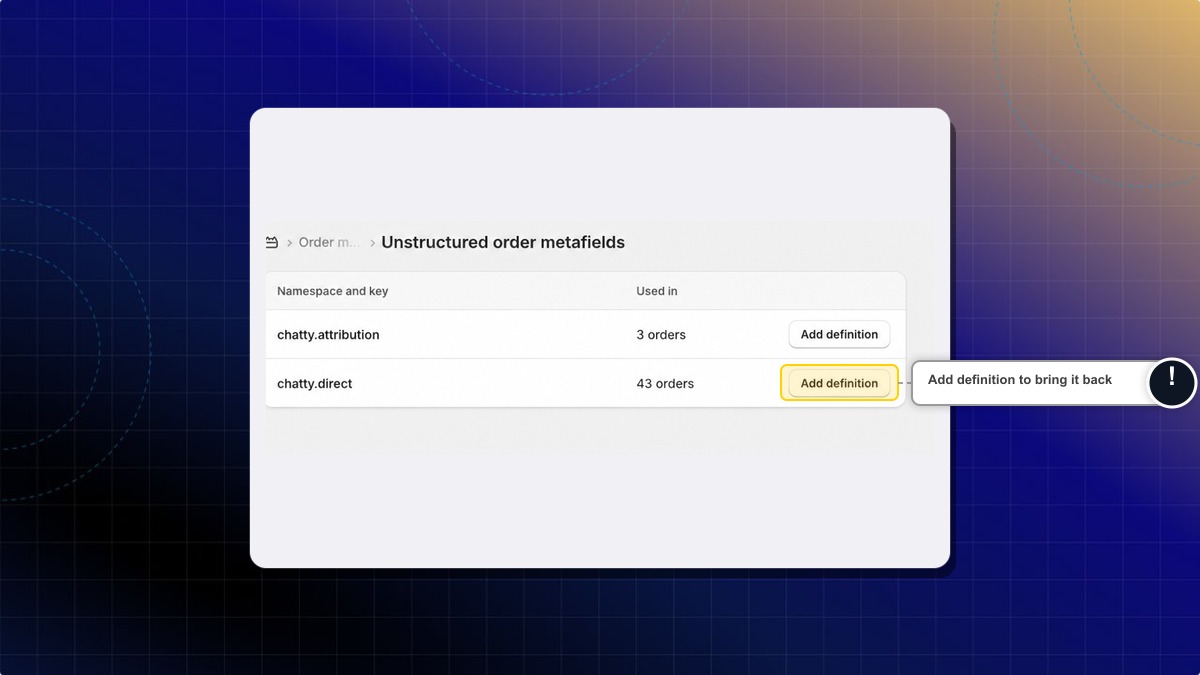
-
Type the matching name, Chatty Direct for
chatty.director Chatty Assisted forchatty.assisted. -
Set Type to True or False, then click Save.
Expected result: The definition is back in the list with its order count unchanged, and your existing values are still there.
Check the key above the Name field before you save. A name that does not match its key makes your order pages unreadable later.
Do I still get the chatty-assisted and chatty-direct order tags?
No. Chatty replaced those tags with the Chatty Assisted and Chatty Direct fields. Tags already on past orders stay where they are, but no new order gets tagged.
What is the older Chatty Attribution field in my list?
It comes from an earlier version of Chatty and is no longer updated. You can leave it alone, or remove the definition once you no longer need the old values.
 Chatty Help Center