Order tracking
What is order tracking?
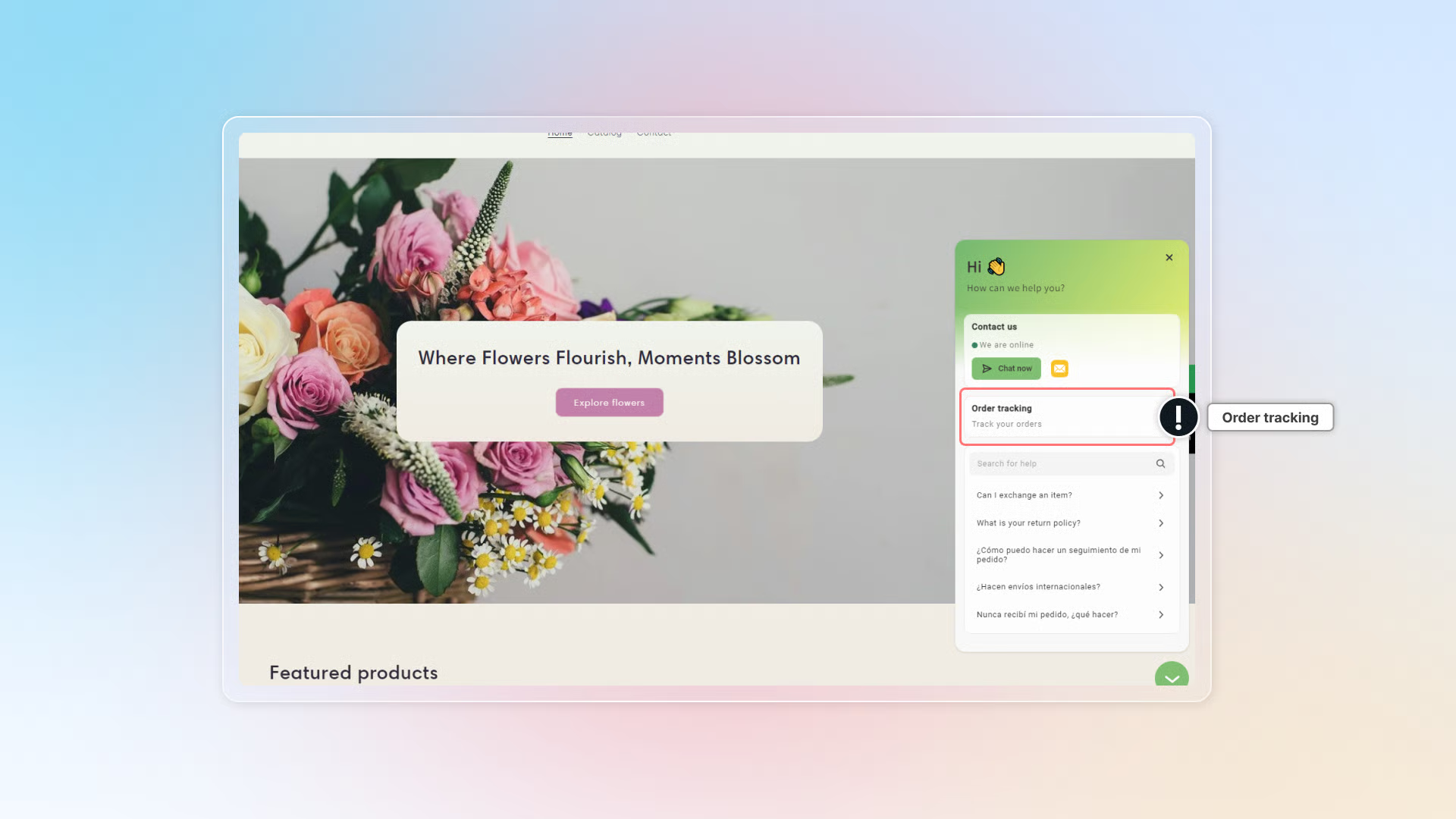
Order tracking is a self-service feature that lets customers check their order status and shipment progress directly through your chatbox.
Customers can look up an order with an order number or a tracking number.
How to set up order tracking
Enable order tracking in your chatbox
-
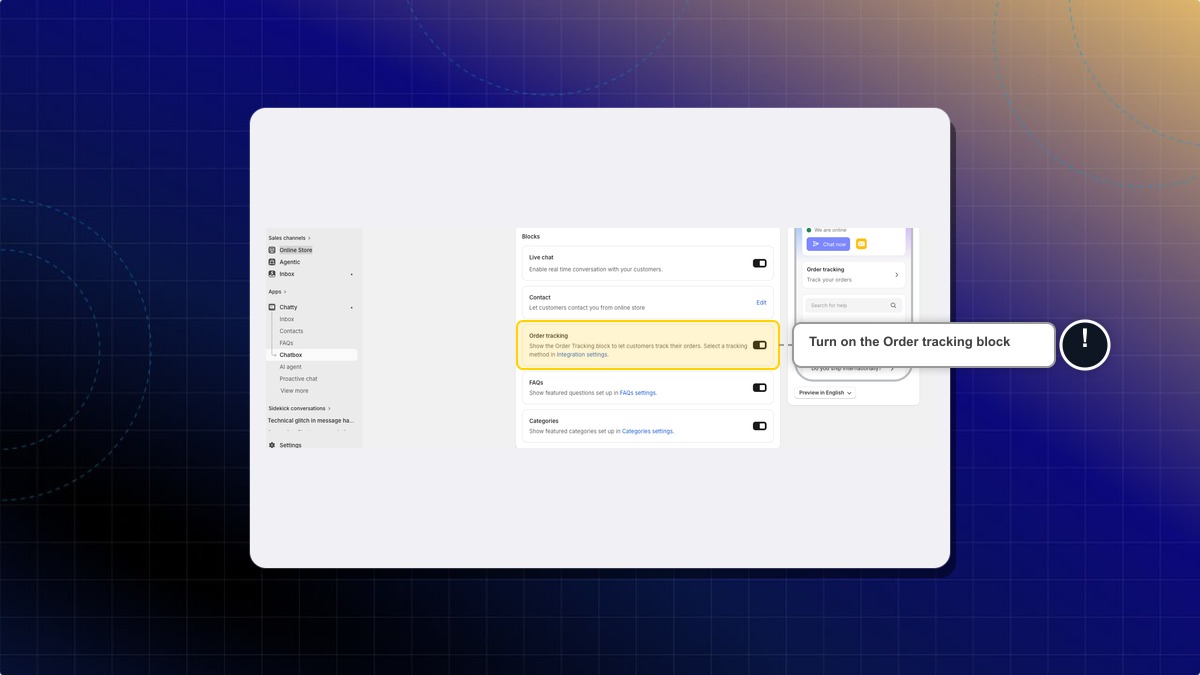
Go to Chatbox.
-
On the General tab, scroll to Blocks and turn on Order tracking.
-
Click Integration settings on that block to pick your tracking method.
Choose your tracking method
-
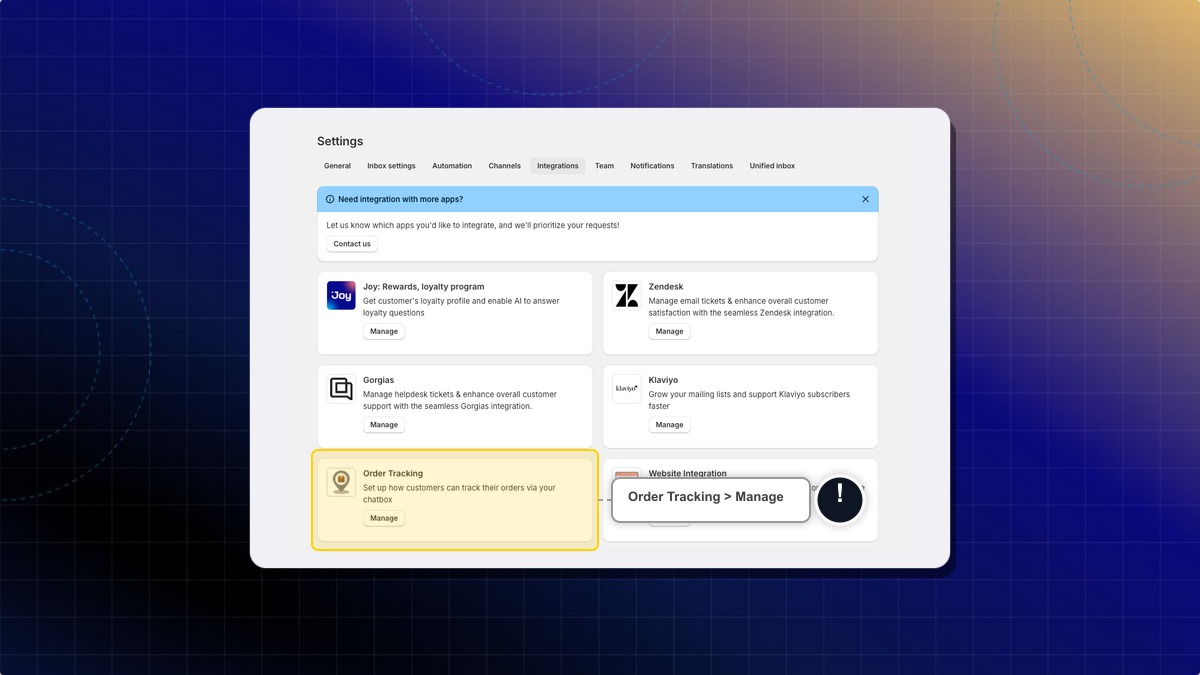
Go to Settings → Integrations.
-
In Order Tracking, click Manage.
-
Select your preferred tracking method.
Click Save
Expected result: The order tracking block appears in your chatbox, using the method you picked.
Compare tracking methods
| Tracking method | Plan | Best for | How it works |
|---|---|---|---|
| Default tracking | All plans | Stores using major carriers such as DHL, FedEx or UPS | Sends customers to the carrier's own tracking page |
| Default tracking with a Custom tracking link | All plans | Stores using local carriers or a private shipping service | Sends customers to a tracking link you write, for orders with no carrier link |
| AI-powered tracking | Pro and Plus | Stores that want the AI agent to answer "where is my order?" | The AI agent replies with live carrier updates and can email customers when the status changes. Costs $0.05 per tracking number |
| Integrate with tracking app | Pro and Plus | Stores that want customers to stay on site | Shows shipment status inside the chatbox, using your own 17Track account. No extra charge from Chatty |
On Free and Basic, the two Advanced options are greyed out.
How to add input fields to your custom tracking link
Some carriers need more than a tracking number to open the right page, such as an order number or a postcode. You can add placeholders to your custom tracking link. Each one becomes a field the customer fills in before tracking.
You can use five placeholders: {tracking_number}, {order_number}, {zip_code}, {email} and {phone}.
Each one can appear once. The Insert button turns off after you use its placeholder.
- Open the Order Tracking panel, as in the setup steps above.
- Select Default tracking.
- Type your tracking link in Custom tracking link (optional). It must start with
https://. - Click an Insert button to add a placeholder. It lands at the end of the link, so type the placeholder yourself if the carrier needs it elsewhere. Example:
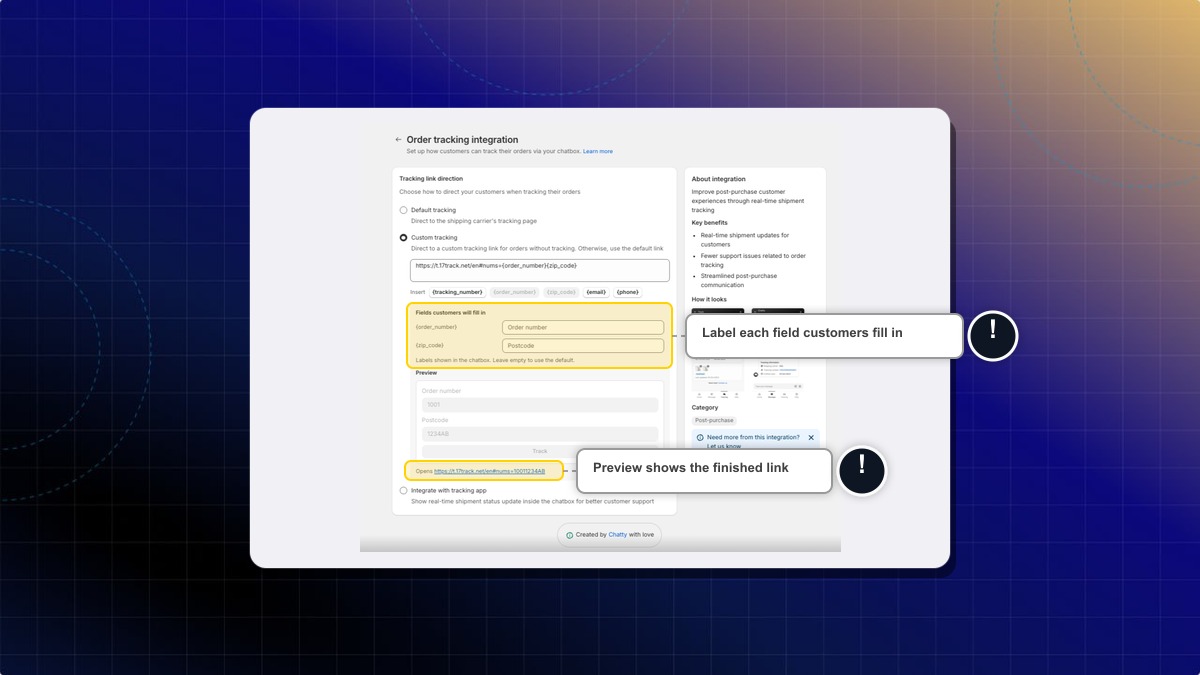
https://track.example.com/{order_number}/{zip_code}. - Under Fields customers will fill in, set a label for each placeholder. Leave one empty to use its default.
- Check the Opens line under the preview. It shows the finished link with sample values.
- Click Save.
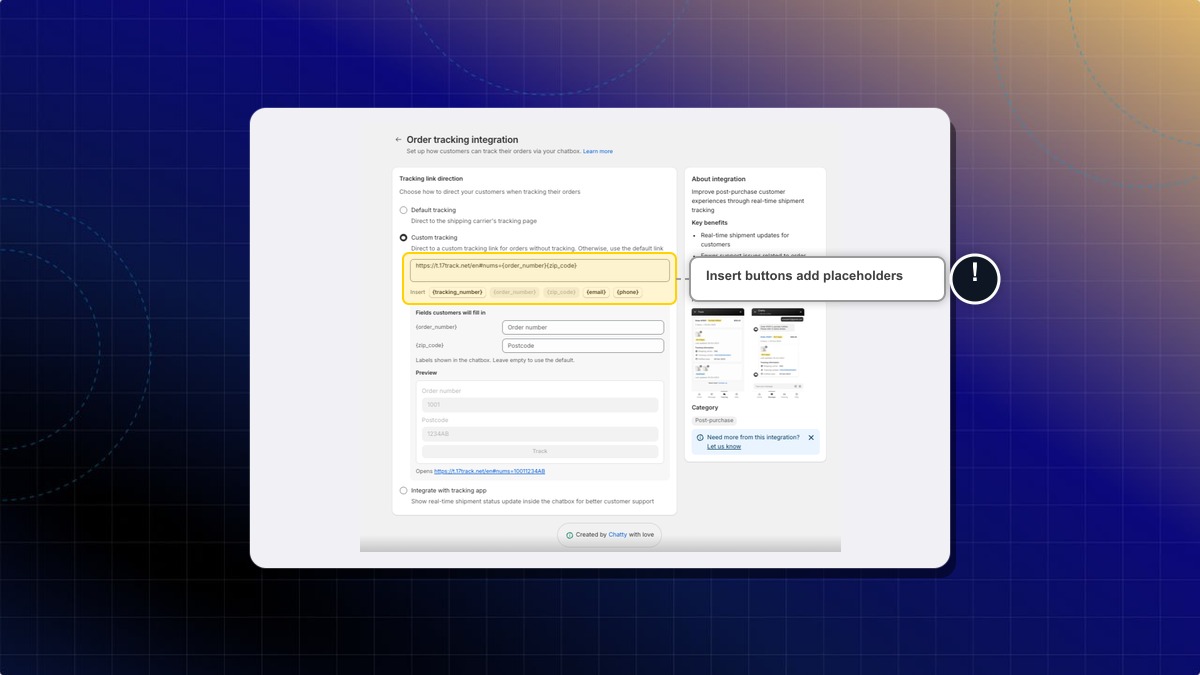
Expected result: The tracking tab shows one input field for each placeholder. When the customer fills them in and clicks Track, Chatty opens the finished link.
Default labels are Tracking number, Order number, Postcode, Email address and Phone number. The {phone} field adds a country code picker. Chatty URL-encodes whatever the customer types.
If you use any placeholder other than {tracking_number}, the Order number and Tracking number tabs disappear. Customers see a single form instead.
A tracking link with no placeholder opens directly for the customer, and the tracking tab shows no input fields. If that link ends in =, ?, & or /, Chatty adds the tracking number to the end.
Save fails if the link does not start with https://, or if it holds a placeholder Chatty does not know. The error names the unknown placeholder.
How to connect a tracking app
- Open the Order Tracking panel, as in the setup steps above.
- Select Integrate with tracking app.
- Under Step 1. Select tracking provider, tick 17Track.
- Under Step 2. Set up integrations, paste your API key.
- Click Connect.
- Click Save.
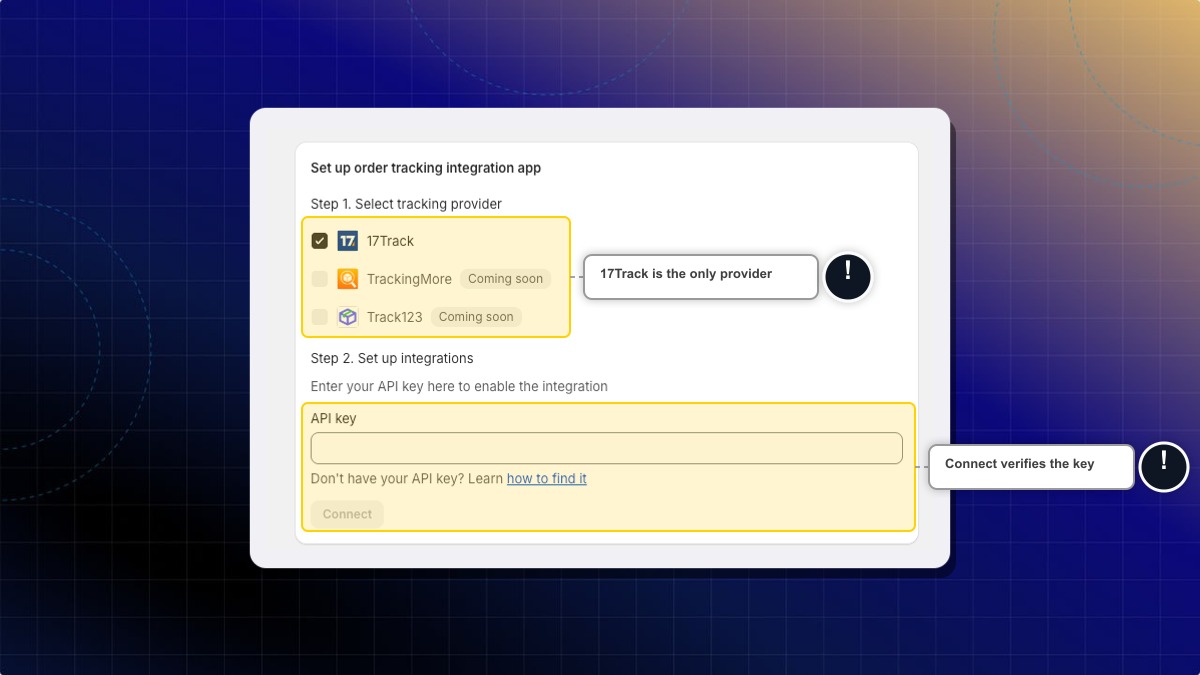
Expected result: Shipment status appears inside the chatbox. Customers never leave your store.
Connect stays greyed out until you enter a key. Save is then refused until Connect verifies it, and Chatty asks you to click Connect first.
17Track is the only provider you can pick today. TrackingMore and Track123 show a Coming soon badge and cannot be selected. Use the how to find it link beside the field if you do not have an API key yet.
How to turn on AI-powered tracking
AI-powered tracking lets your AI agent answer tracking questions with live carrier updates from 17Track. The AI agent can also offer to email the customer each time the shipment status changes.
Before you start, make sure your store is on the Pro or Plus plan and the Order tracking block is on in your chatbox.
- Open the Order Tracking panel, as in the setup steps above.
- Under Advanced, select AI-powered tracking.
- Check the price line below it: $0.05 / tracking number. Click View usage to see how many numbers you have used.
- Click Save.
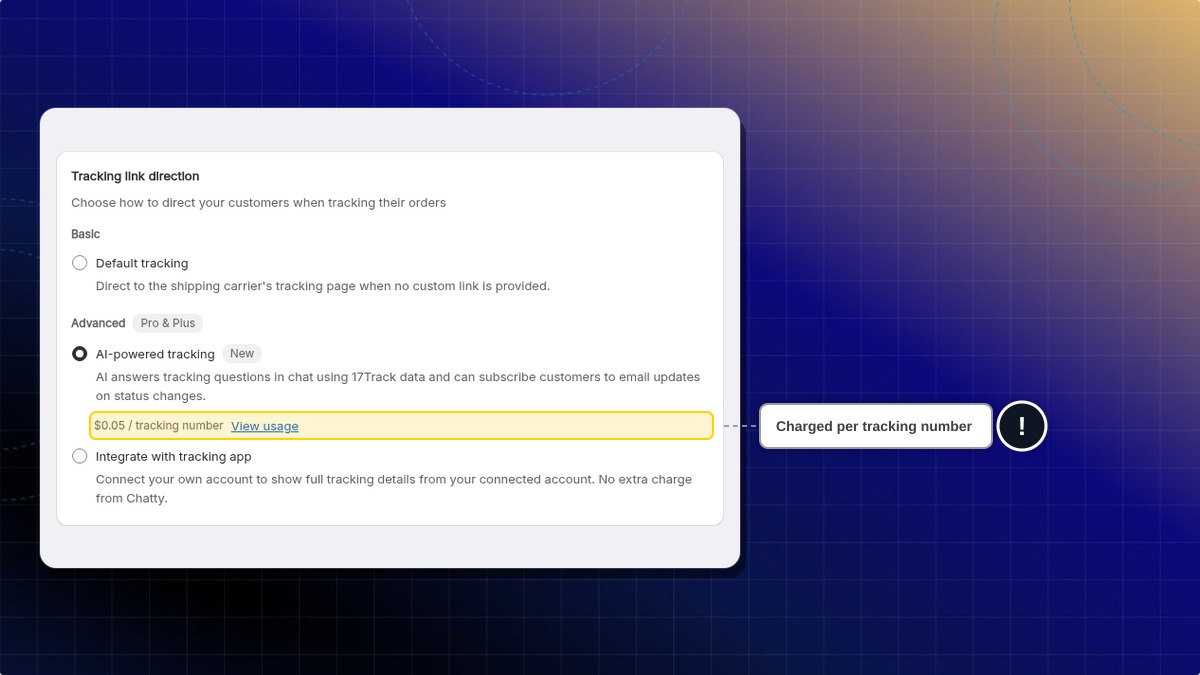
Expected result: When a customer asks about an order, the AI agent replies with the latest carrier status. If the shipment is not delivered yet and the AI agent knows the customer's email, it offers to send status updates by email.
AI-powered tracking stays off until you select it. Default tracking stays free.
How am I charged for AI-powered tracking?
Chatty charges $0.05 for each new tracking number the AI agent looks up through 17Track. There is no free quota.
Each number is charged once for your store. Customers can ask about the same number again, or sign up for its email updates, at no extra cost.
The charge goes on your Shopify bill at the end of your billing cycle. If your usage reaches $10 before then, Chatty charges it right away. On a yearly plan, Chatty records the amount as a pending charge and emails you about it.
When is a tracking number not charged?
- Shopify already has carrier updates for that shipment. The AI agent uses those updates and skips 17Track.
- You ask about the order in a Test AI chat.
- The customer uses the Order tracking block in the chatbox instead of asking the AI agent.
Can customers run up my bill by typing random tracking numbers?
Chatty limits this. When a customer gives only a tracking number, not their order details, Chatty looks up at most 3 new numbers per conversation and 20 new numbers per hour for your store. Above that, the AI agent sends a 17Track link instead of looking the number up.
What happens if I move to the Free or Basic plan?
Chatty switches your tracking method back to Default tracking.
How customers track an order
On your website
- Open the chatbox.
- Click Order tracking.
- Enter an order number or a tracking number.
- Click Track.
- With an order number, add an email or phone number.
- With a tracking number, add the tracking number.
Expected result: The chatbox shows the shipment status for that order.
In conversation with AI
- Ask about your order in the chatbox.
- Give the AI the order number, tracking number, email or phone number it asks for.
Expected result: The AI replies with the current shipment status.
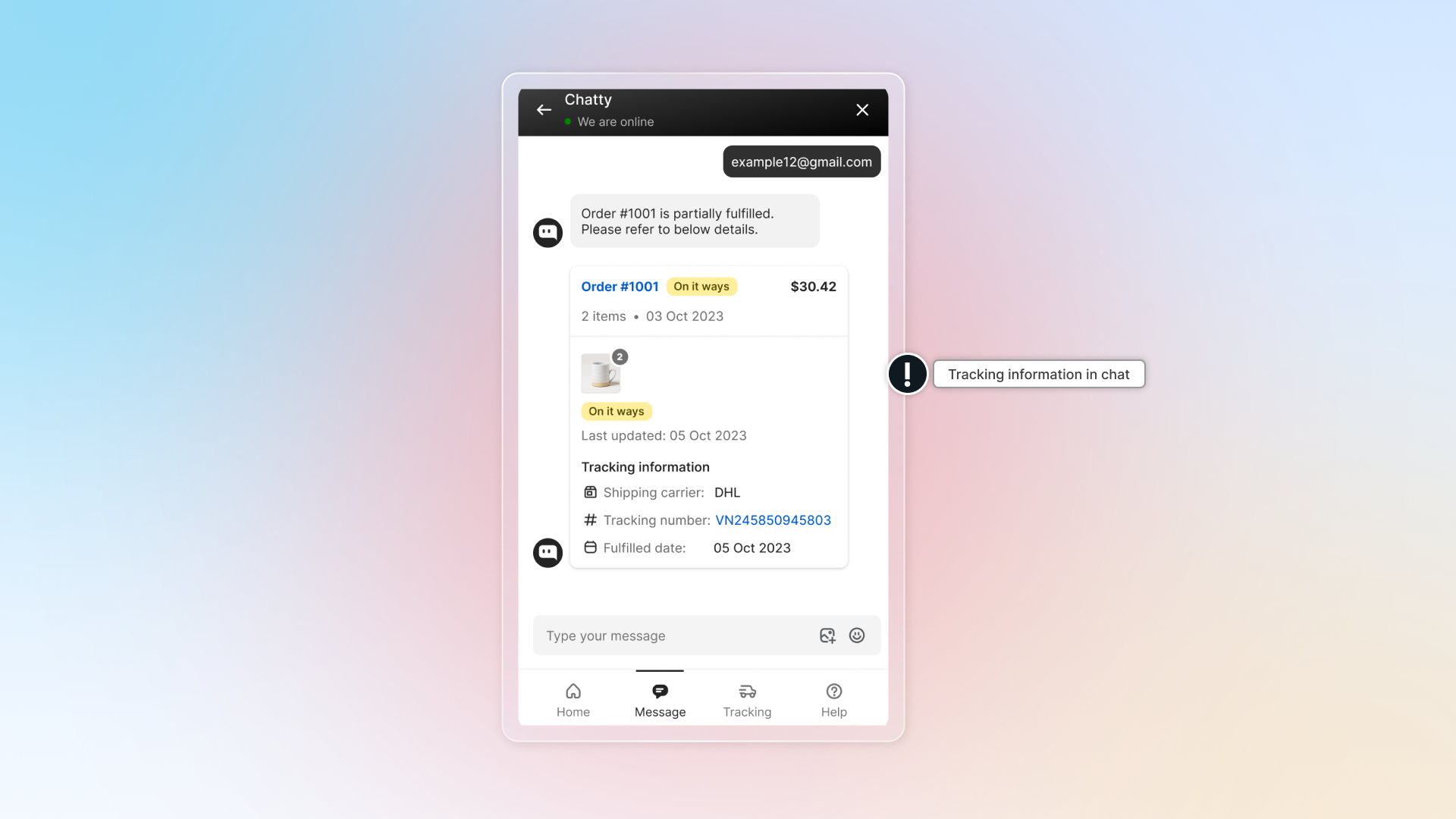
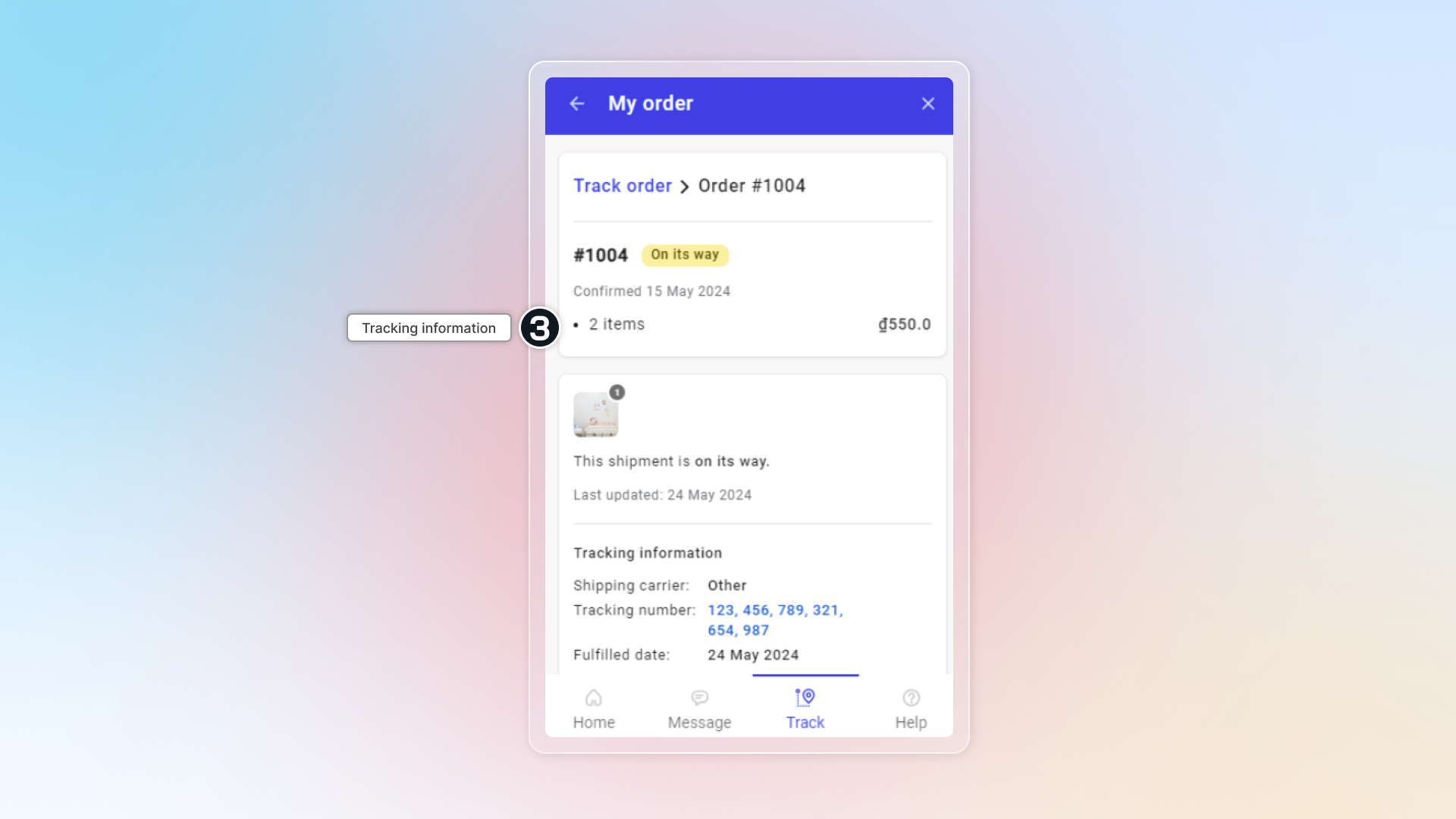
What customers see in tracking information
General order information
- Order number
- Order status (varies by product type)
- Digital orders: Confirmed or Completed
- Physical orders: Confirmed, On its way, or Delivered
- Confirmation date
- Total items
- Total amount
Tracking information
- Product images and quantities
- Shipment status and update date
- For shipped orders: Confirmed → On its way/Attempted delivery → Delivered
- For digital orders: Confirmed → Completed
- Tracking details (for fulfilled/partially fulfilled items):
- Shipping carrier (shows "N/A" if not available)
- Tracking number (shows "N/A" if not available)
- Fulfillment date
What does it mean to fulfill an order?
To fulfill an order means to complete the process of preparing and delivering the items that a customer has purchased. This typically involves several steps:
- Picking and Packaging: Selecting the items from your inventory and packaging them for shipment.
- Labeling: Creating and attaching shipping labels to the packages.
- Shipping: Sending the packages to the customer using a shipping carrier.
In Shopify, you can fulfill orders manually or automatically, depending on your settings. Once an order is fulfilled, its status changes to "Fulfilled" in your Shopify admin.
Why is my order status not updating correctly on the carrier's website?
- For Shopify-supported carriers1: Full tracking details update automatically in real-time
- For non-supported carriers: Only basic status updates show (Confirmed, On its way, Delivered)
Check if your carrier is supported by Shopify (opens in a new tab). If not, add a Custom tracking link under Default tracking to link directly to your carrier's tracking page.
Footnotes
-
Shipping carriers that integrate with Shopify ↩
 Chatty Help Center