Product quiz
Who can use this feature?
- This feature is available for Pro & Plus plan users.
What is Product Quiz
Product Quiz lets your AI assistant ask shoppers a few short questions, then recommend products from your catalog based on their answers. This helps shoppers who are unsure what to buy find the right product faster.
The quiz runs in two ways. Your AI can start it on its own when it detects shopping intent, or you can show it proactively as a teaser that greets visitors on your storefront.
The quiz is off by default. You turn it on and choose how it runs. Every setting on this page is saved together from the save bar at the top, and nothing is kept until you click Save.
How to turn on Product Quiz
- Go to AI agent → Skills.
- Under Shopping, find Product quiz and turn on its toggle.
- Click the settings icon (gear) on the same row to open its settings.
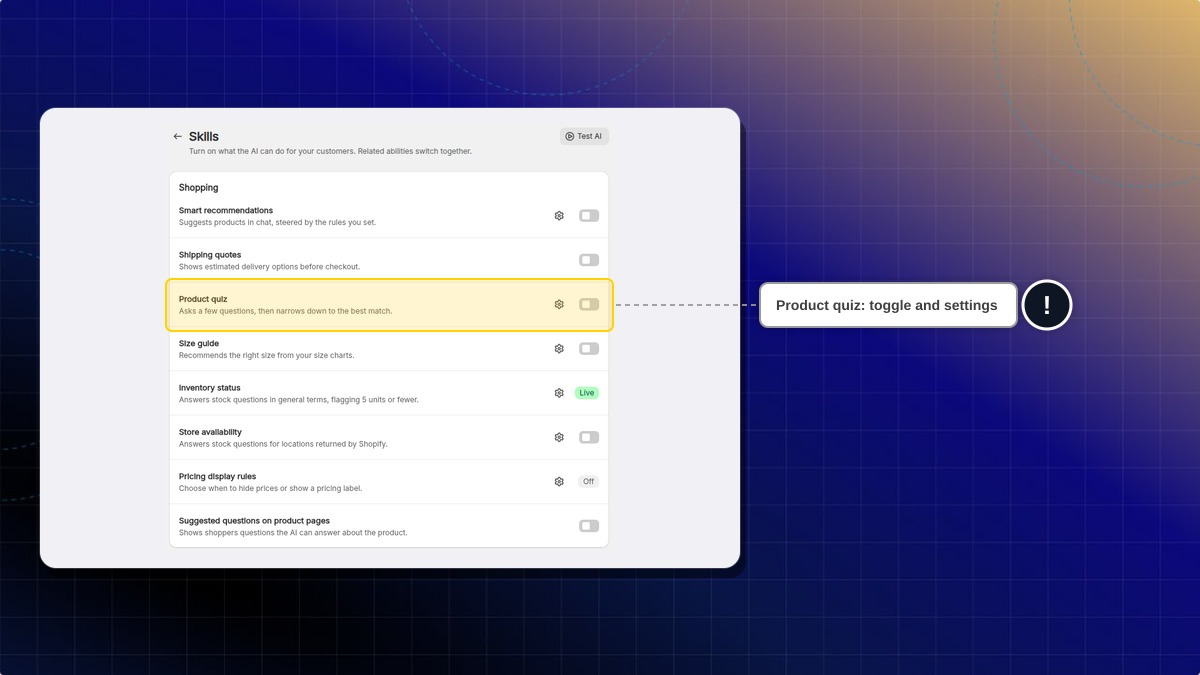
Expected result: The quiz is active. Your AI can now start it when it detects shopping intent.
How to set which products the quiz covers
Collection scope controls which products the quiz can recommend.
- In Collection scope, choose All collections or Specific collections.
- If you choose Specific collections, click Browse collections.
- Tick the collections the quiz should draw from, then click Add.
- Click Save in the top bar.
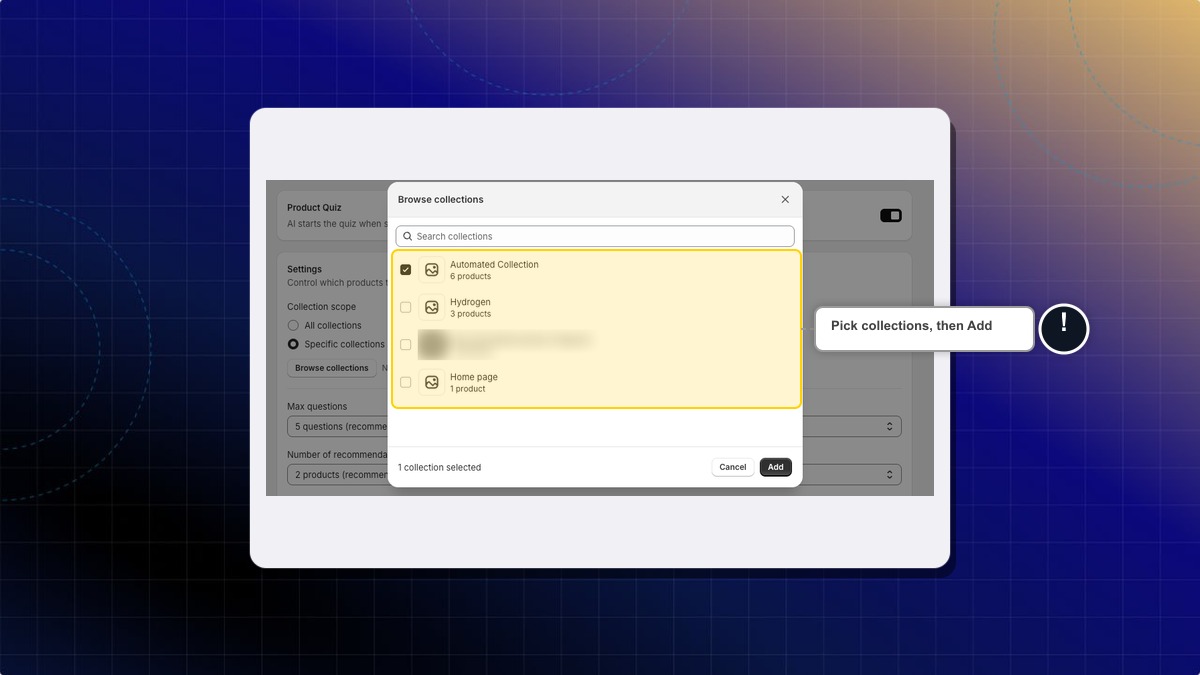
Expected result: The quiz only recommends products from the collections you selected.
How to set the quiz length and recommendations
- In Max questions, choose 3 questions, 5 questions (recommended), or 7 questions.
- In Number of recommendations, choose 1 product, 2 products (recommended), or 3 products.
- Click Save in the top bar.
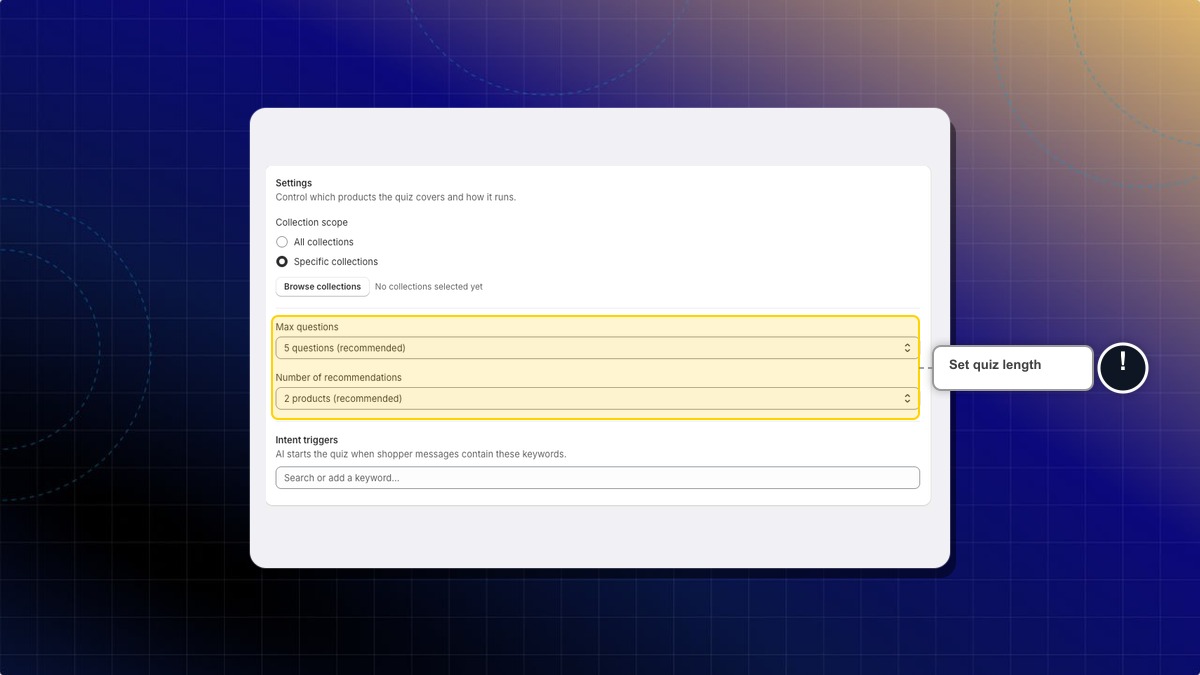
Expected result: The AI asks up to the number of questions you set, then recommends that many products.
How to choose when the quiz starts
Intent triggers are keywords that tell your AI when a shopper is looking for a product, so it knows when to offer the quiz.
- In the Intent triggers field, type a keyword, for example
recommend,i'm looking for,help me choose,gift, orunder $800. - Select a suggested phrase, or type your own keyword and add it.
- Remove a keyword by clicking the x on its tag.
- Click Save in the top bar.
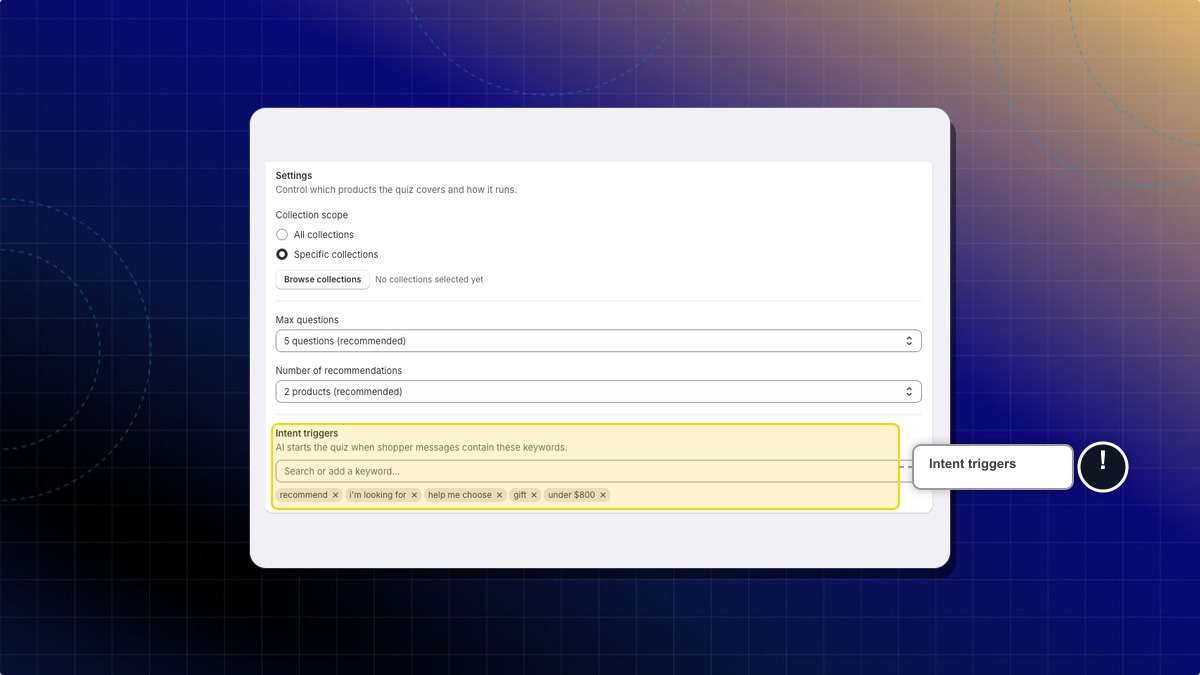
Expected result: When a shopper's message matches one of these triggers, the AI offers the quiz.
How to show the quiz proactively
Instead of waiting for shopping intent, you can invite visitors to take the quiz with a teaser popup on your storefront.
The quiz is not a proactive chat of its own. It is a message type you pick inside a proactive chat you already run, so the teaser inherits that chat's audience, pages, and timing.
-
Go to Proactive chat. You can also click Go to Proactive chat from the Product Quiz page.
-
Create a proactive chat, or open an existing one and click Edit.
-
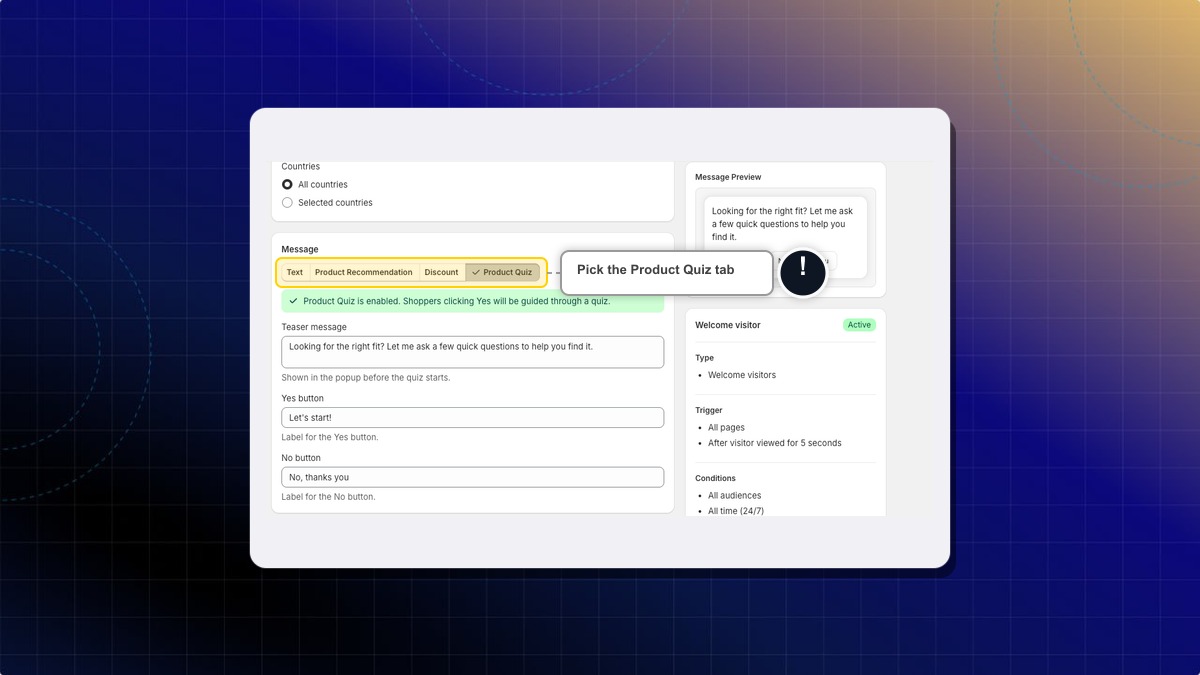
In the Message section, choose the Product Quiz tab.
-
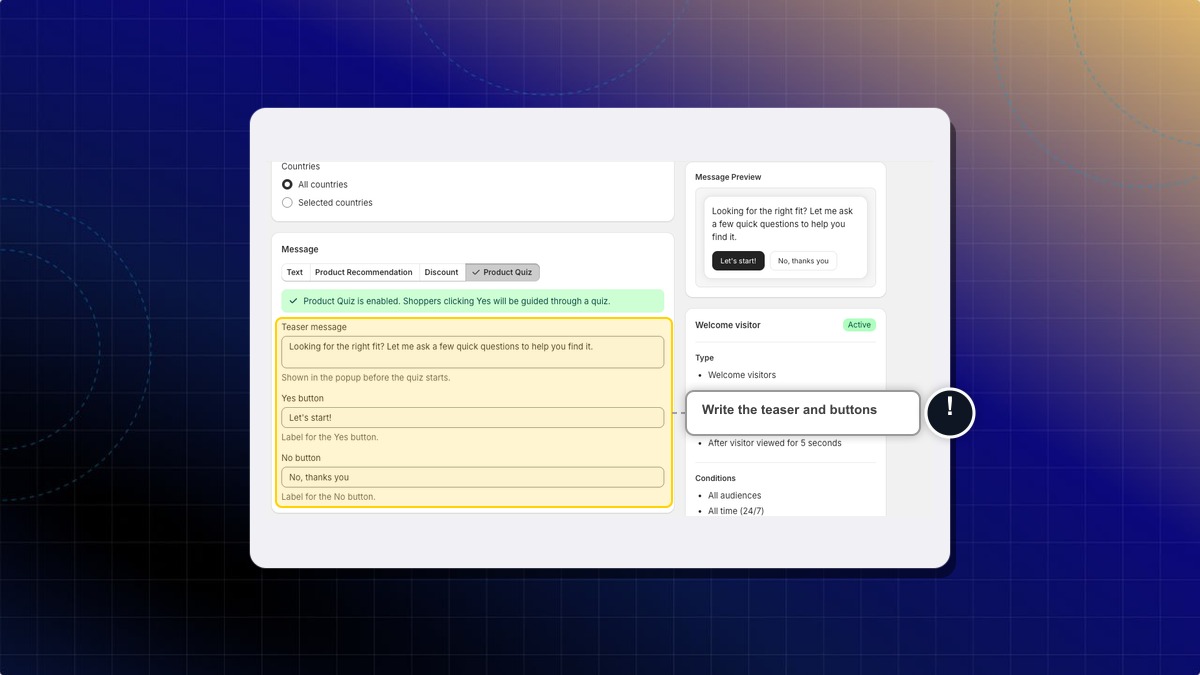
Write the Teaser message, the Yes button label, and the No button label. Watch Message Preview on the right to see the popup as you type.
-
Set when and where the teaser shows, then save the proactive chat.
Expected result: A green bar confirms "Product Quiz is enabled. Shoppers clicking Yes will be guided through a quiz." Matching visitors see your teaser, and clicking the Yes button starts the quiz in chat.
What happens if a shopper dismisses the quiz teaser?
The teaser closes and no quiz starts. The shopper can still chat as usual, and your AI can offer the quiz later if their message matches an intent trigger.
Do I need to add products for the quiz to work?
No. The quiz recommends from products already synced to your catalog. Use Collection scope to narrow which products it can suggest.
 Chatty Help Center