Team member
Who can use this feature?
- This feature is available on paid plans (Basic and above)
- This guide is for team members who are invited to Chatty support team
As a team member invited to Chatty, you’ll collaborate with your team to manage conversations efficiently.
Go to Web app to log in: https://app.chatty.net/ (opens in a new tab)
Team member permissions
Chatty allows multiple team members to collaborate to manage conversations. By default, each team member can:
- Respond to conversations from all channels (Live chat, Email, Facebook messenger, etc.)
- Access conversation histories and customer's profile
- Leave note
- Resolve, mark as unread and block conversations
- Assign conversations
- Set up notifications and update profile
Admins can change what each team member can view or edit in Permissions. Team members cannot delete conversations until an admin gives them the Delete conversations permission.
How to let a team member delete conversations
Only an admin can do this. Admins can always delete conversations.
- Go to Settings → Team.
- Click the team member's row.
- In the Permissions card, click Inbox.
- In the Delete conversations row, select Edit.
- Click Save.
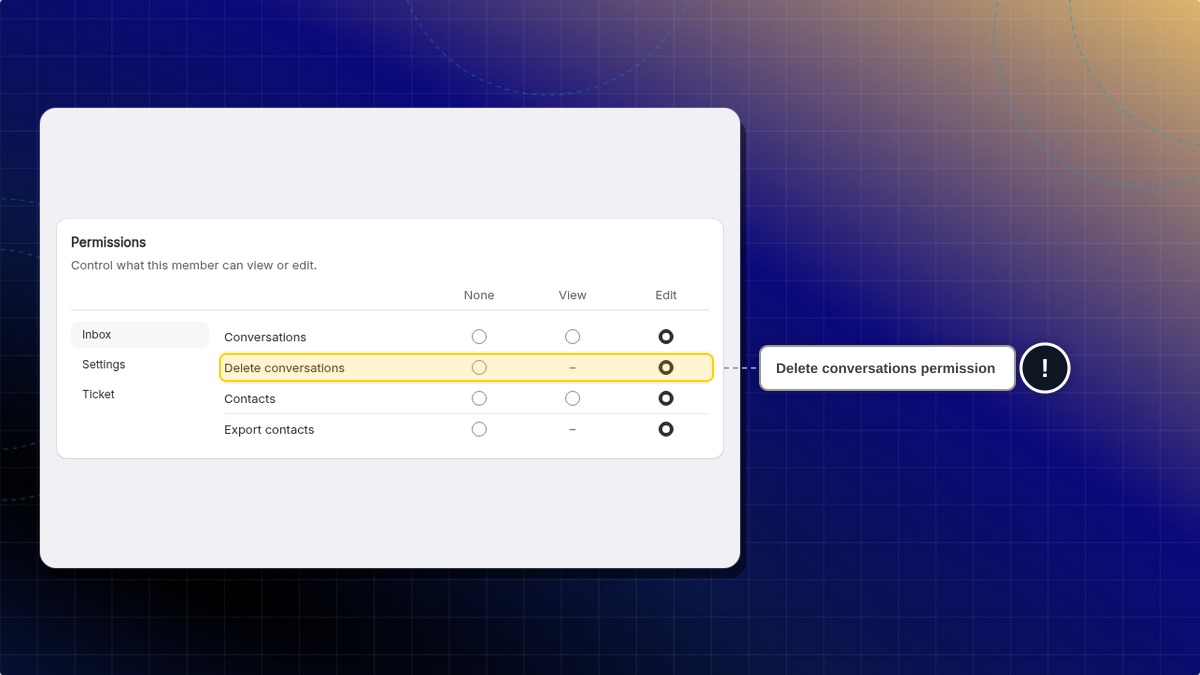
Expected result: The team member sees Delete in the Inbox. They can delete one conversation at a time or several at once with bulk actions.
To take the permission away, select None in the same row and click Save.
A deleted conversation cannot be restored.
Getting started as a team member
Accept invitation
Go to your email and check invitation email from Chatty.
Click Create account in email.
Create account
Create password for your email to create account to log in Chatty.
Onced logged in, go to Settings to edit your name and profile picture.
Understand app interface
Your main app interface will be the Inbox.
You have access to a list of conversations and your account settings.
Set up notifications
You can set up notifications for messages to help you take care of all messages.
Go to Settings and set up your notifications on your devices.
Learn more about Notifications.
Set online/offline status
Chatty shows you as online whenever you have Chatty open, in the web app or inside Shopify admin. Turn on Away mode when Chatty is open but you are not answering chats, for example during a meeting.
The Away mode toggle is only in the Chatty web app. Chatty inside Shopify admin has no toggle, so open the web app to turn it on or off. Away mode then applies wherever you have Chatty open.
- Click your avatar in the top right.
- Turn on Away mode.
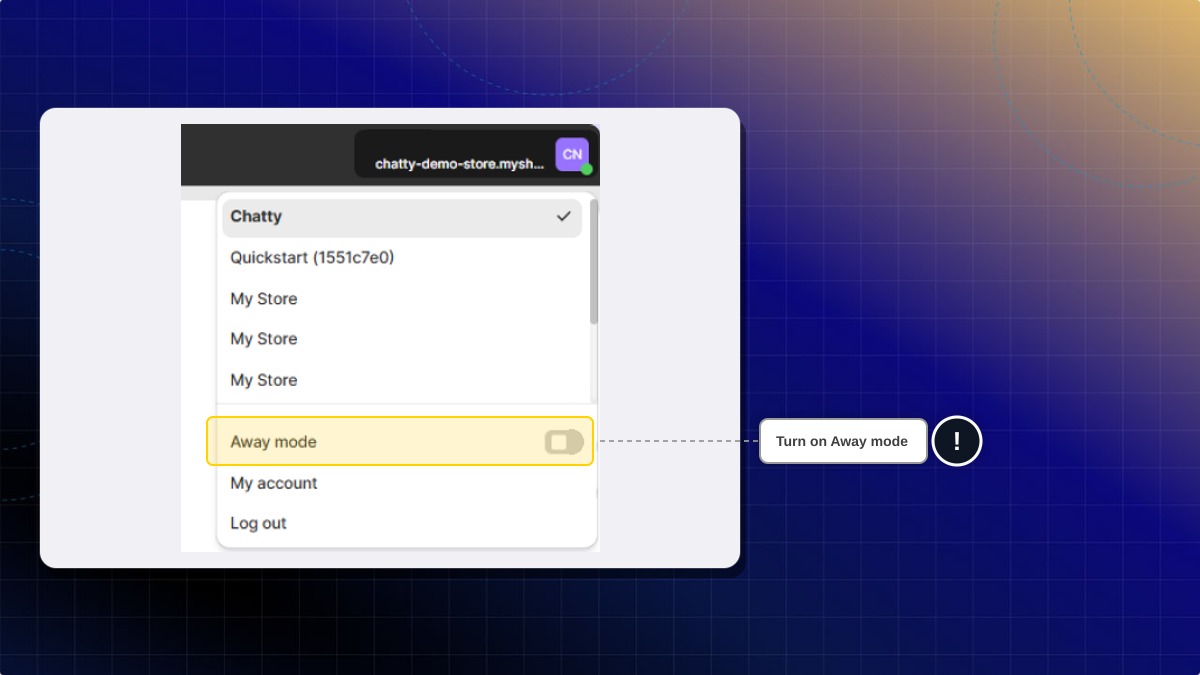
Expected result: The green dot disappears from your avatar. Your teammates no longer see you as online.
Away mode stays on until you turn it off. It applies on every device and browser tab where you are logged in.
Will new conversations still be assigned to me?
It depends on your inbox assignment settings. If your store assigns new chats only to online members, team members in Away mode stop getting new chats. Admins can still get new chats while away.
Conversations already assigned to you stay with you.
Is Away mode the same as logging out?
No. You keep full access to the inbox and can still reply.
Do I still get notifications while I am away?
Yes. Away mode does not turn off notifications. You still get push and email alerts for conversations assigned to you.
What do my teammates see?
A green dot next to your avatar when you are available. The dot disappears while you are away. Chatty shows no status text.
Do customers see a change when every agent is away?
It depends on Show online status in Online hours.
- During working hours: nothing changes for customers.
- During working hours, or when any agent is online: the chatbox shows offline outside working hours.
- Only when an agent is online during working hours: the chatbox shows offline during working hours too.
The status takes up to about 90 seconds to update.
Switch between multiple stores
In the Chatty web app, click your avatar in the top right. The menu lists every store where your email is a team member, with a check next to the store you are on. Click a store to switch to it, and Chatty opens that store's Inbox.
This menu is only in the web app. Chatty inside Shopify admin opens one store at a time.
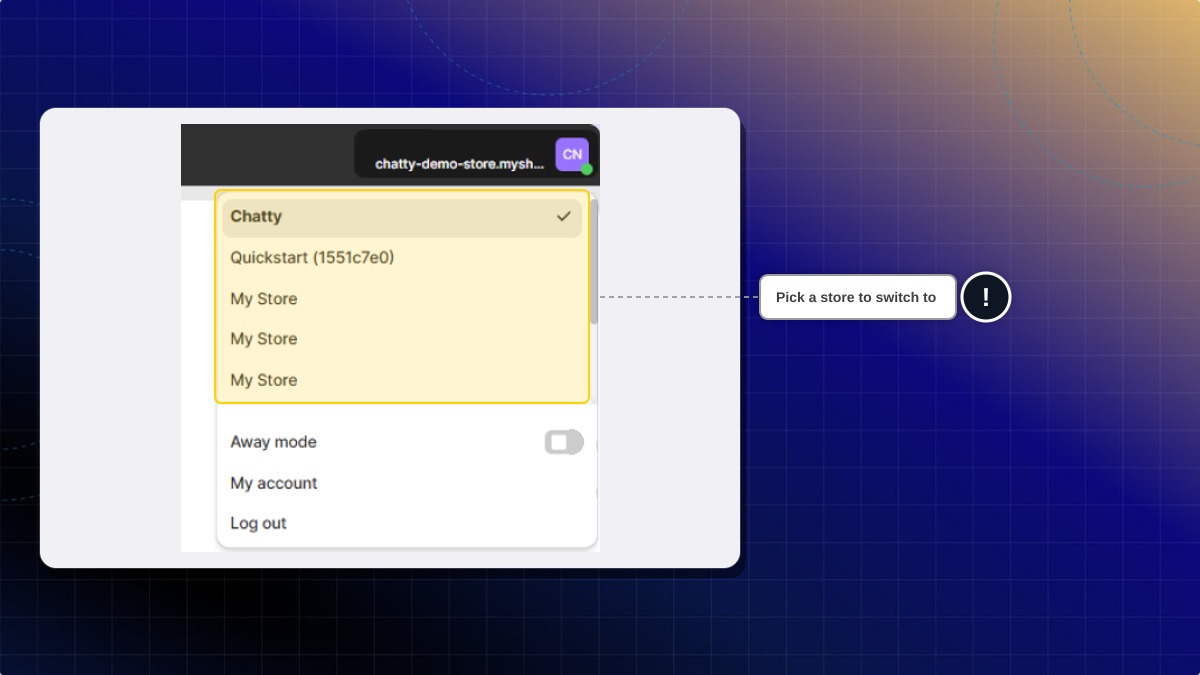
To read conversations from several stores without switching, see Unified Inbox (Plus plan).
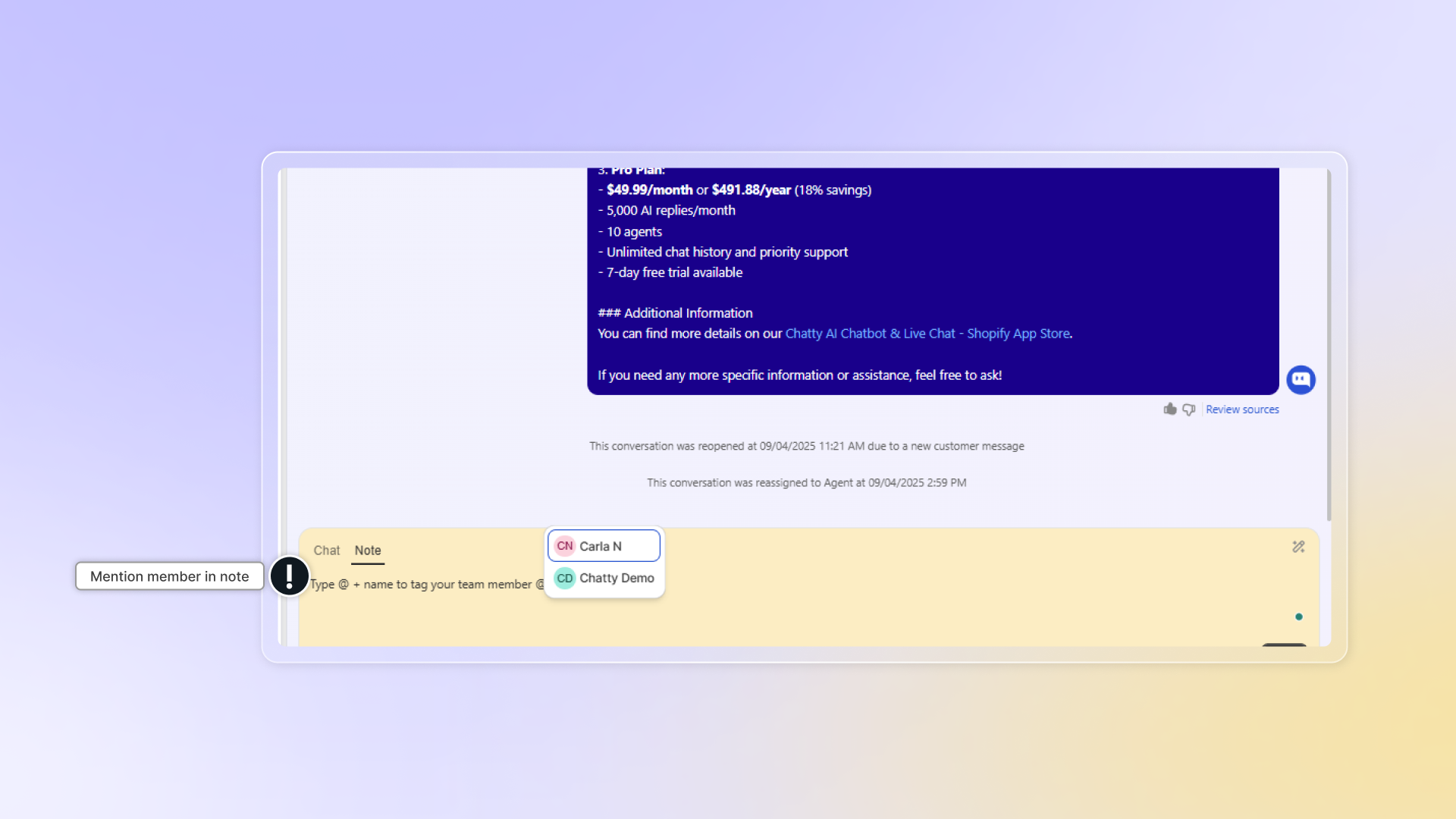
Mention team member in conversation
You and your team can leave private comments within conversations by Internal note.
 Chatty Help Center